

The status notification control element is used to display and, if required, manage the job of the same name.
CONTROL L support
This element can also be used for CONTROL L.
Specific parameters
In addition to the objects and functions that are the same for all visualisation elements, the status notification features the following parameters:
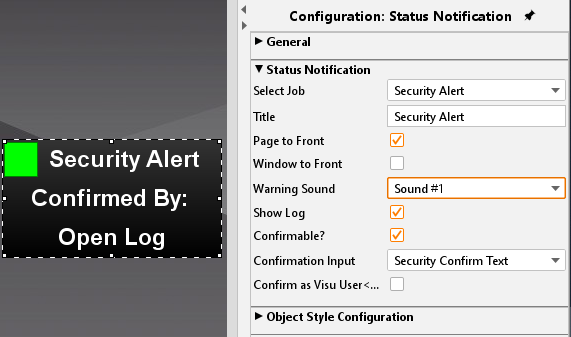
Objects
This element does not have its own objects but retrieves its object information from an associated job element.
Functions
Job status indicator
Select the job element that is to be visualised under "Job status indicator". All status indicators created in the device are listed in the selection box.
Identifier
The "identifier" is shown in the upper section of the element in the visualisation.
Place page in the foreground
If this option is enabled, the visualisation page with this element is automatically placed in the foreground (of the visualisation) when a fault is detected.
Window in the foreground
(This is only possible in the Java-based visualisation). If this option is enabled, the browser will automatically cause the browser window containing the visualisation to be shown in the foreground (on top of other active programs) when a fault is detected.
Different audible signals for fault detection are available in the "Warning tone" selection box. In addition, this item can be used to switch off the output of audible signals.
Display log
If the option field "Display log" is disabled, the item "Open log" will not be shown in the visualisation element and cannot be displayed (using this element). Otherwise, the text will be displayed and the user can view the most recent status changes by clicking on the text. For this purpose, a new page or a new tab will be shown in the browser configured by the operating system if required. The element stores up to 100 log entries.
Acknowledgement possible
The option "Acknowledgement possible" can be used to define whether users are to be able to acknowledge faults by clicking on the coloured status indication in the left upper corner of the element.
Acknowledgement input
If acknowledgements are enabled within the visualisation as described above, the acknowledgement input which is set here will be used for acknowledging a fault. For this to be possible, at least one acknowledgement input must be enabled in the job status indicator. (That means at least one group address and one text must be entered in one input.) This item offers all enabled inputs for selection.
Acknowledgement with usernames
If this option is enabled, not the text entered in the acknowledgement input, but the name of the logged-on visualisation user is used as acknowledgement text.
Object style configuration
All other options are described in chapter General Element Parameter.
Colour coding
The status indicator can assume four statuses which are reflected by the following colour indications:
-
OK = GREEN
-
Fault = RED
-
Acknowledged = YELLOW
-
Fault gone unacknowledged = BLUE