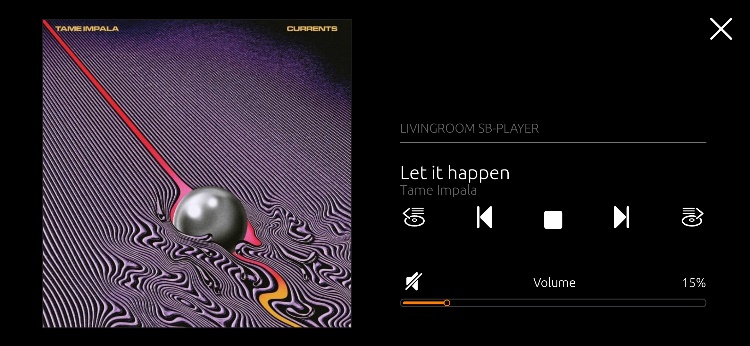
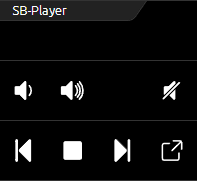
The operation and control of multimedia devices in the CUBEVISION visualization is done via the multimedia control element.
Due to the range of functions of these devices, there is a compact (ICP, ECP) and an extended view (EEV). The views in the ICP and ECP contain the functions “Volume louder/quieter”, “Mute”, “Playlist forward/back” and “Play/Pause”. The first line displays music information. See figure on the right.
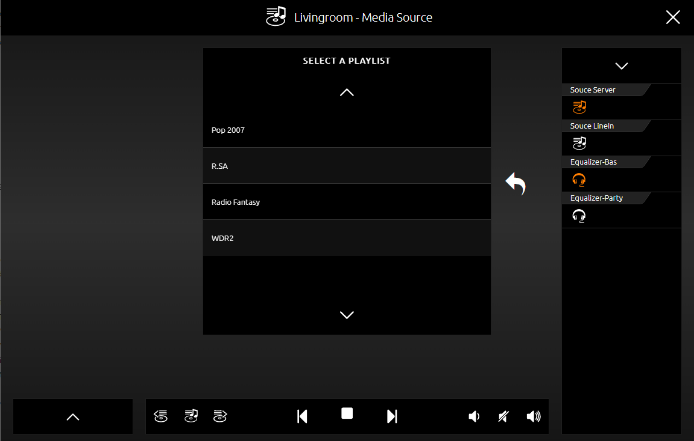
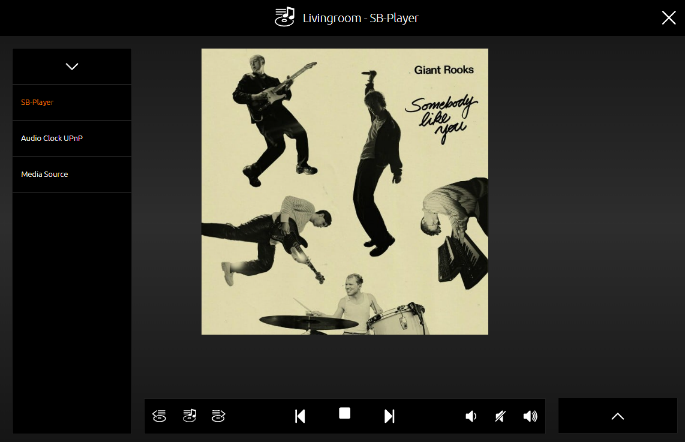
If the EEV is opened for this control element, a cover and a dynamic playlist selection are also displayed. The playlist appears with a mouse click on the cover. Squeezebox Player, AUDIOMODULE ("Squeezebox Controller") and the SONOS system are supported as multimedia clients. As soon as these devices are available in the network, they can be selected for linking in the configuration.
In case another multimedia client is to be used, there is also the possibility of a manual configuration. In this case, a separate field for a group address is displayed for each multimedia function (pause/play, louder/quieter, ...). In this way, it is also possible to control multimedia devices that have been integrated into the KNX via your CUBEVISIONMODULE X with the Smart Home Apps, for example.
In addition to the control options, the multimedia control element also displays information. This includes the artist, album, title and the cover (as far as the music information is available).
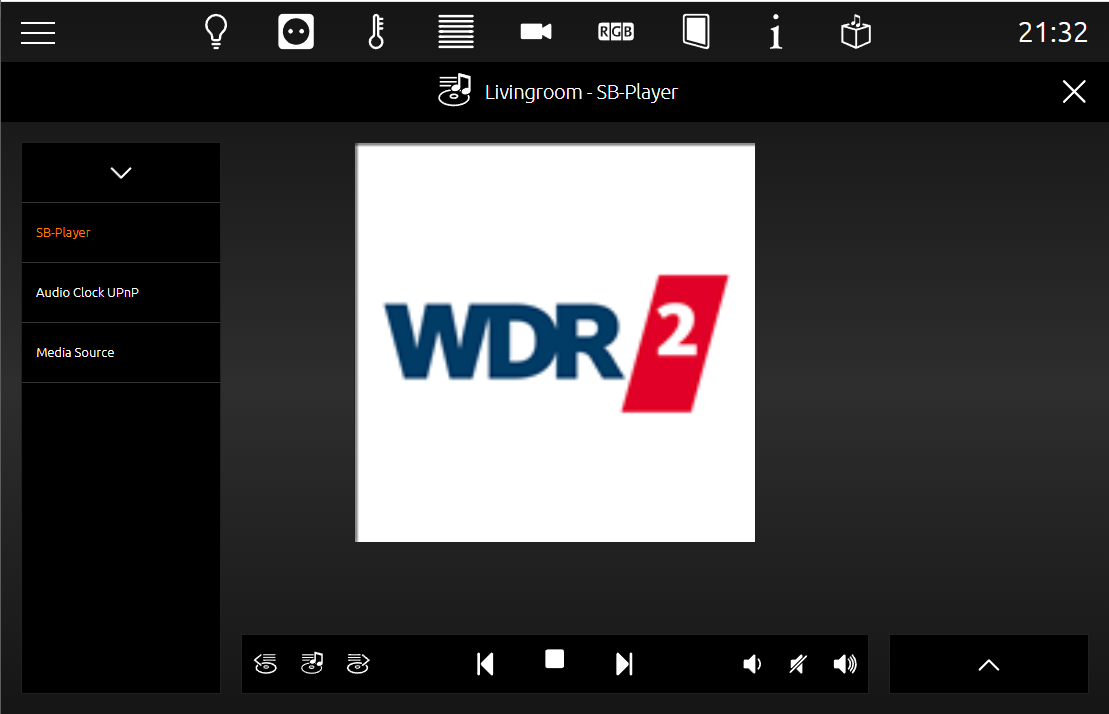
Clicking on the cover display opens the playlist menu. This is closed again with another click next to the cover.
The following is a description of the configuration fields for the multimedia control element. After labelling the multimedia device, the system is selected. Accordingly, different configuration fields are displayed:
System: Which type of multimedia is to be controlled. The following are available for selection:
-
Manual configuration
-
UPnP (Sonos) and
-
Squeezebox Controller
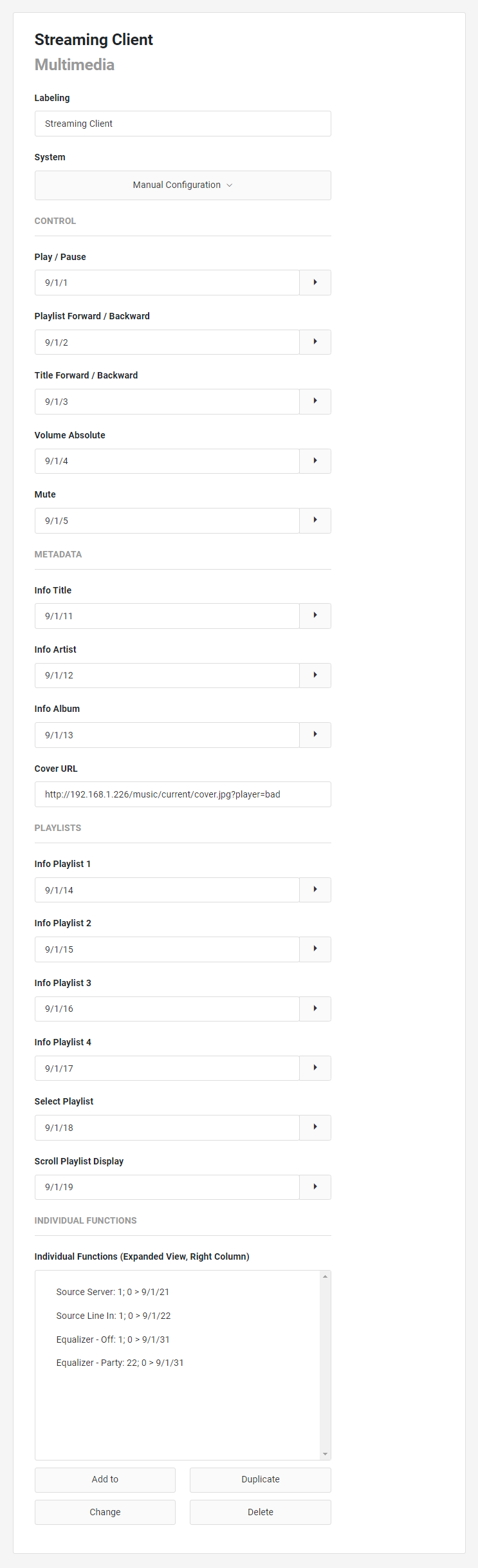
This control element has the following configuration fields (see figure on the left):
Labelling: The label is displayed in the title bar of the element.
System: The selection of the multimedia system used:
-
Manual configuration: For manual configuration, a separate group address can be stored for each function.
-
UPnP: UPnP clients (renderers) and Sonos devices can be assigned via this. However, they must first be parameterised in the UPnP configuration.
-
Squeezebox Controller: If a Squeezebox system is used, a corresponding Squeezebox Controller job can be selected with this option.
CONTROL
Control (Manual configuration)
Play / Pause: The group address for the Play/Pause function.
Playlist Forward / Back: The group address for the Playlist forward/back function.
Title Forward / Back: The group address for the Title forward / back function.
Volume Absolute: The absolute volume is set via this group address. DPT 5. 001 (0 to 100%; EIS 6)
Mute: The group address for the function "Mute".
METADATA
Info Title: A group address for the title information can be entered here (14-byte text).
Info Artist: A group address for the artist information can be entered here (14-byte text).
Info Album: A group address for the album innovation can be entered here (14-byte text).
Cover URL: If a source for a changing cover image is available, this URL can be entered here.
PLAYLISTS
Info Playlist 1: The group address for the 1st playlist name (14 bytes of text).
Info Playlist 2: The group address for the 2nd playlist name (14 bytes of text).
Info Playlist 3: The group address for the 3rd playlist name (14 bytes of text).
Info Playlist 4: The group address for the 4th playlist name (14 bytes of text).
Select Playlists: This group address is used to select the playlist (EIS 14).
Scroll Playlist Display: This group address is used to scroll the playlist display if there are more than 4 playlists (EIS 1 up/down).
INDIVIDUAL FUNCTIONS
Individual functions (extended view. Right column):
In the right column of the extended view, individually configured switching elements can be placed. In this way, for example, the source switching of an AUDIOMODULE KNX can be integrated into the visualisation element. (e.g. Source selection, Equalizer)
Add, Duplicate and Change opens a submenu for editing the individual functions.
Delete removes the entry.
Individual function: The identifier of this individual function.
Icon: Select a suitable icon for this function.
Group address: The control address for this function.
Data type: The data type with which the values are sent and received. Possible data types:
-
DPT 1.001 (on/off; EIS 1)
-
DPT 5.010 (0..255; EIS 14u)
Fixed value "ON": The value that is sent when the function is clicked.
Fixed value "OFF": The value that is sent when the function is clicked.
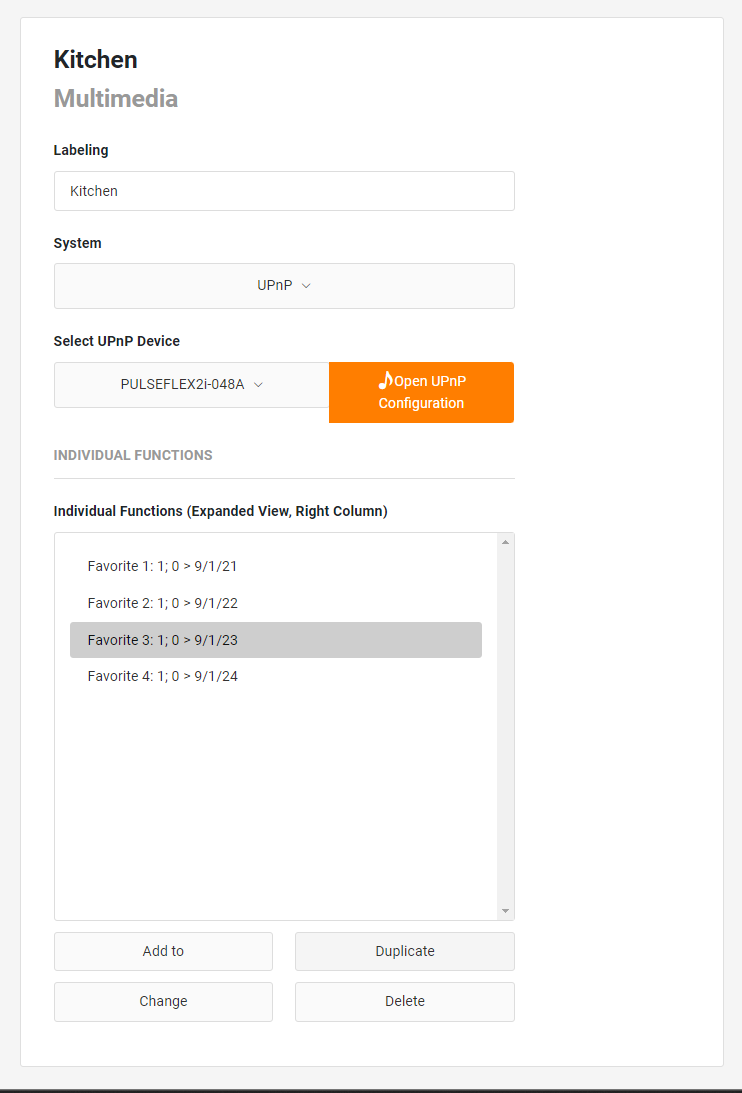
Control (UPnP)
Labelling: The labelling is displayed in the title line of the element.
System: Selected here = UPnP
Select UPnP device: Selection of the UPnP device. The UPnP configuration can be opened via Window => UPnP.
INDIVIDUAL FUNCTIONS
Individual functions (extended view. Right column):
In the right column of the extended view, individually configured switching elements can be placed. In this way, for example, the source switching of an AUDIOMODULE KNX can be integrated into the visualisation element.
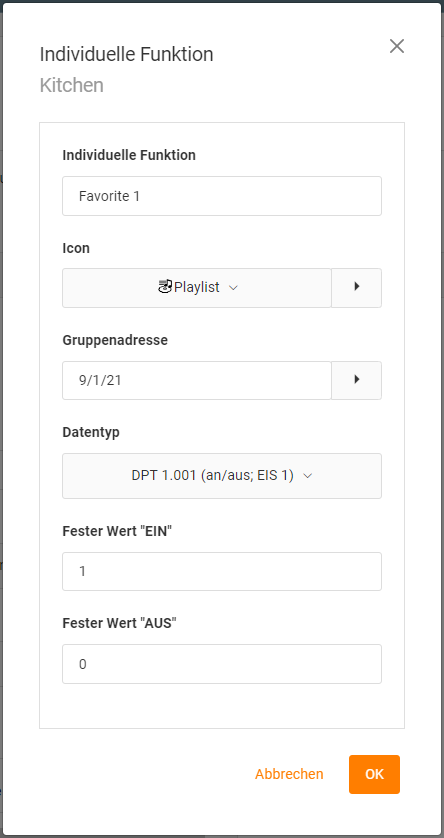
With Add, Duplicate and Change a submenu opens for editing the individual functions.
Delete remode the function.
Individual function: The identifier of this individual function.
Icon: Select a suitable icon for this function.
Group address: The control address for this function.
Data type: The data type with which the values are sent and received. Possible data types:
-
DPT 1.001 (on/off; EIS 1)
-
DPT 5.010 (0..255; EIS 14u)
Fixed value "ON": The value that is sent when the function is clicked.
Fixed value "OFF": The value that is sent when the function is clicked.
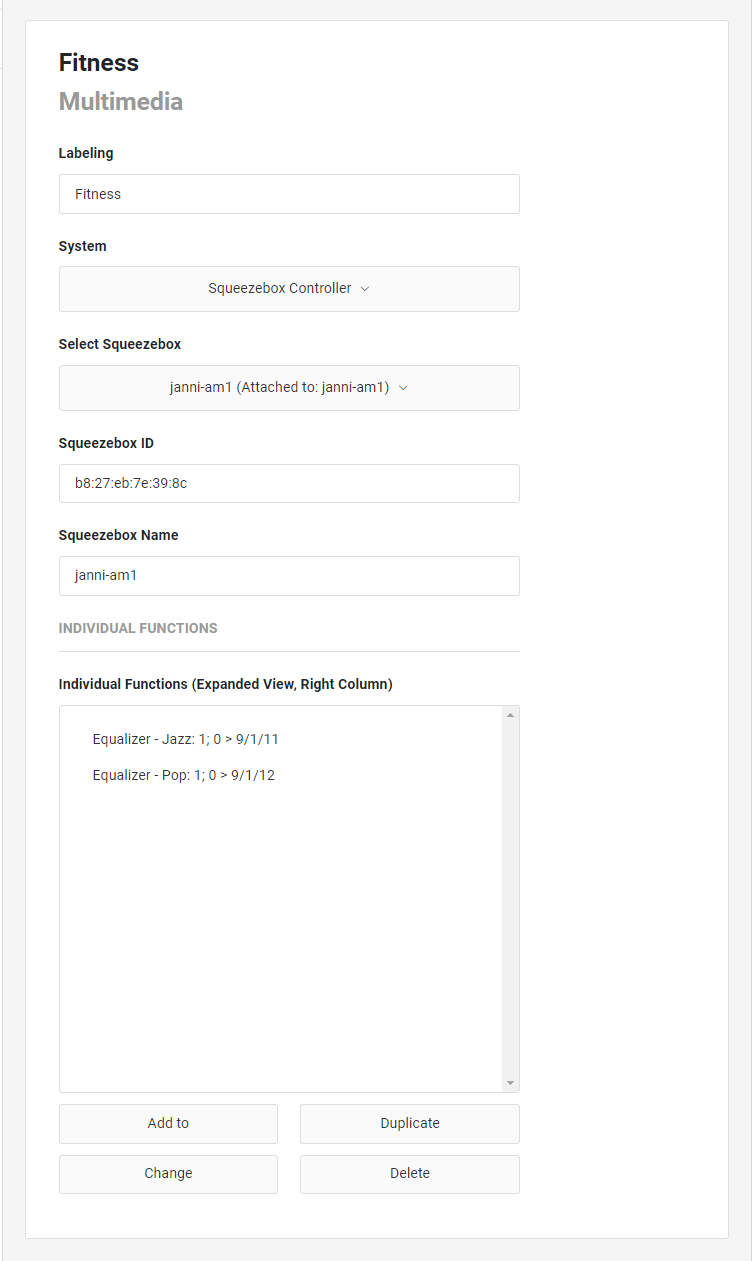
Control (Squeezebox Controller)
Labelling: The labelling appears in the title bar of the item.
System: Selected here = Squeezebox Controller
Select Squeezebox Controller: The Squeezebox /SB players available in the local network are displayed. Select the appropriate SB player.
Squeezebox ID: The Squeezebox ID is the MAC address of the Squeezebox.
Squeezebox Name: The Squeezebox name is assigned in the Logitech Media Server (LMS) and is used to identify the Squeezebox.
INDIVIDUAL FUNCTIONS
Individual functions (expanded view. Right column): Individually configured switching elements can be placed in the right column of the expanded view. This allows, for example, the source switching of an AUDIOMODULE KNX to be integrated into the visualization element.
Add, Duplicate and Change opens a submenu for editing the individual functions.
Delete remove the function.
Individual functions: The identifier of this individual function.
Icon: Select an appropriate icon for this function.
Group address: The control address for this function.
Data type: The data type with which the values are sent and received. Possible data types:
-
DPT 1.001 (on/off; EIS 1)
-
DPT 5.010 (0..255; EIS 14u)
Fixed value "ON": The value that is sent when the function is clicked.
Fixed value "OFF": The value that is sent when the functions clicked.
Multimedia Control in the Phone View
The extended view of the multimedia control element behaves differently in the phone view of the CUBEVISION than in the tablet view.
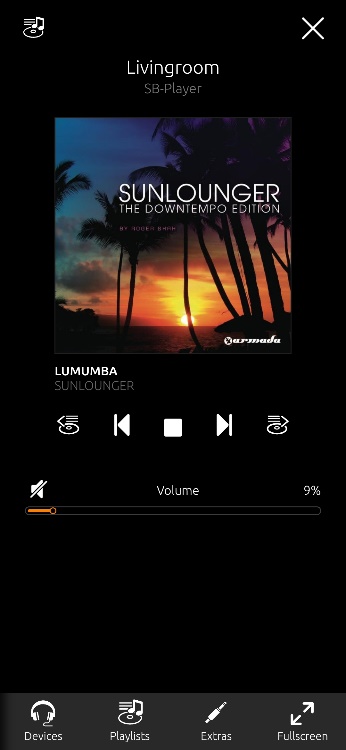
EEV view (main menu)
The first level of the Phone EEV view shows the cover art and the control elements "Playlist forward/back", "Track forward/back", "Play/Pause" including "Volume up/down", "Mute".
In addition, there is the Phone menu with:
-
"Device" selection,
-
Select button for "Playlist",
-
"Extras", the content here, only if special functions have been created,
-
"Fullscreen"
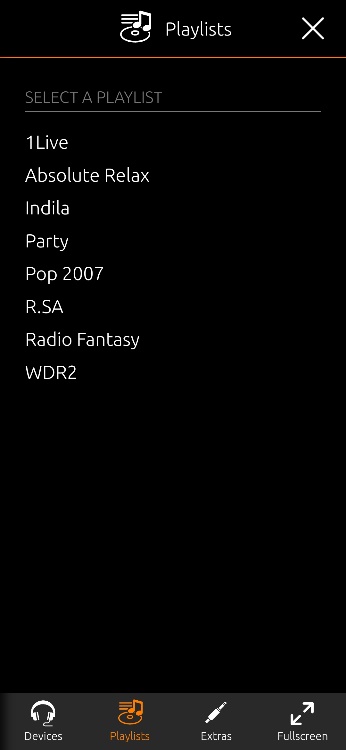
EEV View / Playlist
To change the playlist, press the corresponding menu key.
Playlist selection: With the help of the "Playlist" symbol, a playlist selection is called up. If a UPnP device is linked with the multimedia control element, the radio stations linked in the "UPnP configuration" can be selected here (see above or chapter "Extras"). If an AUDIOMODULE or a Squeezebox is linked, the playlists created in the Logitech Media Server are available here.