
You can install and manage apps under the menu item “App Manager”. In order to manage Smart Home App or to change functions/instances, just click on the corresponding Smart Home App.
You can find the functions of each Smart Home APP on the homepage of BAB APPMARKET (https://www.bab-appmarket.de/de/) or from the ToolTips of the corresponding application.
-
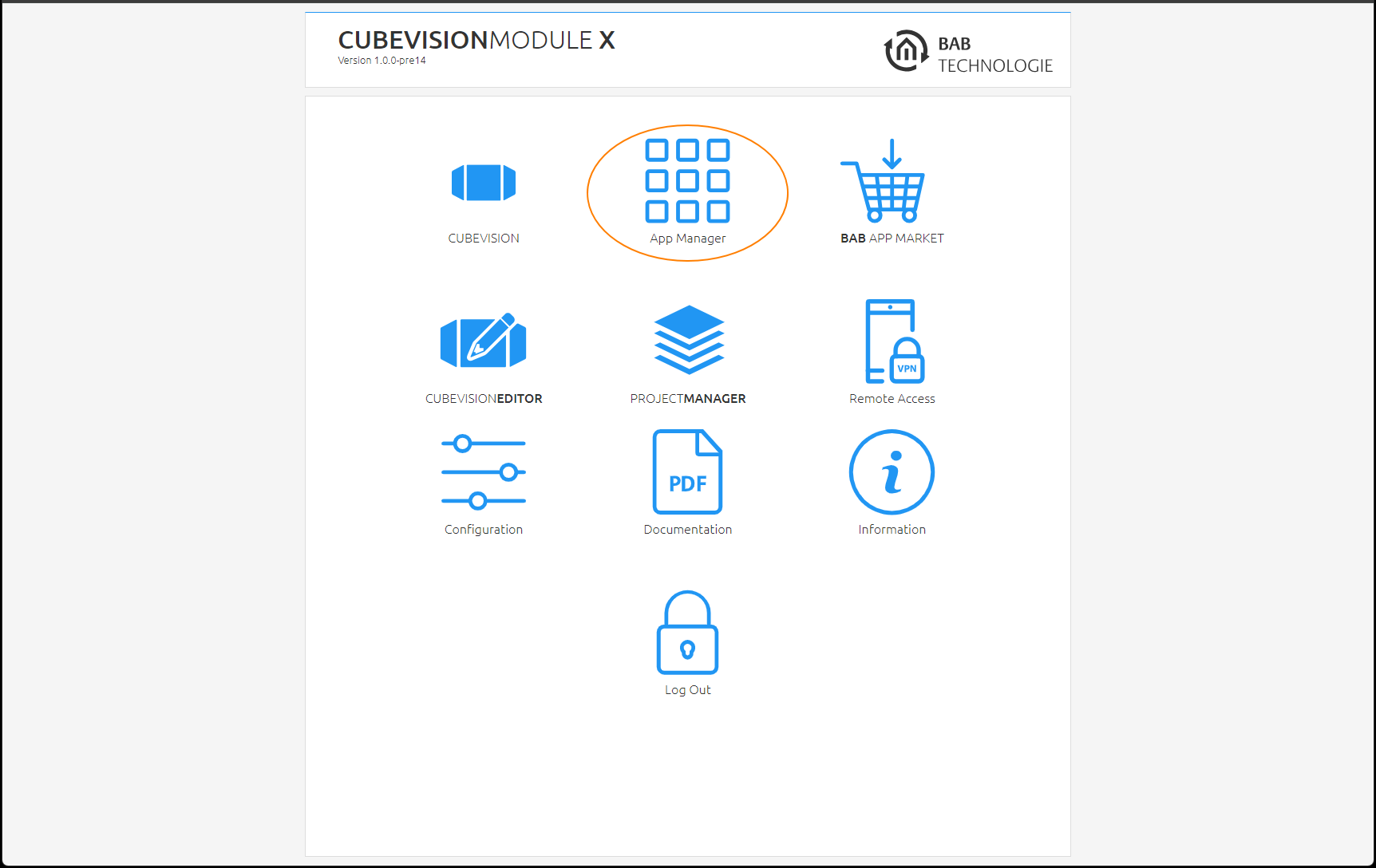
Please call up the web interface of your CUBEVISIONMODULE X:
-
Click on the menu item „App Manager“, here highlighted red.
-
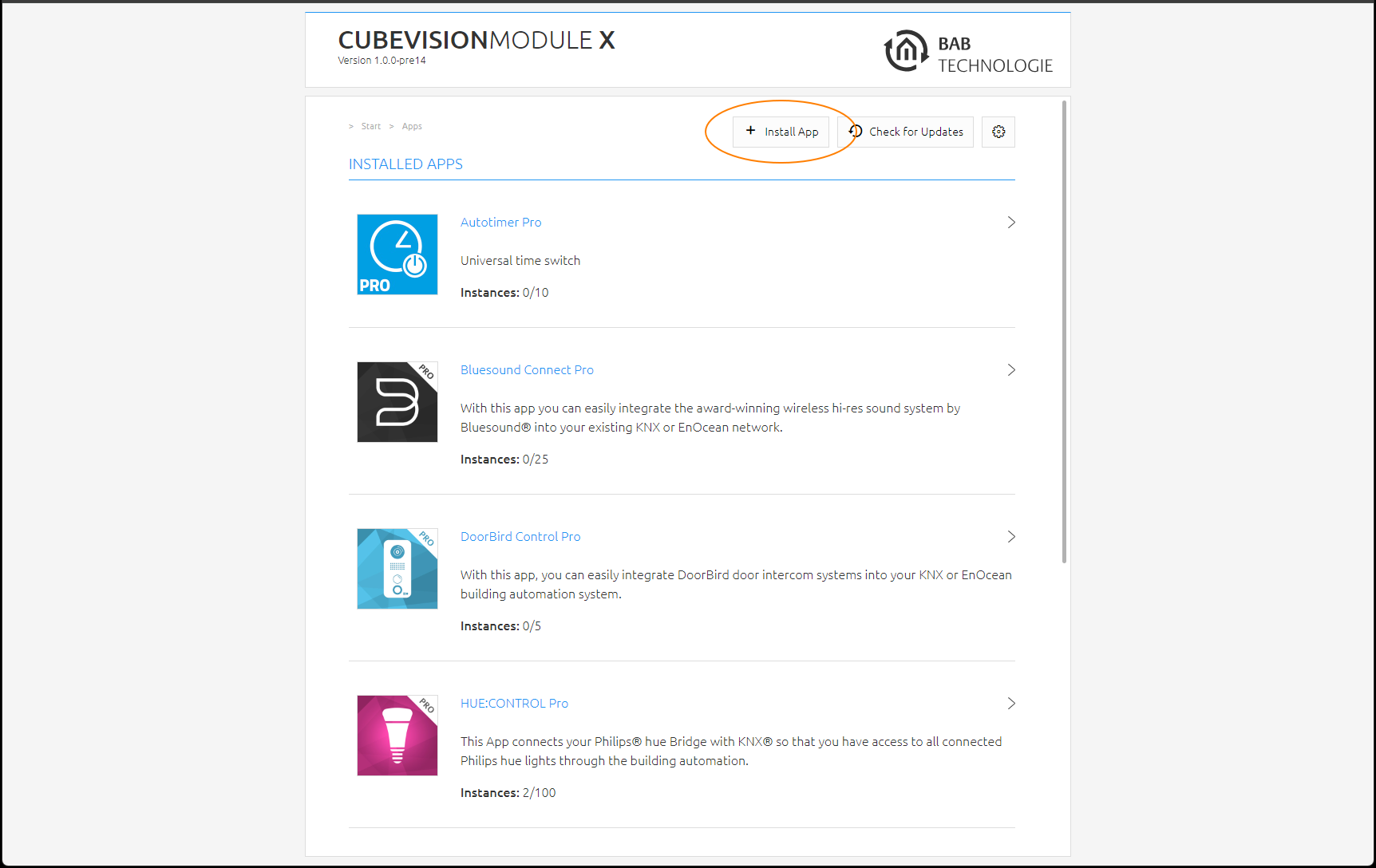
You have entered the menu, where a list of all on the device already installed Smart Home Apps are shown. In order to install another Smart Home App, click on " Install App". See figure below, highlighted red.
-
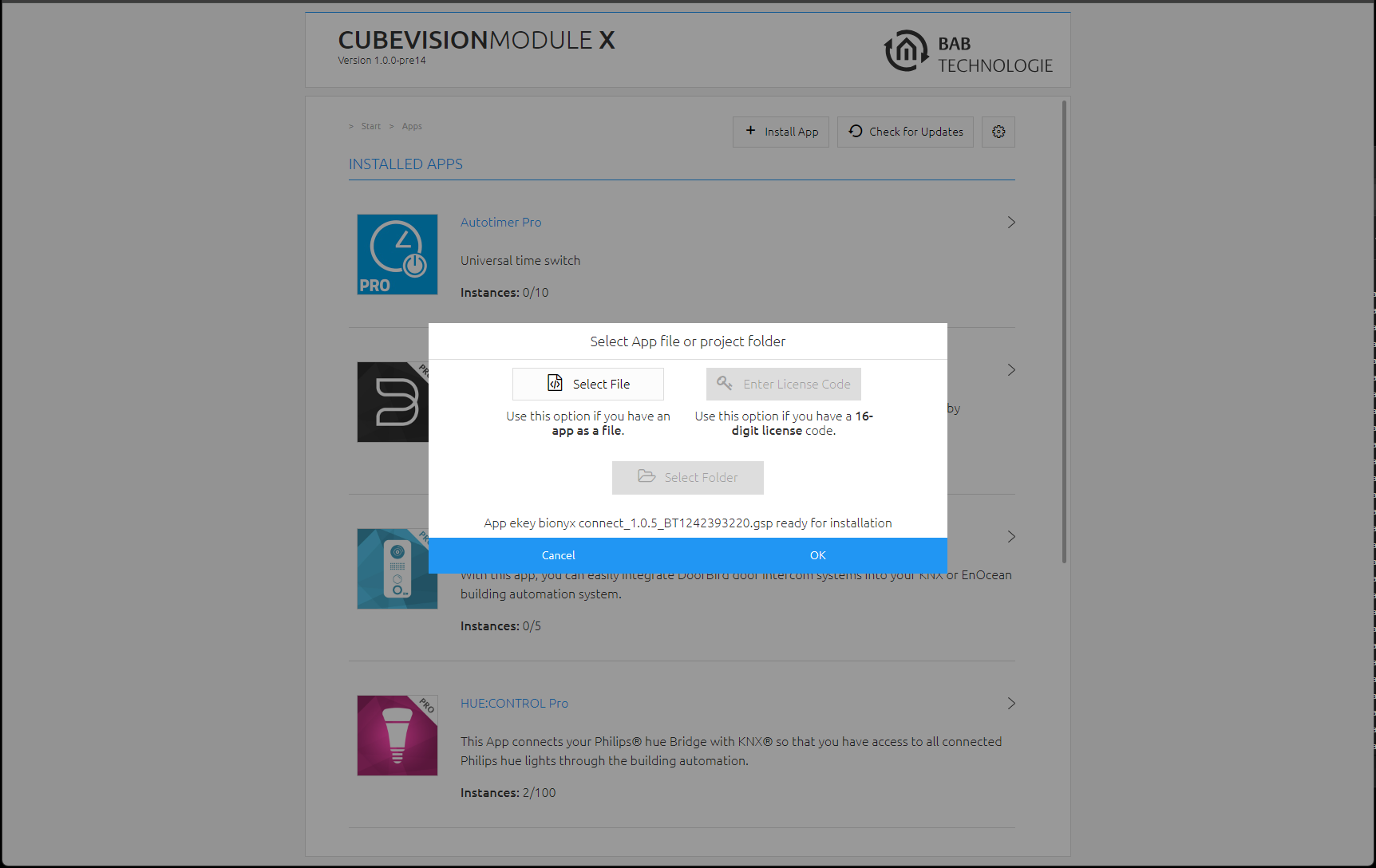
Click on “Select app” and a window will open. Select the app that you previously loaded from the APPMARKET and click “OK”. See “BAB APP Market” for information on purchasing Smart Home App.
-
As soon as the next window opens, the installation was successful. Now, click on "OK" and parameterise your Smart Home APP.
Instance
As soon as the Smart Home App is installed, you can create so called “Instance”. An Instance is one of several objects of the same class.
In order to create an instance, click on the following symbol "Create Instance".
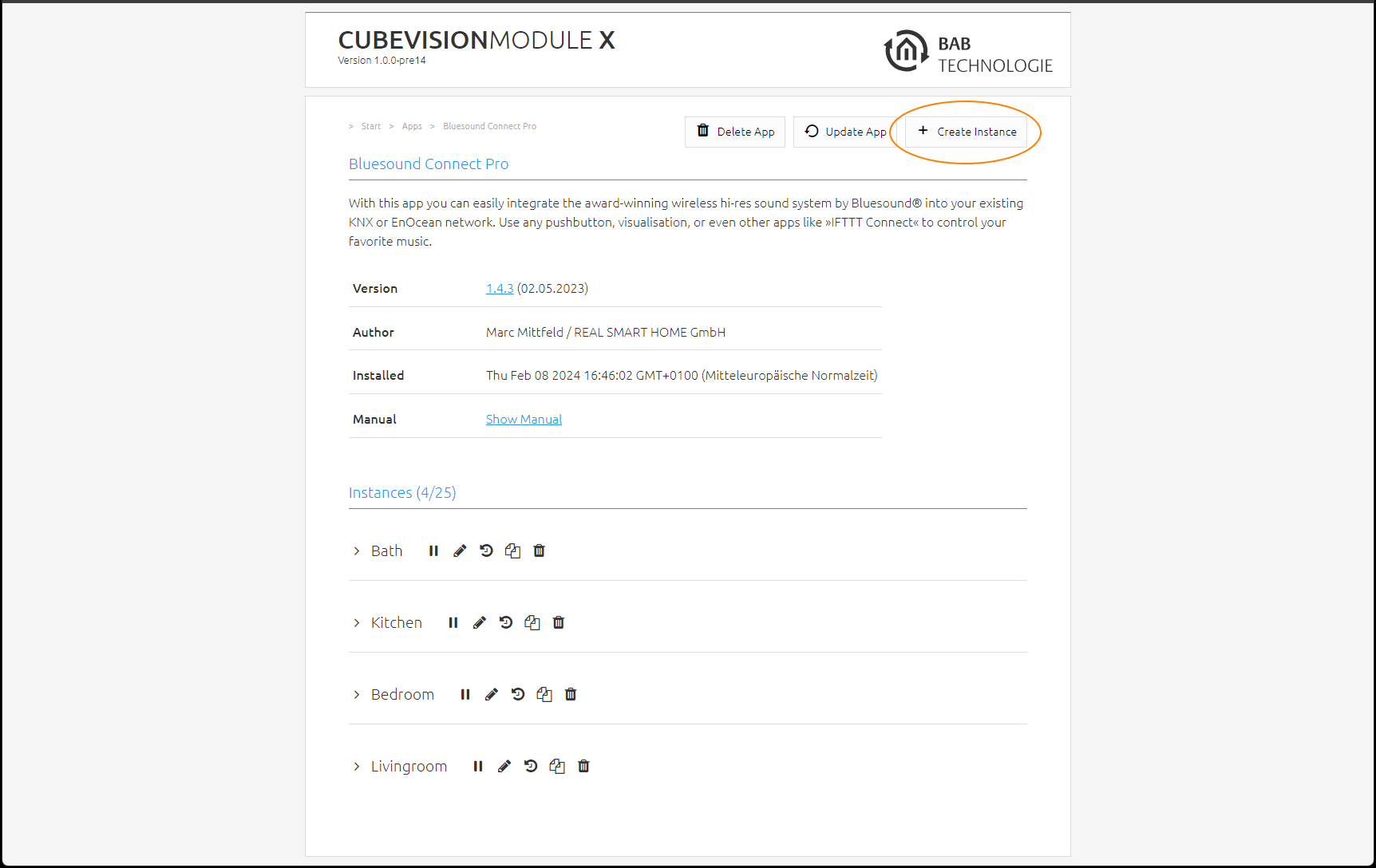
With the icons on our site, you can start instances, edit parameters, display the LOG, copy or delete instances.
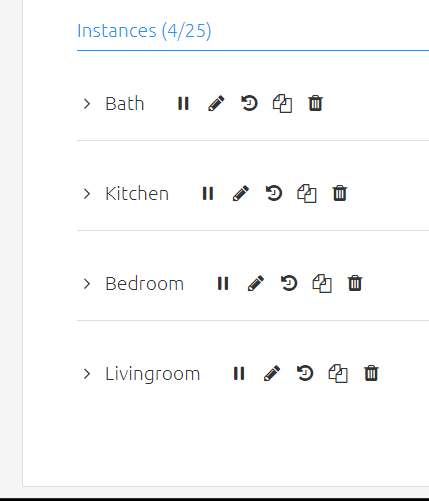
|
Symbol |
Function |
|---|---|
|
Start instance |
|
Edit parameter |
|
Display log |
|
Copy instance |
|
Delete instance |
Notation of group addresses
The group addresses in the CUBEVISIONMODULE X can either be displayed in 2-digit notation ([XX/XXXX]) or 3-digit notation ([XX/X/XXX]). The CUBEVISIONMODULE X always converts the group addresses into 3-digit display, no matter in which way they were entered.
Note: Virtual group addresses (16... 31) can be used internally to control interoperations between the apps. The virtual group addresses are not sent to the bus.
Automatic Smart Home App update
As of firmware 1.4.0, you no longer need to check the BAB APPMARKET for updates for installed apps. In the App Manager you can set if you want to search for updates automatically or if you want to trigger the search manually.
Open the App Manager and click on the button with the gear symbol.
Activate the automatic Smart Home App updates here. If the automatic app updates is deactivated, click on the Check for updates button to start a manual search.
If the automatic app update is activated, you can optionally use the Indicator Address (EIS 1) to display in a visualization, for example, that an app update is present (if a 0 is sent to the group address, no update is present, if a 1 is sent, one or more updates are present).
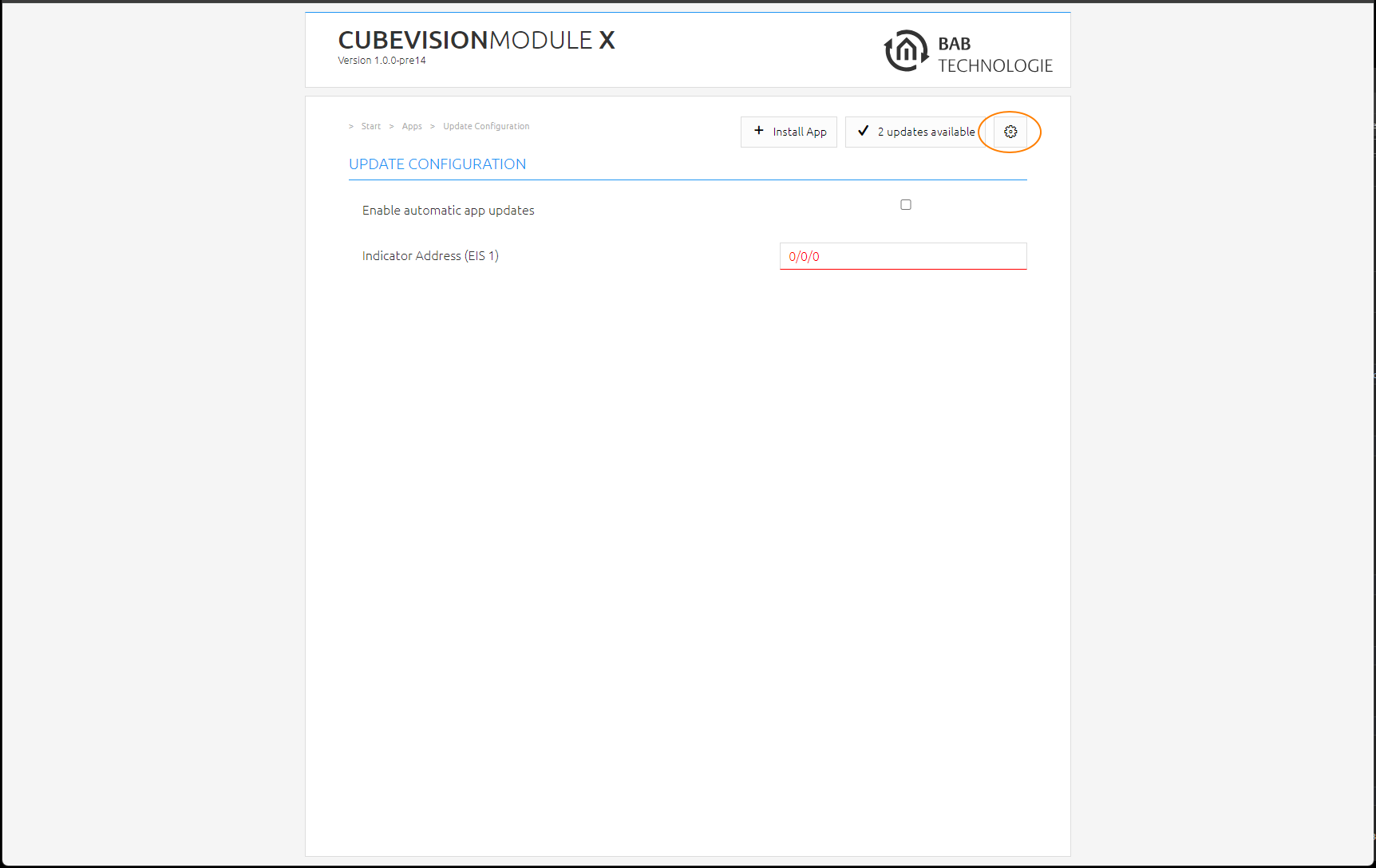
If the Automatic App Update is activated, the CUBEVISIONMODULE X checks for updates once a day. The time of the search depends on the last boot process of the CUBEVISIONMODULE X and is determined automatically. The time cannot be set. If the automatic search is activated, the CUBEVISIONMODULE X searches for updates directly after activation.
If an update is available for an installed Smart Home App, this is displayed in the App Manager.
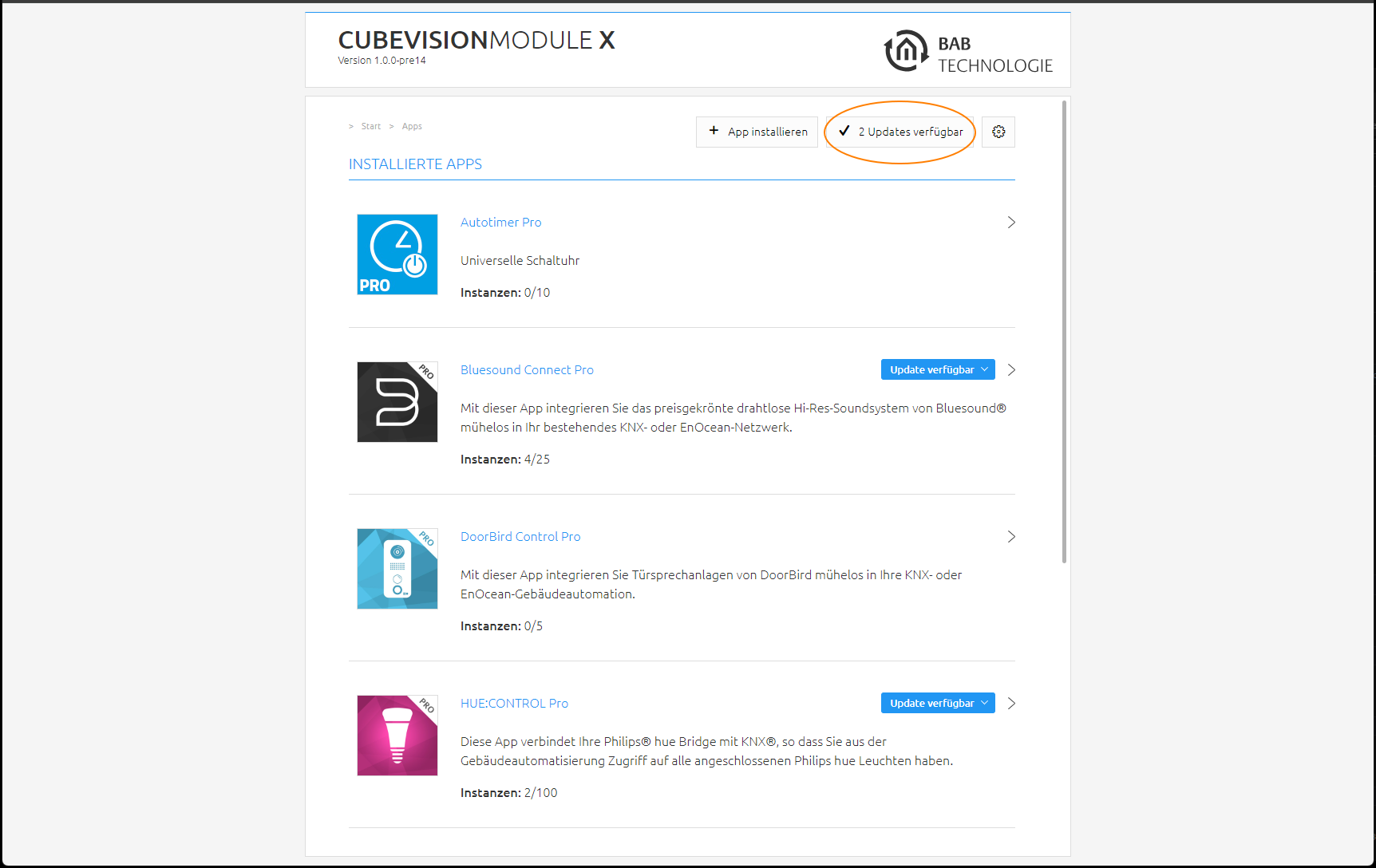
Click on the button "Update available". A window opens with the "ChangeLogs" of the APP.
All changes between the currently installed Smart Home App version and the App version provided for the update are displayed.
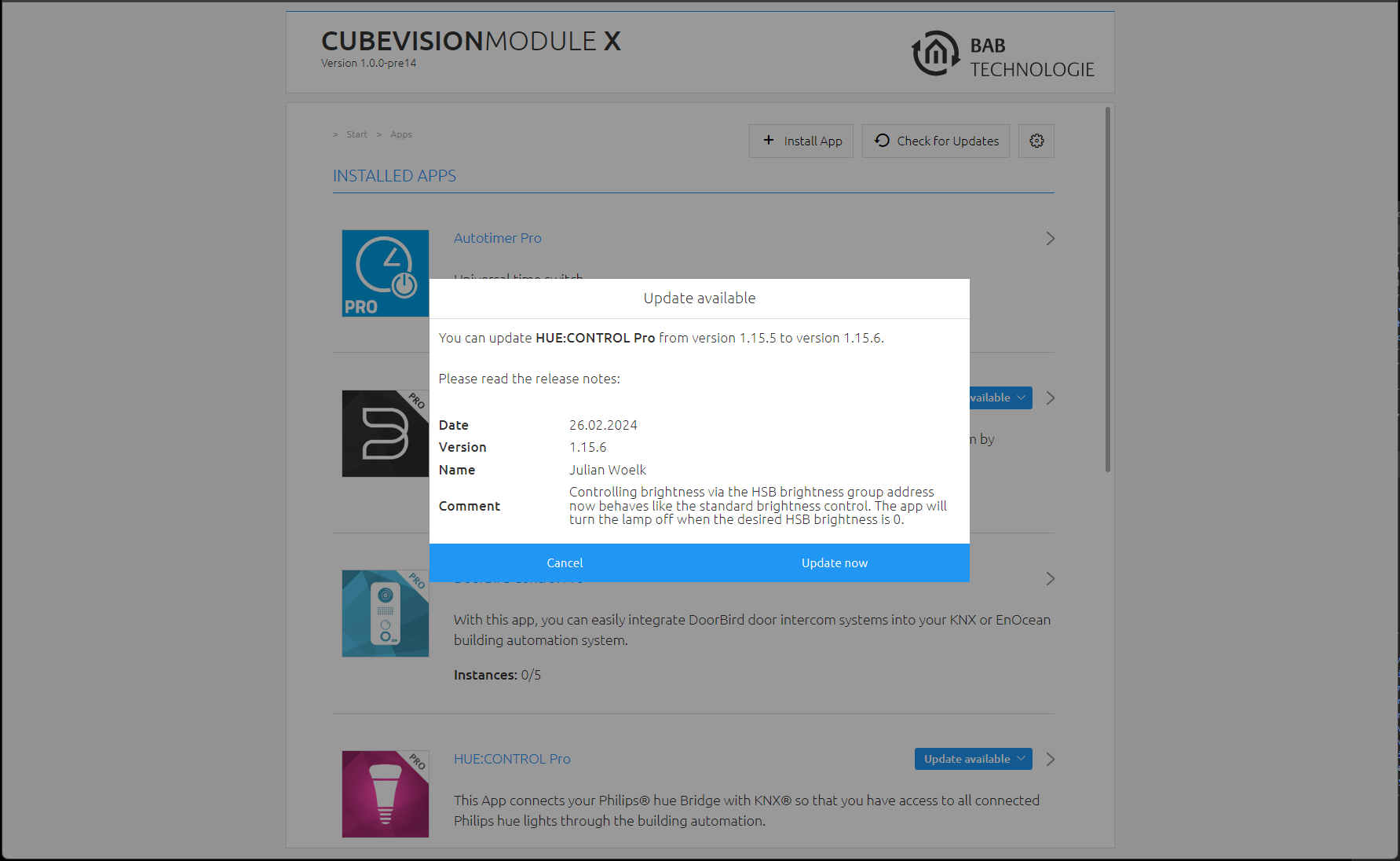
Start the update with "Update now". The update will now be performed. Wait until the update is finished.
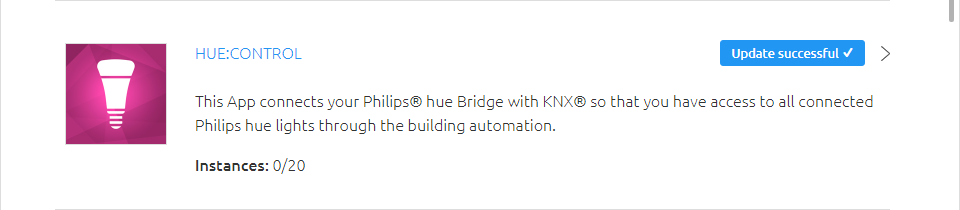
The update of the app does not overwrite existing group addresses. Individual group addresses can be given If deleted, if the function to which the group address belonged is omitted. New functions must be assigned a new group address.
After the update, check the configuration of the Smart Home App.
Manual update search
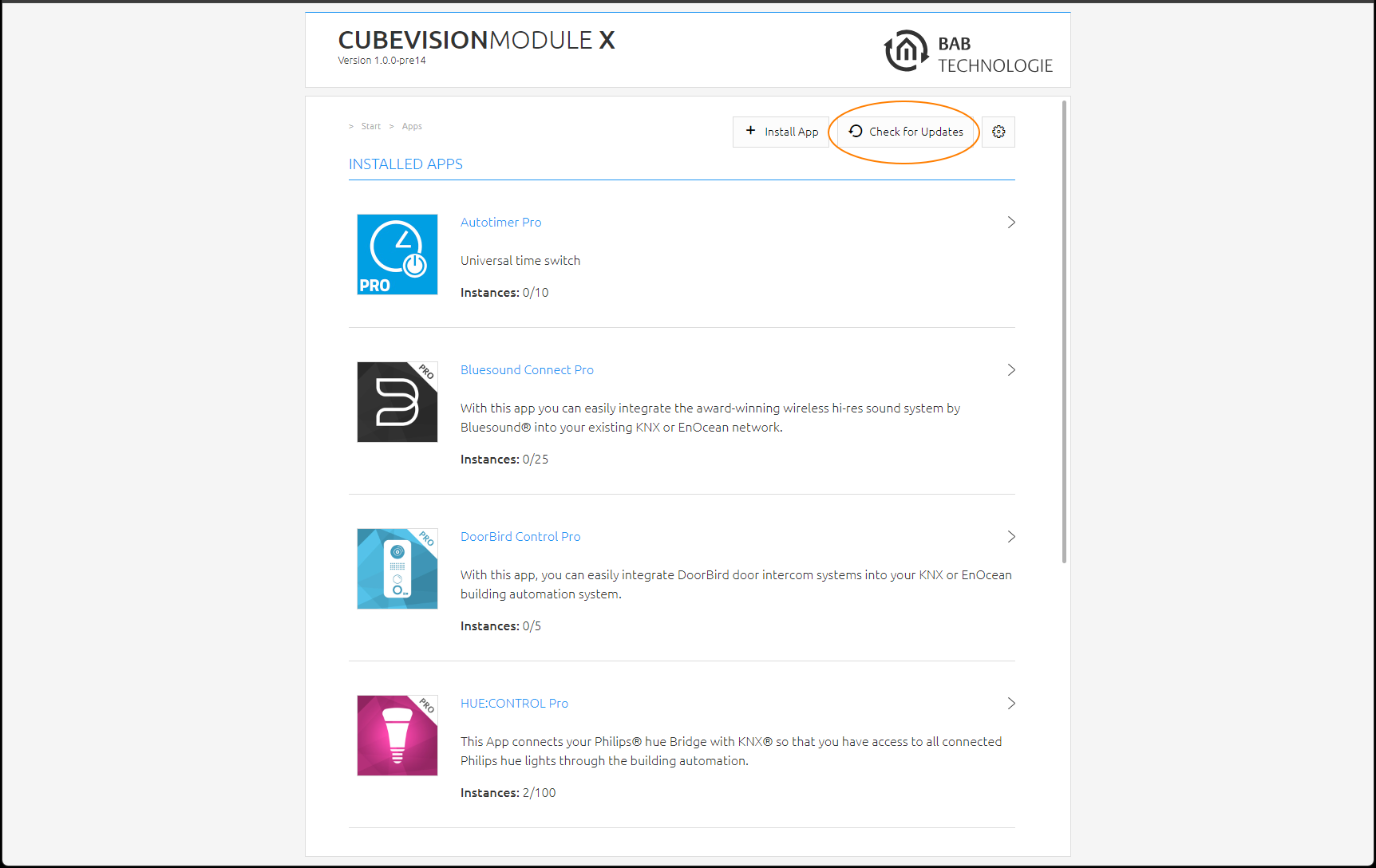
Um die Suche nach Smart Home Apps manuell auszulösen klicken Sie auf den Schalter “Updates suchen“
///