
This chapter describes how to operate and navigate CUBEVISION. In addition to this, the individual elements are explained in order to get familiar with all CUBEVISION special features, techniques and automatic procedures.
There are two types of presentation as described in the chapter above: "Tablet" and "Phone".
The elements of the "Tablet" presentation are as follows below:
-
View of room and navigation
-
Quick Navigation
-
Quick Floor Navigation
-
Central View
-
Instant Control Panel [ICP]
-
Extended Control Panel [ECP]
-
Extended Element View [EEV]
The elements of the "Phone" presentation are as follows below:
-
Room Navigation
-
Central View
-
Favourites
-
Room View
-
Extended Element View [EEV]
CUBEVISION in tablet presentation
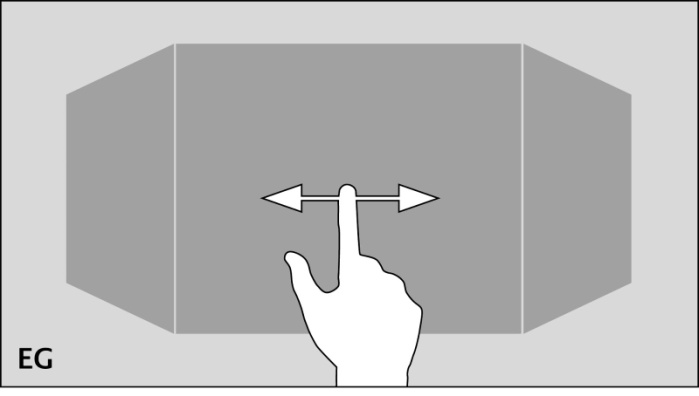
Navigation through the building structure takes place by horizontally and vertically sliding in the mode room view.
Room view:
By room view, this sight will be intended, which shows a room, more precisely the front surface of a cube. This surface will be used for navigation.
Navigation:
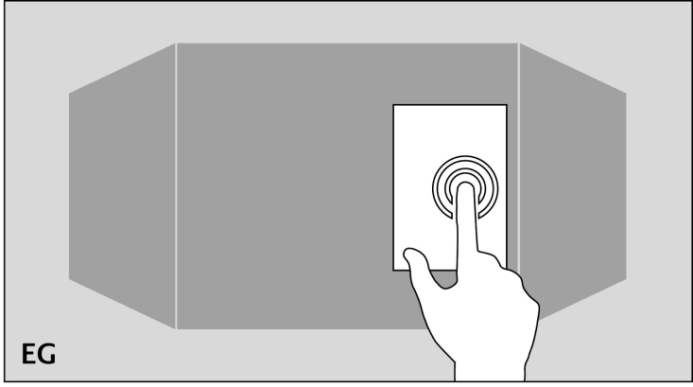
As it will be shown in the following two figures, shifting from room to room by a horizontal finger movement is possible. In horizontal direction exits no limits. This means, that after the last room the first room will be displayed again.
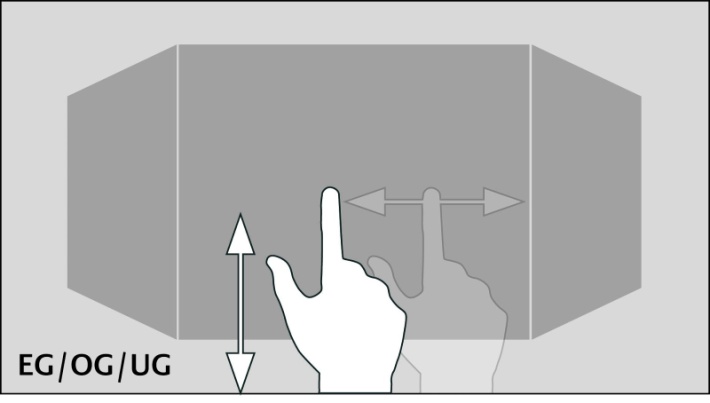
The vertical finger movement serves for navigation through levels resp. floors. If the end of vertical direction will be reached, an orange colored corona appears at the border below or at the top end, according to which direction the user`s moving takes place. This indicates the end of vertical direction.
One of the major advantage of CUBEVISION element is, that the user doesn`t have to be worry about navigation between rooms or levels. Working with changeover elements, how its known in classical visualization, is cancelled completely. As well the testing of the navigation: if somewhere the user will be toddle into a deadlock, from which he can`t get back to the front page, because a changeover element is simply absent on this visualization page.
Quick Navigation can be used to switch directly and without detours to a room (even on a different level).
Quick navigation
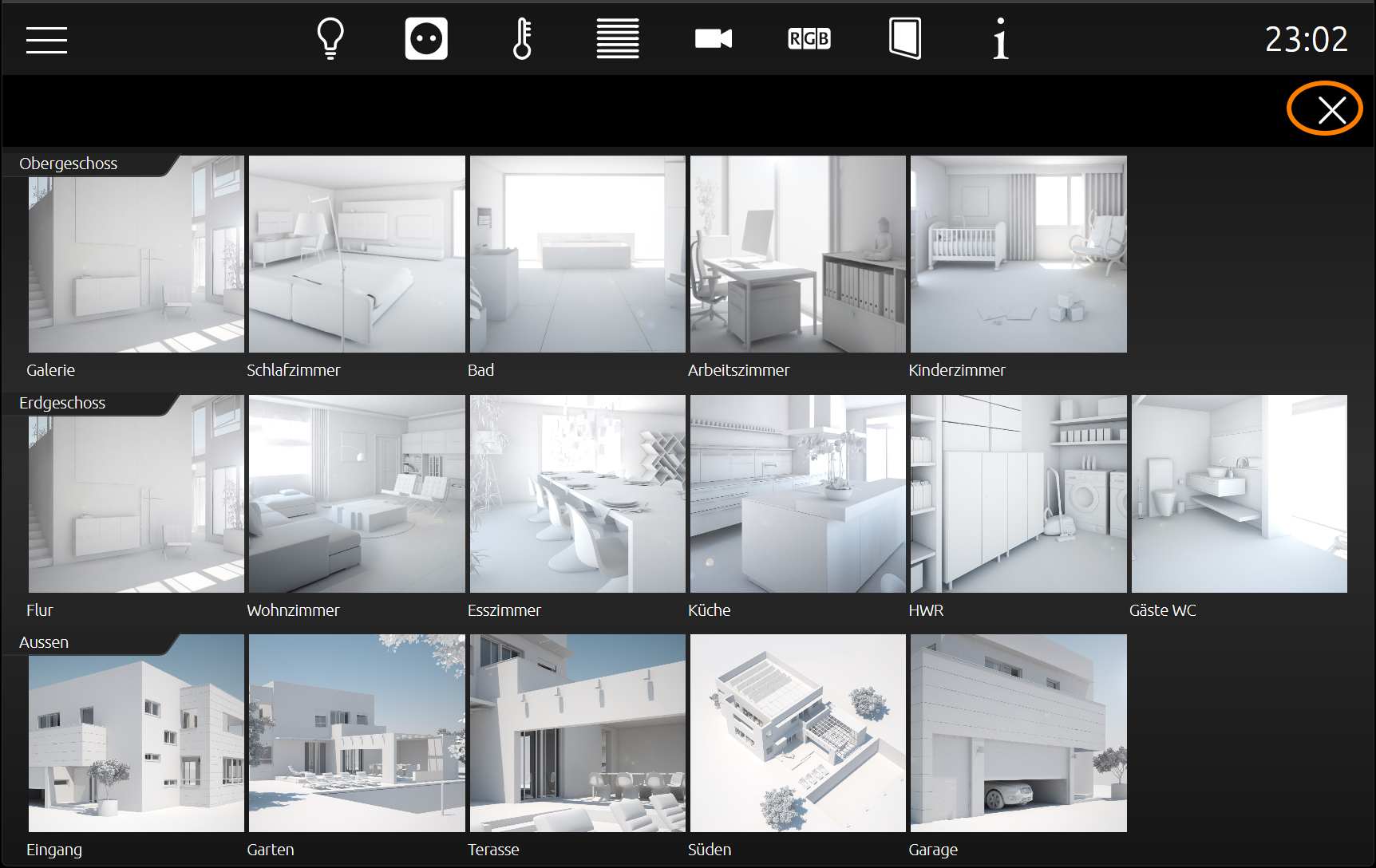
In the mode Quick Navigation, all rooms will be displayed at one side for faster navigation. In this way, user can switch directly to each and every room. The creation of an overview for all rooms takes place automatically.
Opening of Quick Navigation:
Quick Navigation can be started in two different forms.
-
Over the complete area of the room view
-
By an arrow, this will be displayed downright in the room view.
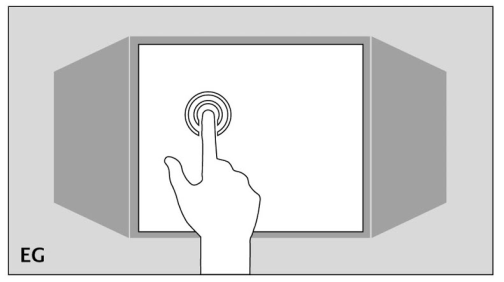
The option how to start Quick Navigation can be adjusted in the configuration window (see figure 5) of the CUBEVISION element (in visualization editor).
Closing Quick Navigation:
The overview can be closed via the exit symbol in the Quick Navigation to switch back to the room view.
Quick Navigation can be disabled completely when necessary.
Quick Floor Navigation
The Quick Floor Navigation is another type of navigation through the floors. Instead of pulling the cube in the "Tablet" view upwards or downwards to switch between floors, a navigation icon is displayed on the right-hand corner of the screen, via which you can select the floors directly.
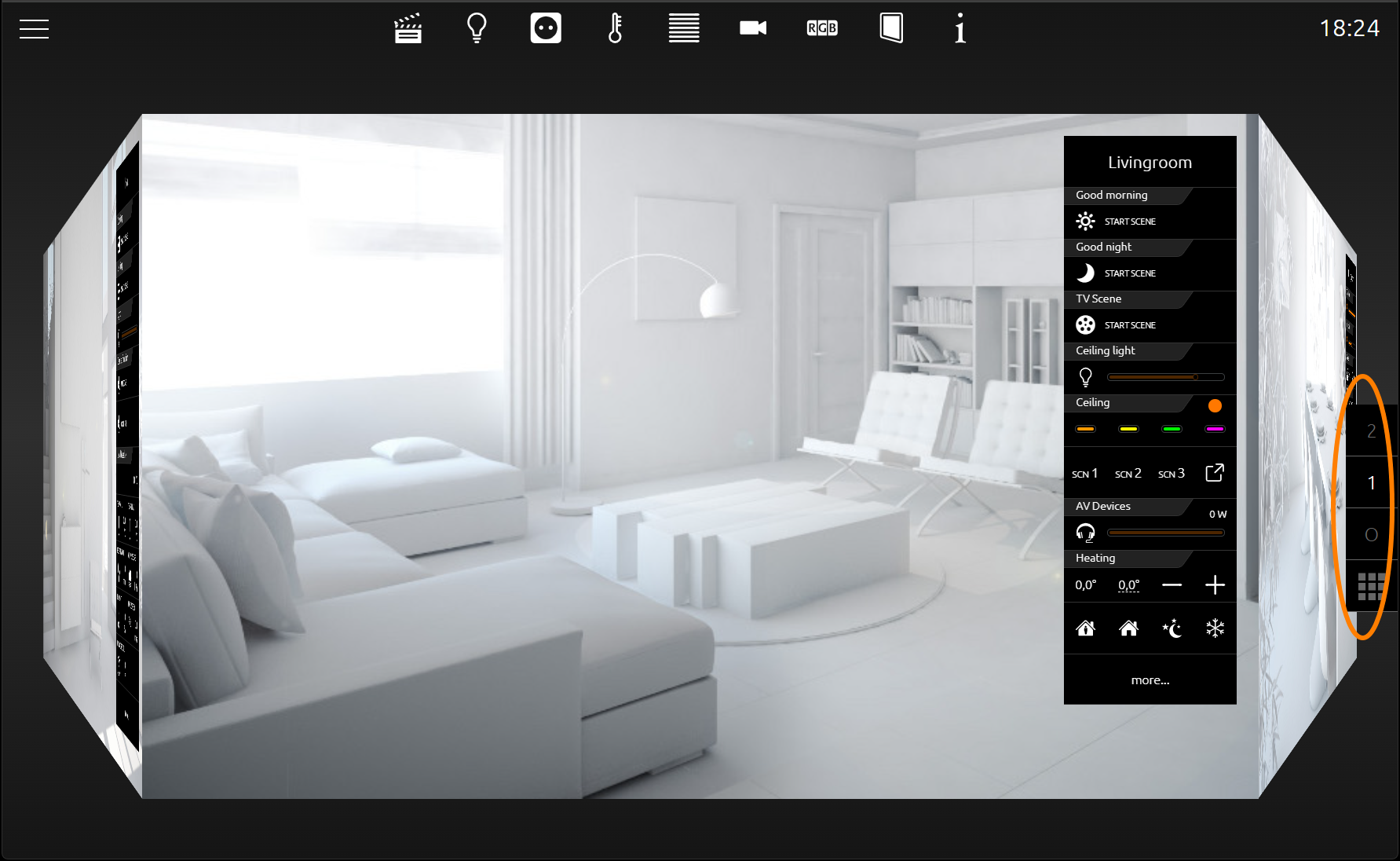
On mobile devices (smartphone, tablet), the Quick Floor Navigation optimizes the performance of the CUBEVISION, as less memory is required.
Configuration of the floor designation
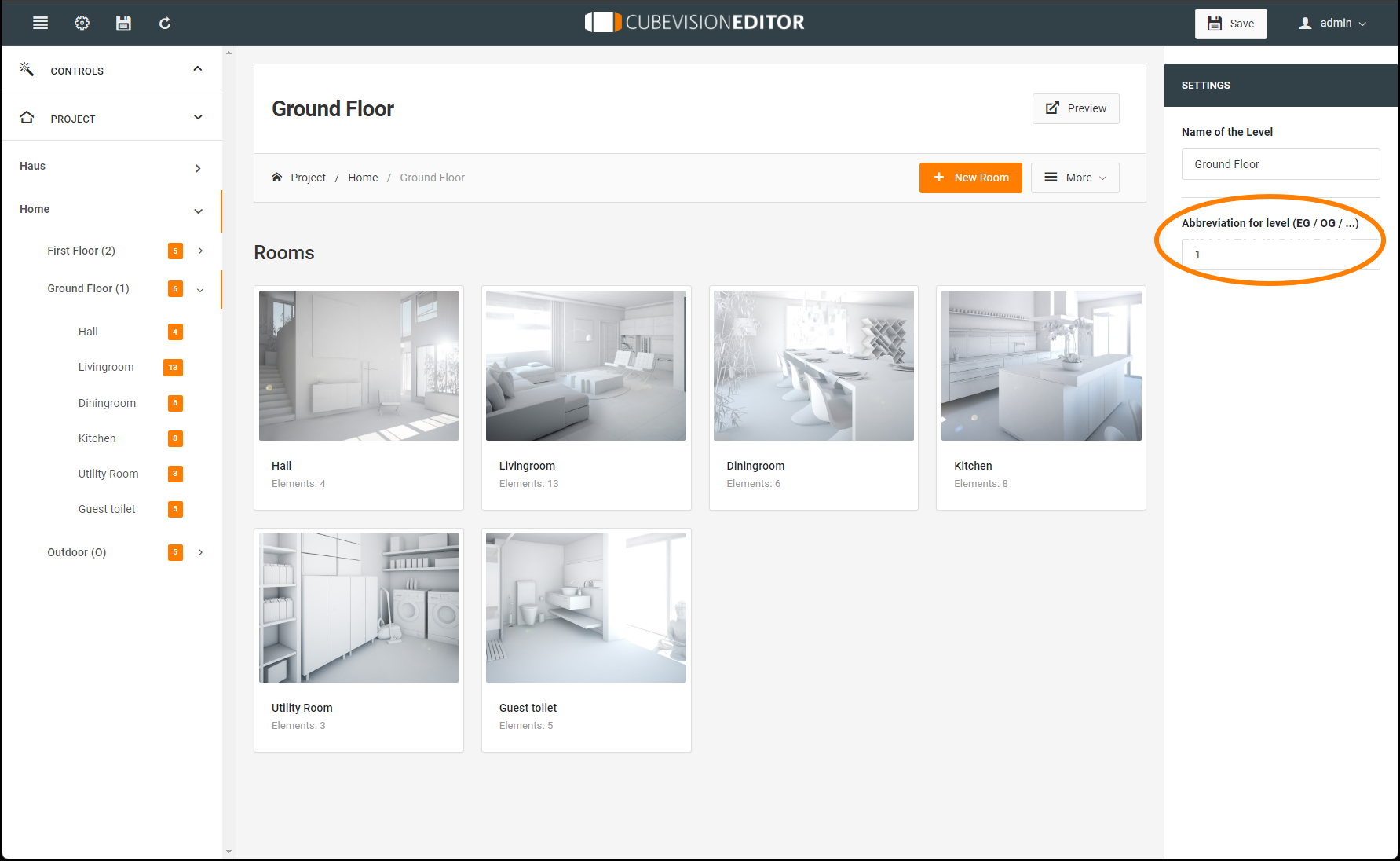
In order to change the display designations of the Quick Floor Navigation, the "Short Name" input field is available in the CUBEVISION Editor when clicking on the respective floor. Here, a maximum of two (2) digits can be assigned to each floor. If no entry is made, the floors are numbered consecutively from top to bottom.
Instant Control Panel [ICP]
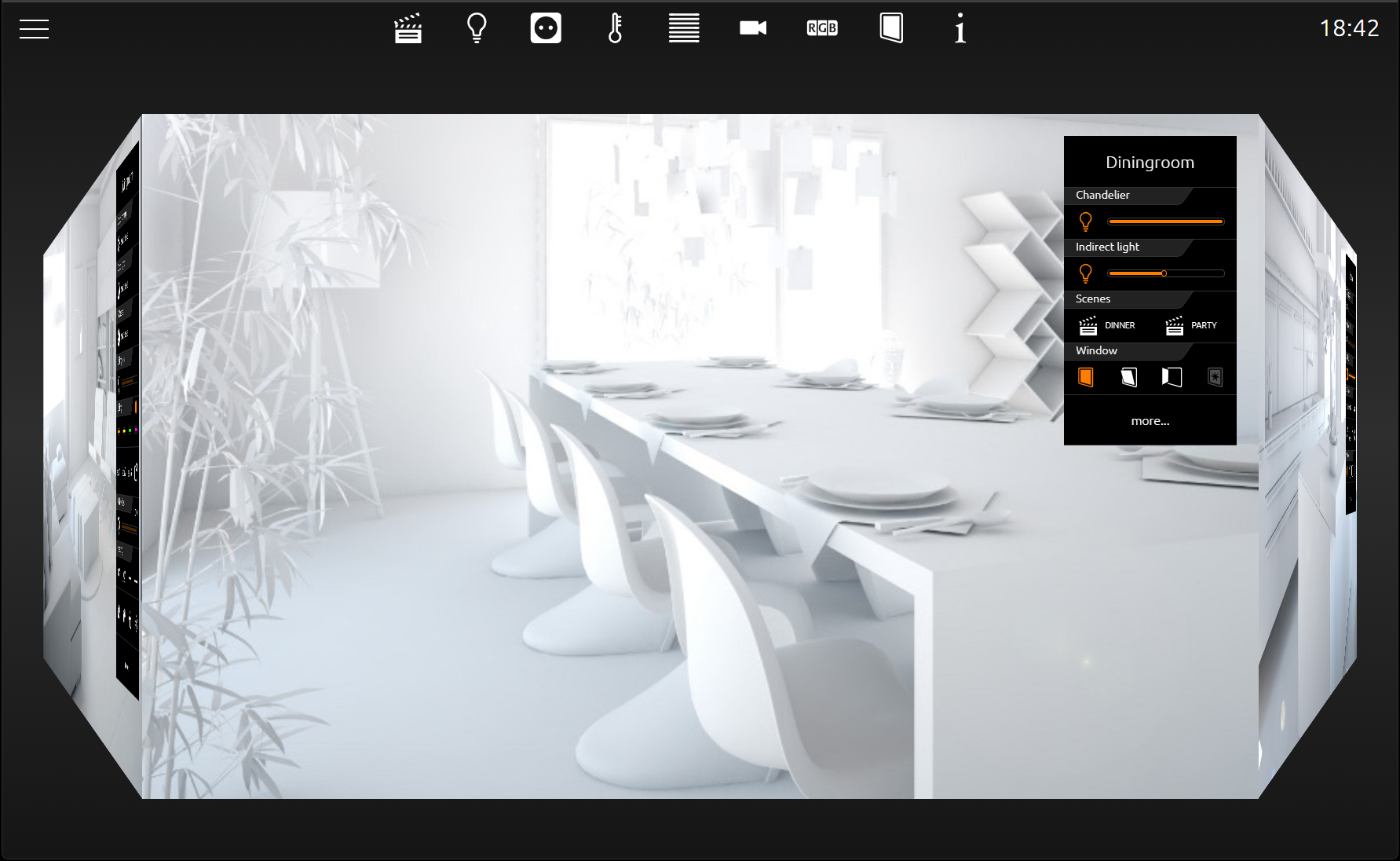
Every room has an Instant Control Panel (shortened ICP), which always will be located on the right side. In the first place of Instant Control Panel, the name of the room appears. The position of Instant Control Panel can`t be changed (see illustration below).
Instant Control Panel provides space for max. 8 elements of visualization (the elements have a height from 1 to 8 units)
If there is not enough space in the Instant Control panel:
If for visualization elements of the room more than 8 height units will be required, the elements, which doesn`t fit into the Instant Control Panel, will be displayed in the Extended Control Panel (see next chapter).
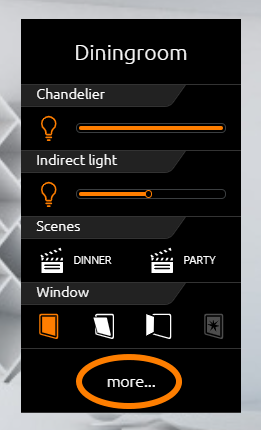
It automatically appears a “more” – button below the Instant Control Panel, by which the Extended Control panel can be activated. (see figure 9)
Instant Control Panel and favorite function:
Instant Control Panel has a particular function, which allows to arrange elements in order of their importance.
This means, that the most often used elements in one room can be displayed in the room view and therefore they could be operated directly.
The favorite function controls, how often the user will utilize particular elements and so it sorts the order of the elements on this basis in Instant Control Panel. This means in effect for example, that if in winter time Christmas illumination in the garden will be controlled often, this element will also be displayed in Instant Control Panel.
No configuration is necessary. Solely these elements have to be marked, which should be observed as favorite elements. This will be described more precisely in chapter “elements.”
To position visualization elements manually in Instant Control Panel
As desired, even so elements of the room can be positioned manually. Therefore, the favourite function will be disabled and a place in the order in Instant Control Panel will be given to the element.
Extended Control Panel [ECP]
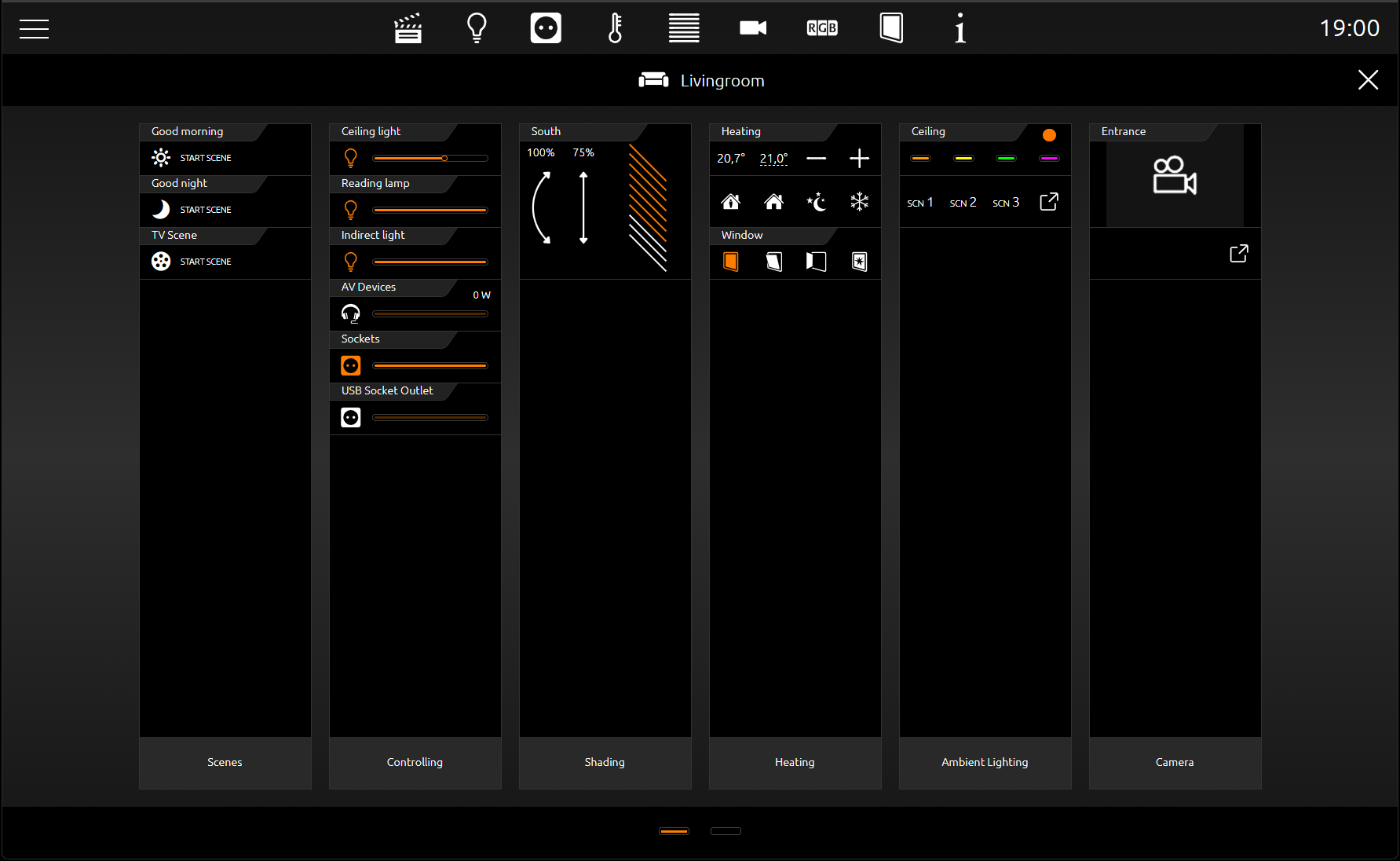
All control elements used in the room are displayed in the Extended Control Panel (ECP for short). This also includes those from the Instant Control Panel. They are generated automatically using the favorites function.
Extended Control Panel:
-
In this view, the columns are displayed depending on the resolution of the display.
-
The number of height units also depends on the resolution of the display
-
If there is not enough space for the columns, additional pages can be added if required. The pages are changed using the points below the Extended Control Panel
The column break can be used to distribute control elements to the columns, e.g. according to trades or functions
Opening and closing of Extended Control Panel:
Extended Control Panel will be opened by the button “more…”. This button will be displayed only on demand. By the exit-symbol (arrow at lower left, see figure) this view can be closed.
Extended Element View [EEV]
Extended Element View (shortened EEV) offers another view of elements, in which more information (as cover, diagram, large pictures of cameras, …) can be outlined.
Extended Element View has got 5 elements (State firmware 3.2.0)
-
Color control
-
Tuneable White
-
Camera
-
Multimedia
-
Weather (Internet)
-
Values / diagrams
In visualization, the access to Extended Element view is illustrated by a rectangle, from which one arrow points upwards to the right. It is located inside the element on the bottom right (see figure below).
Example:
Let's take the Internet Weather control element. In the Extended Control Panel view, only a few weather data can be displayed for the Internet Weather element (see illustration below).
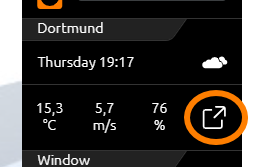
A click on the symbol on the bottom right will open the extended view (Extended Element View). This extended view of internet weather will be shown in the figure below marked by an orange circle...
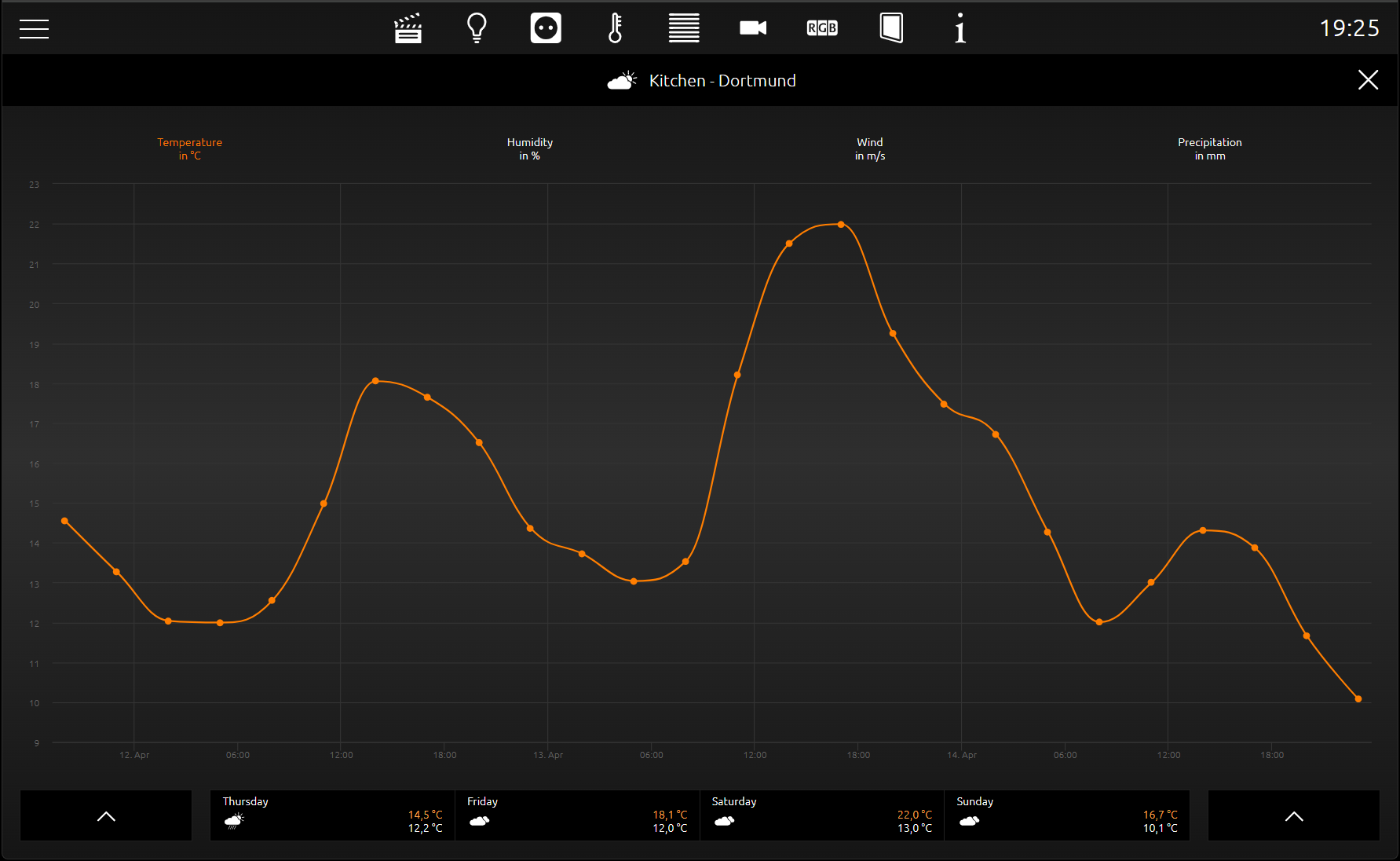
If in a room several similar elements will be inserted with extended view:
In our example, two internet weather elements have been inserted in the kitchen. The first shows the local weather (Dortmund) and the other displays the weather of New York. CubeVision Extended Element View integrates both in a list on the left side (see figure). In this way, the user can switch between both elements back and forth.
Central View
"Central View" is an additional function that allows a room-independent central overview of visualization elements. The visualization elements can be assigned to a category and thus called up together in the CUBEVISION visualization.
The categories are managed in the CUBEVISION project settings (see figure below).
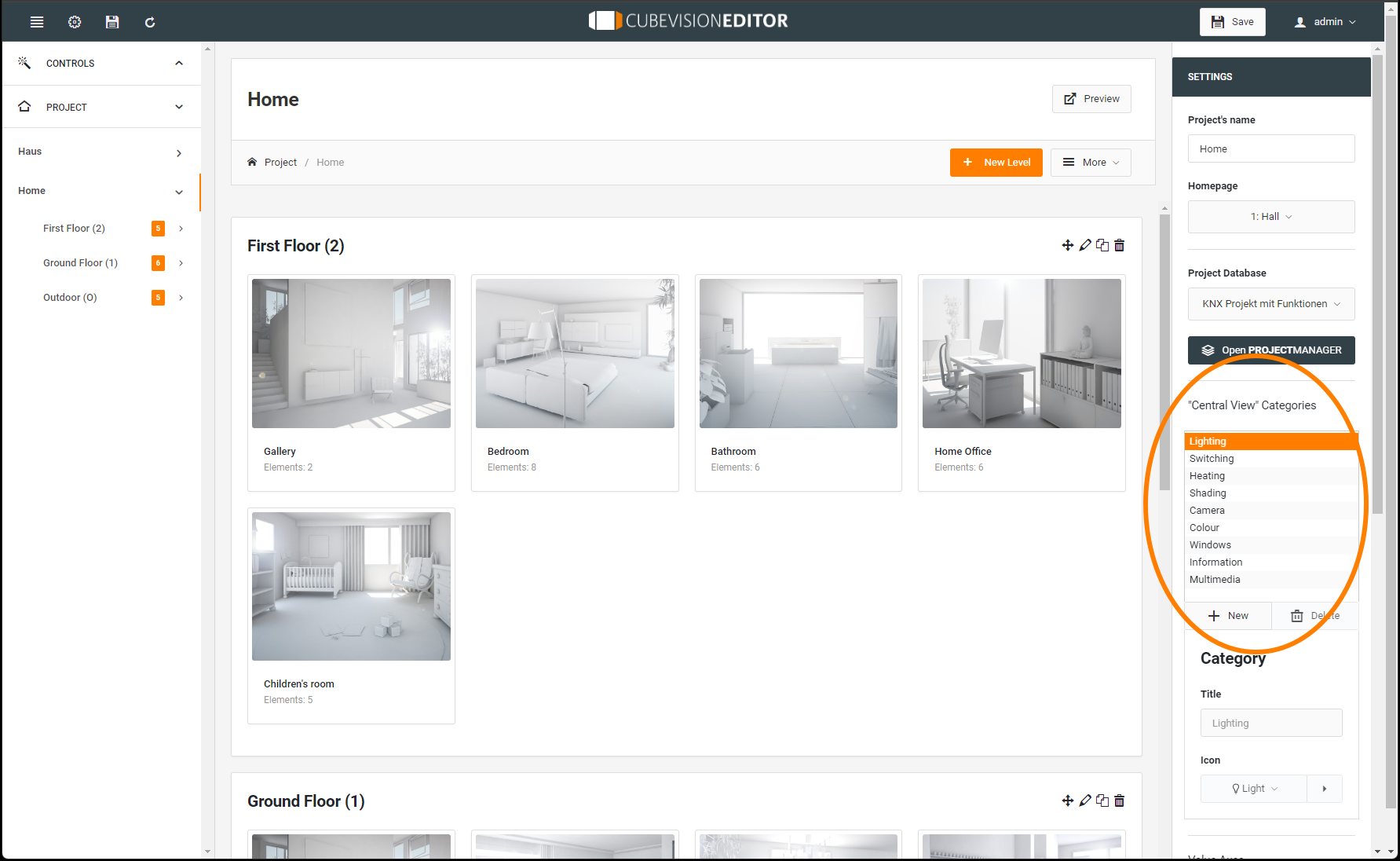
Each visualization element can be assigned to a category via the "Central View" menu item and thus to the desired central view.
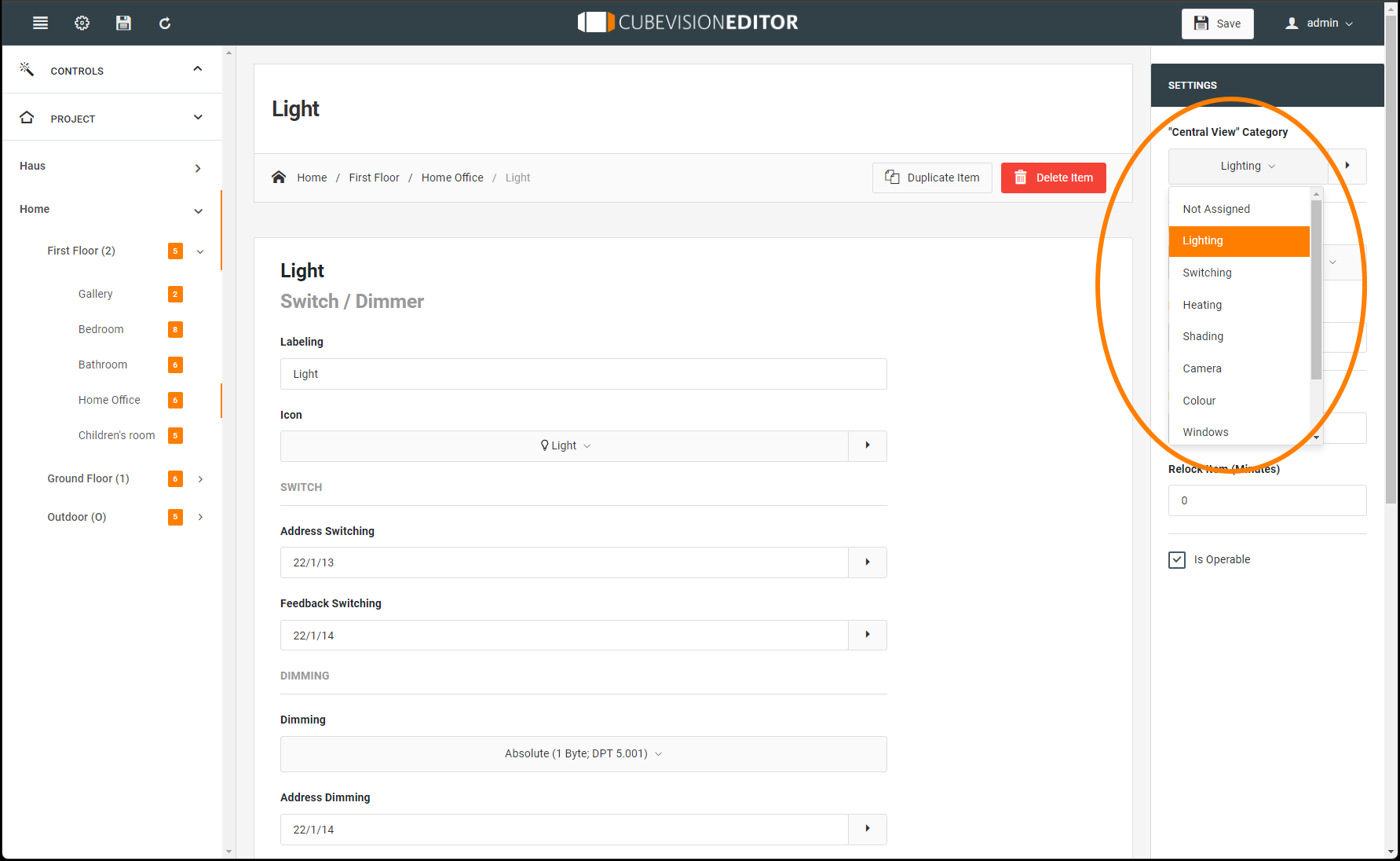
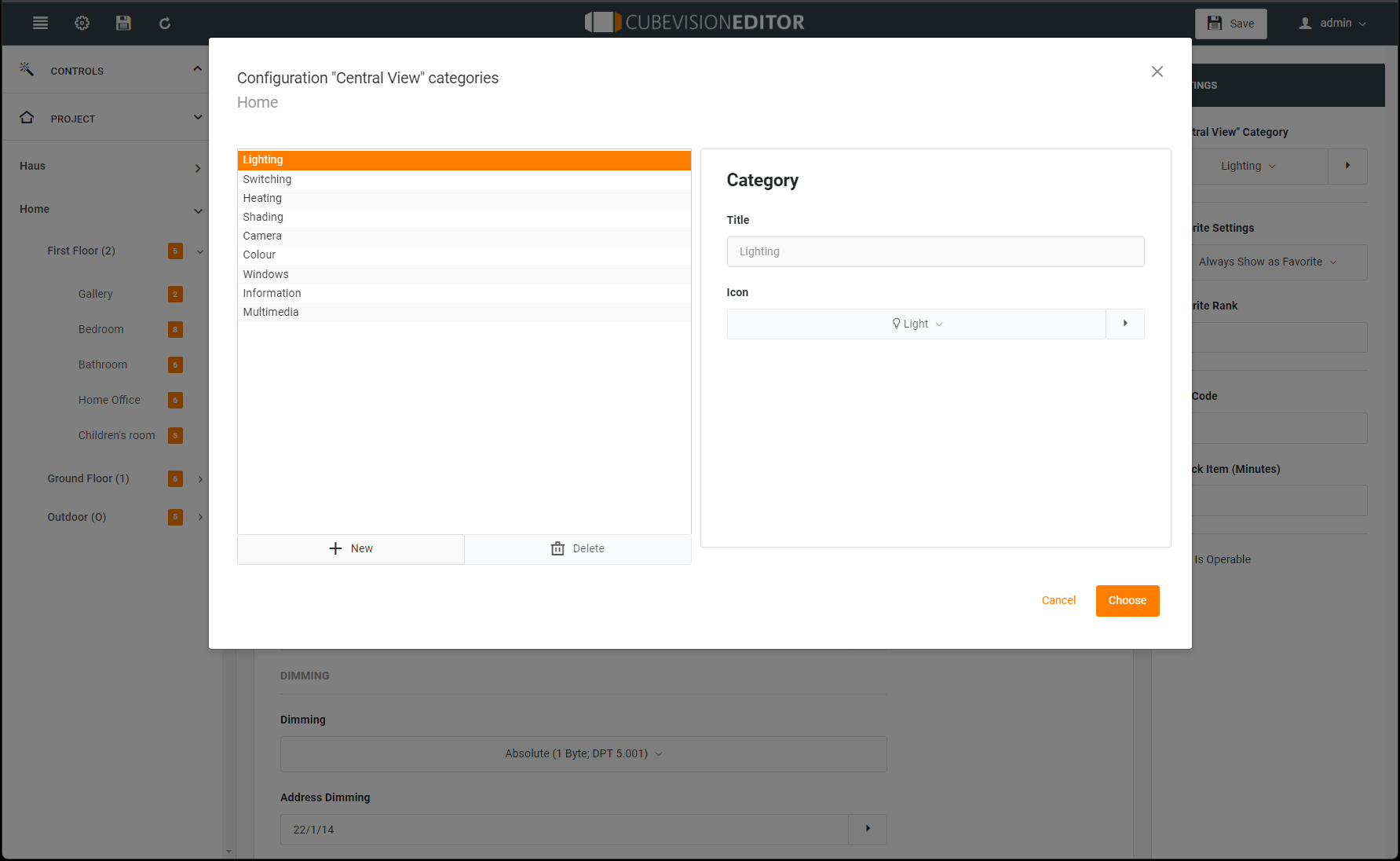
You can add individual categories to the Central View according to your own requirements.
To do this, please proceed as described below:
-
Click the PLAY symbol (see figure on the right-hand side, red circle).
-
A new window opens up, in which you can now create new categories.
-
Operations (see figure below, "Add category"):
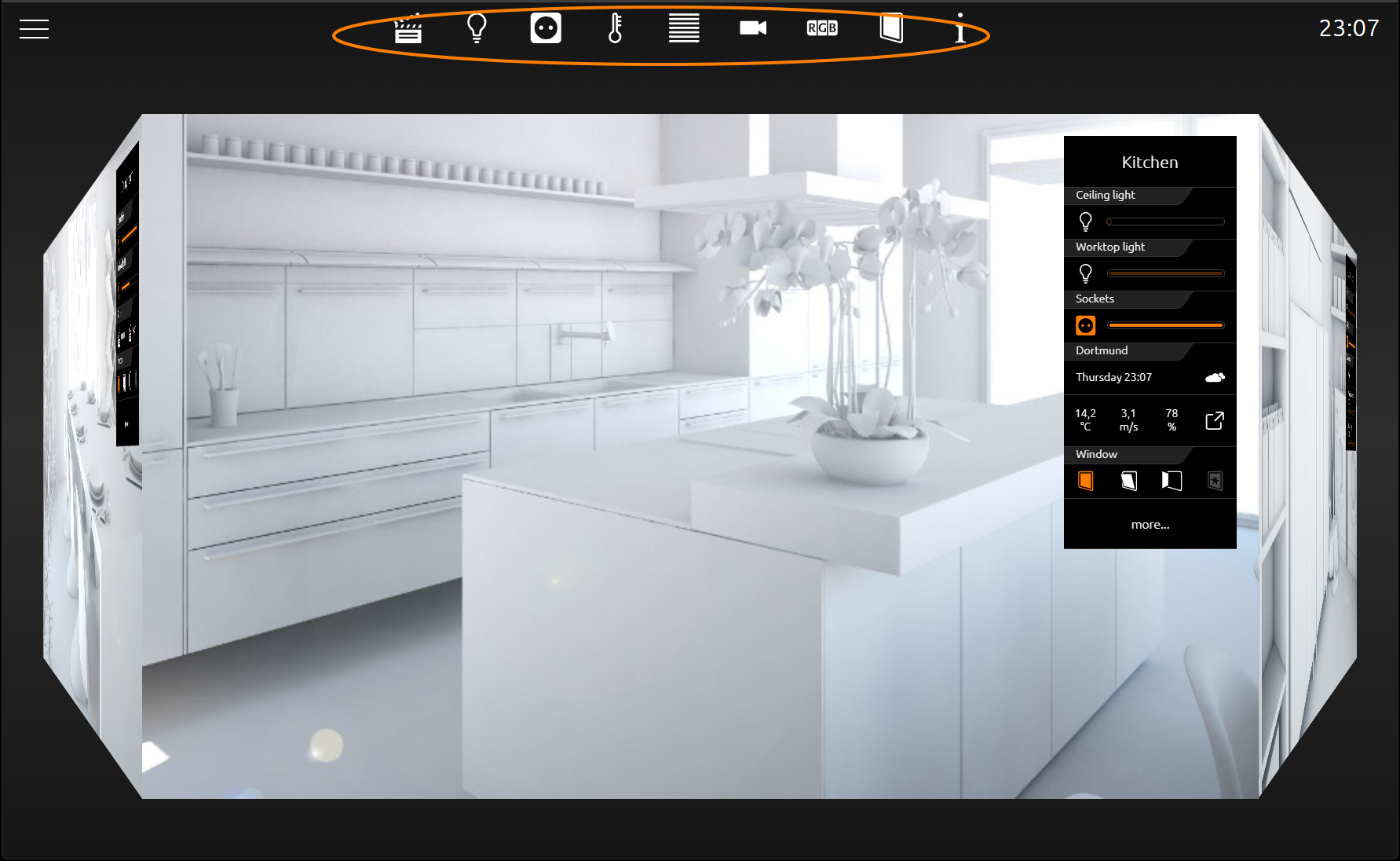
As soon as the control element has been assigned a required "Central View" category, the corresponding menu item is generated in a status line above CUBEVISION in the tablet presentation.
In this way, it is possible to generate any group of control elements in the "Central View" menu.
CUBEVISION in the phone presentation
It is possible to navigate through the building structure by sliding horizontally, sliding vertically and touching. Thus, intuitive operation of the visualization on the smartphone is ensured. The phone presentation is designed in such a way that so-called "one-thumb operation" is possible (depending on the screen size).
Navigation
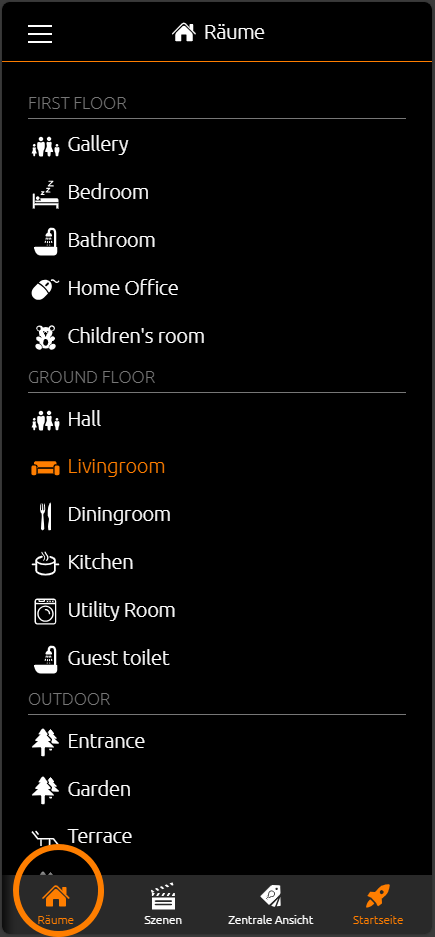
The navigation through the building structure in the phone presentation differs from that in the tablet presentation. In order to access the visualization on different floors or in different rooms, you must touch the symbol (see figure below, orange circle).
You can access the room navigation (see figure on the right-hand side). In general, it depends on how many floors and rooms were created in the topology. In this example, there are four "layers":
-
Central View (see chapter "Central View")
-
First Floor
-
Ground Floor
-
Outside
In order to access the required page, just touch the corresponding menu item.
Navigation within a room [room view]
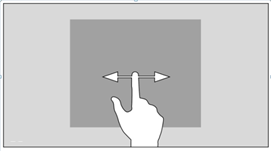
If you have used the "Column Separator" element during configuration in order to categorize the elements, switch between the columns within a selected room by sliding horizontally.
Navigation – within the columns of a room
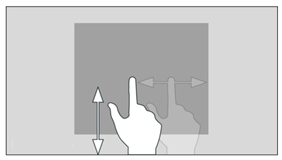
The control elements within the columns are arranged one below the other. As of a certain number of control elements, they protrude from the visible area of the screen. In order to access the required control element, sliding vertically is required.
Operating an element
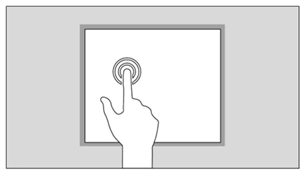
By "touching" a control element, it is activated for the respective condition. The surrounding functions are shaded in order to visually mark the selection and make it clear. Only then can the control element be operated correspondingly. In order to exit this mode, it is necessary to touch the screen outside the operable area.
Central View
"Central View" is an additional function allows a room-independent central overview of the required functions.
Each visualization element includes the "Central View" menu item and can thus be assigned the required central view.
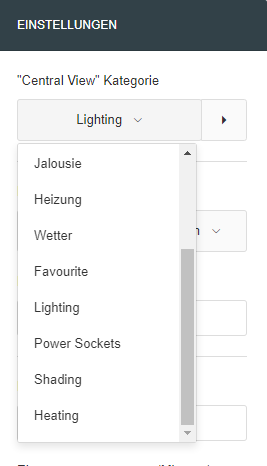
Here, it is possible to add categories to the "Central View" menu according to your own wishes and requirements.
To do this, please proceed as described below:
-
Click the PLAY - symbol, to the right of the drop-down list.
-
A new window opens up, in which you can now create new categories.
-
Operations (see figure below, "Add category"):
As soon as the control element has been assigned a required "Central View" category, the corresponding menu item is generated in a status line above CUBEVISION in the tablet presentation.
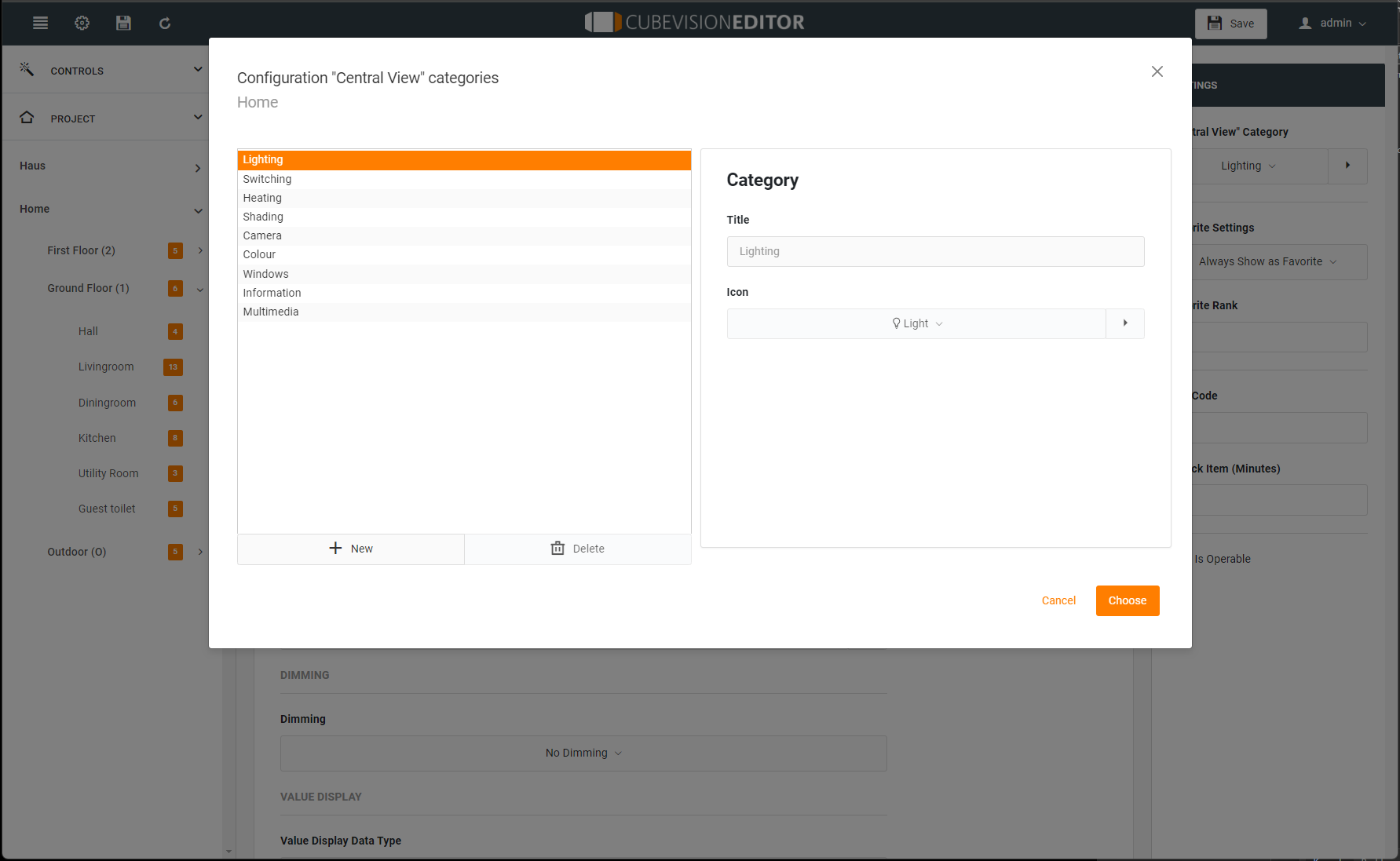
Favourites function
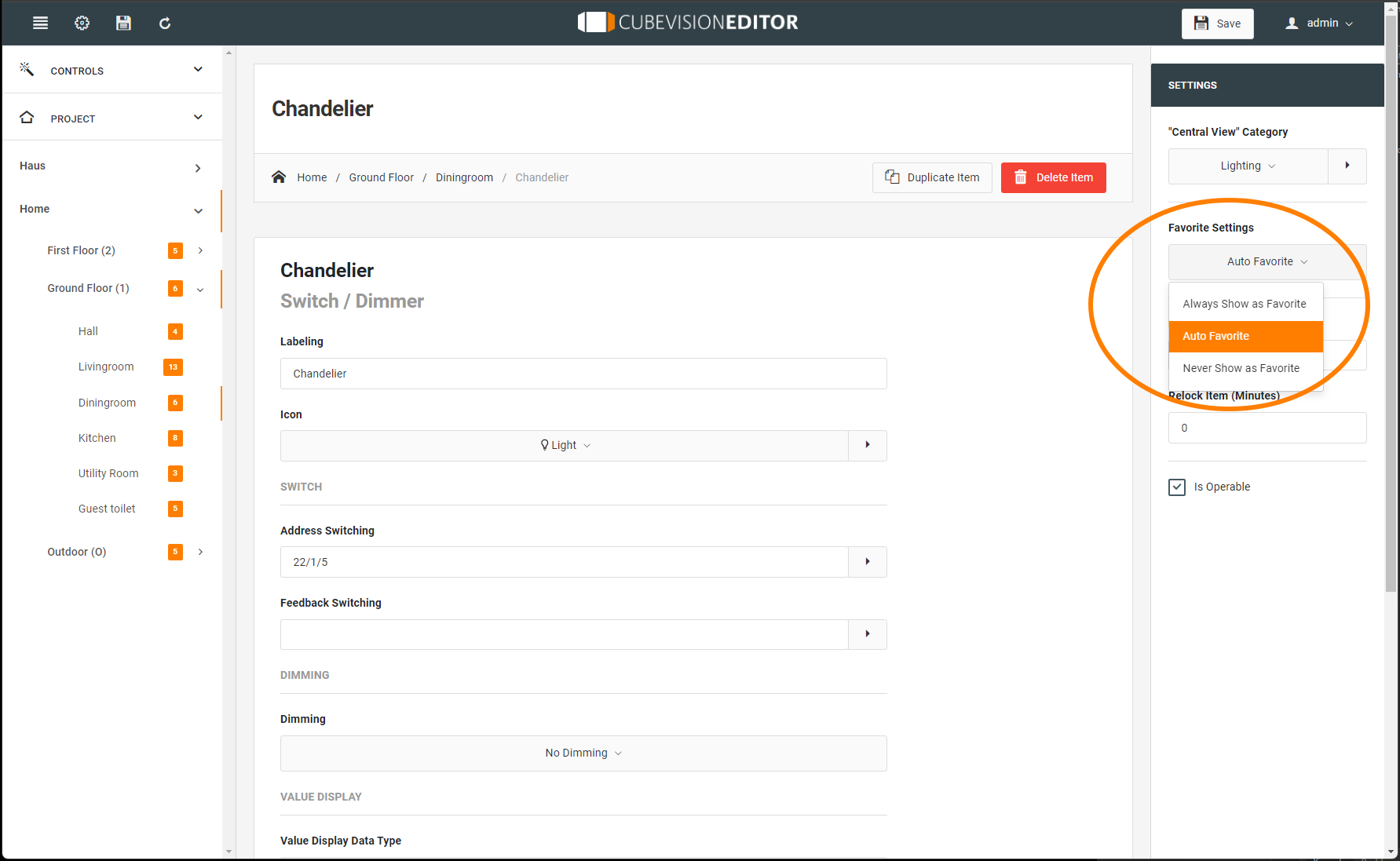
Upon request, the favourites function generates an automatic sorting of the control elements according to how frequently they are used (clicked). To do this, the control elements are sorted into the "Favourites" column provided in the phone presentation, whereas the respective control elements are sorted into the Instant Control Panel [ICP] in the tablet presentation.
In order to ensure that a control element is considered by the favourites function, the following settings must be taken into account in the control element configuration.
Column separator
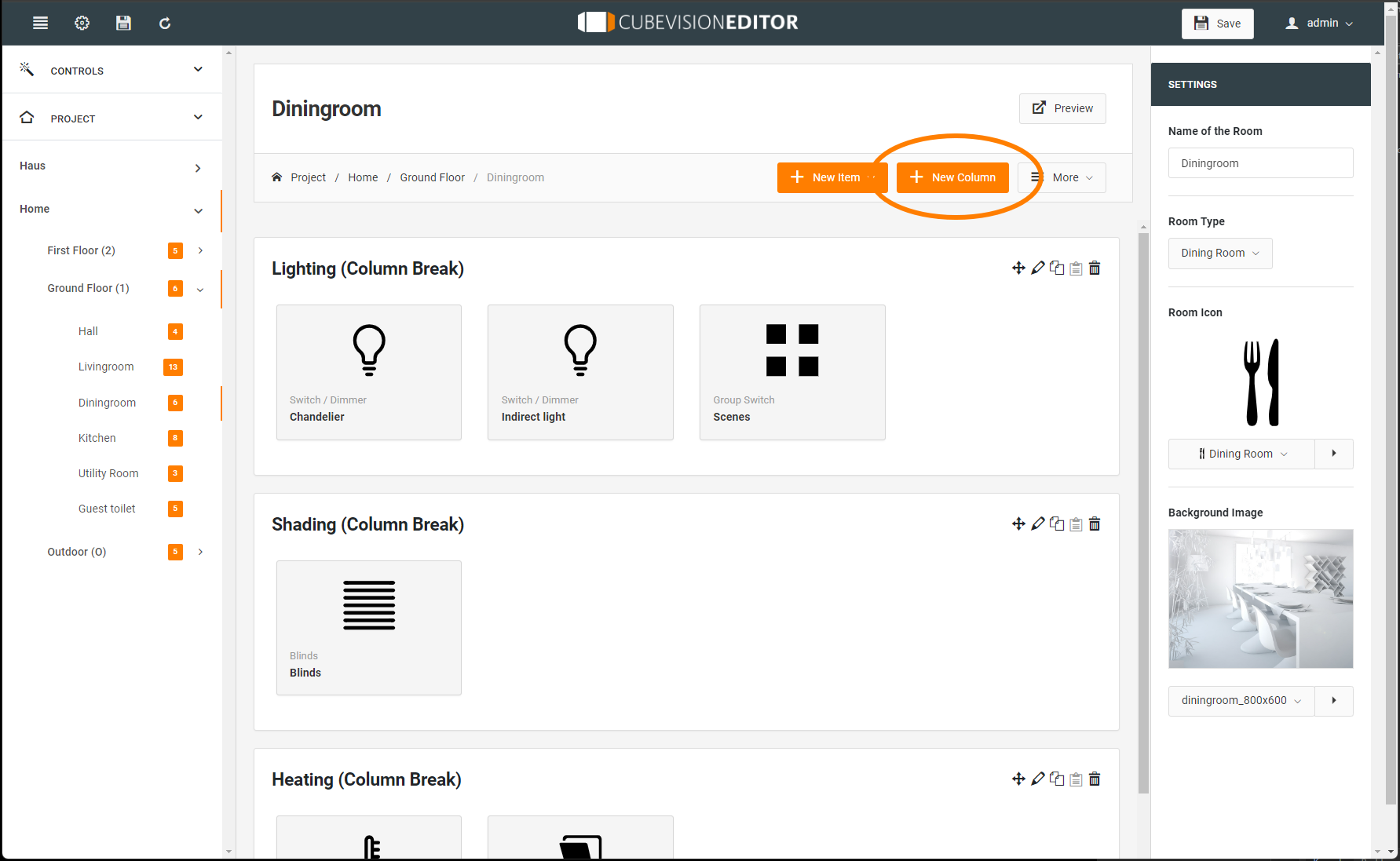
With the "Column Separator" control element, the user also has the option of influencing the assignment of the control elements to the individual columns in the phone presentation.
In the following example (see figure below), a "Column Separator" control element was inserted between "All Sockets" and "Blinds". Separating the columns, the "Blinds" control element is moved to the second column.
The column can be separated by clicking "Add" in the CUBEVISION Editor. The following window now opens up (see figure below, orange rectangle).
Now the "Column Separator" function can be selected; at the same time, the column separator can be assigned a title (name). This title specifies the group generated by the separation more precisely.
Example:
In the "Controlling" column separator element (see figure below, green rectangle), all control elements by means of which something can be controlled (ceiling light, ventilation etc.) have been inserted.
///