
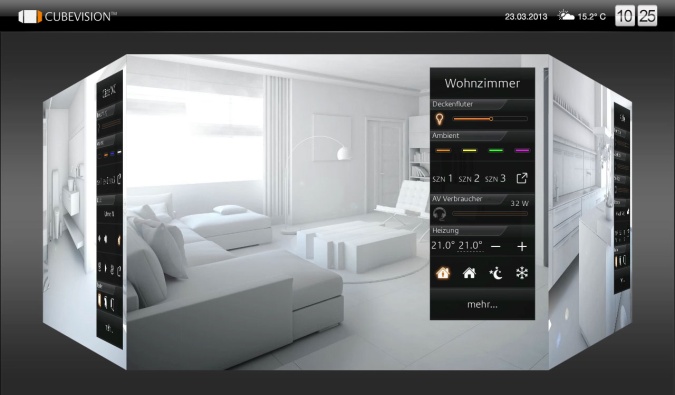
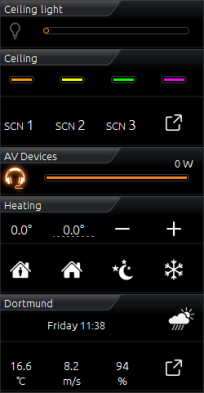
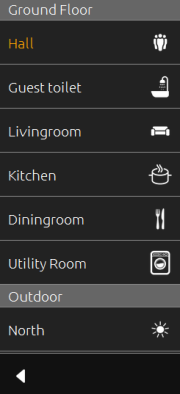
CUBEVISION is one of the most innovative visualizations. The design and layout of the visualization are created automatically and the user must only specify the building structure and link the functions. CUBEVISION automatically scales to the screen size and opens up either in the "Phone" or in the "Tablet" presentation depending on the resolution.
|
"Tablet" presentation |
"Phone" presentation |
|
|
|
|
Using CUBEVISION in A browser
In order to start CUBEVISION in the browser, call up the start page of the CUBEVISIONMODULE X and click on "CUBEVISION". You then access the project (building) selection.
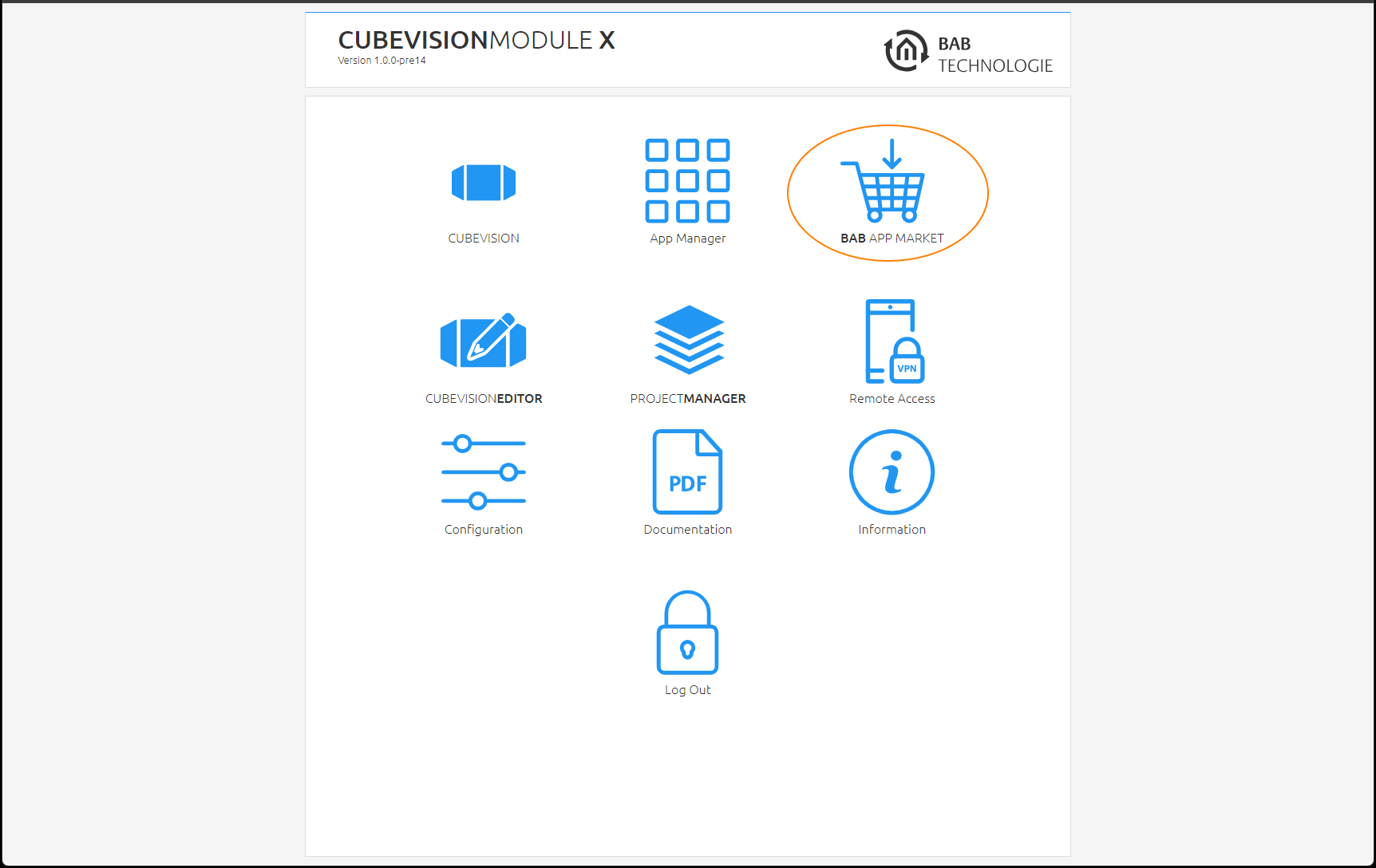
The visualization uses the most recent HTML 5 browser technology. For this reason, it is important to only use the recommended browsers for the CUBEVISION presentation.
Overview of the recommended browsers and presentations on different terminal devices
|
PC: |
|
|
MAC: |
|
|
Android tablet: |
|
|
Android phone: |
|
|
Apple (iOS) tablet: |
|
|
Apple (iOS) phone: |
|
Configuring the presentation
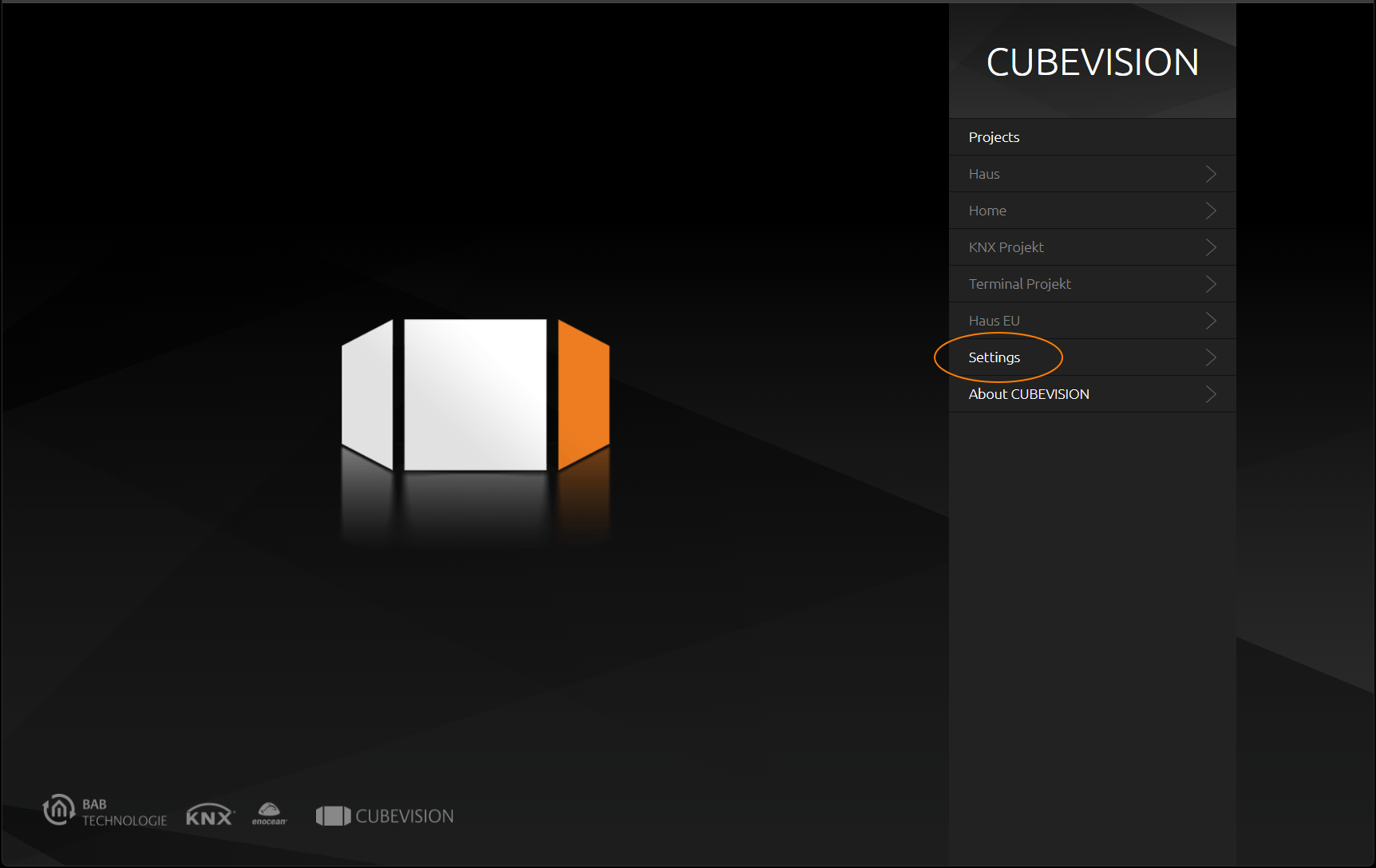
The presentation of CUBEVISION is usually carried out automatically. This means that CUBEVISION recognises automatically which resolution is to be presented and scales correspondingly. From a resolution of 1,024 x 768 pixels and above, the tablet presentation is chosen. In order to make manual adjustments to the presentation, please proceed as described below:
-
Presentation in the browser: Open the CUBEVISION menu item in the main menu of the CUBEVISIONMODULE X.
-
Presentation in the APP: Close an already opened APP via the task manager of your mobile device and open it again so that you can access the start screen of the APP
-
Click "Settings" (see figure below, orange circle).
You can change the display in the following menu.
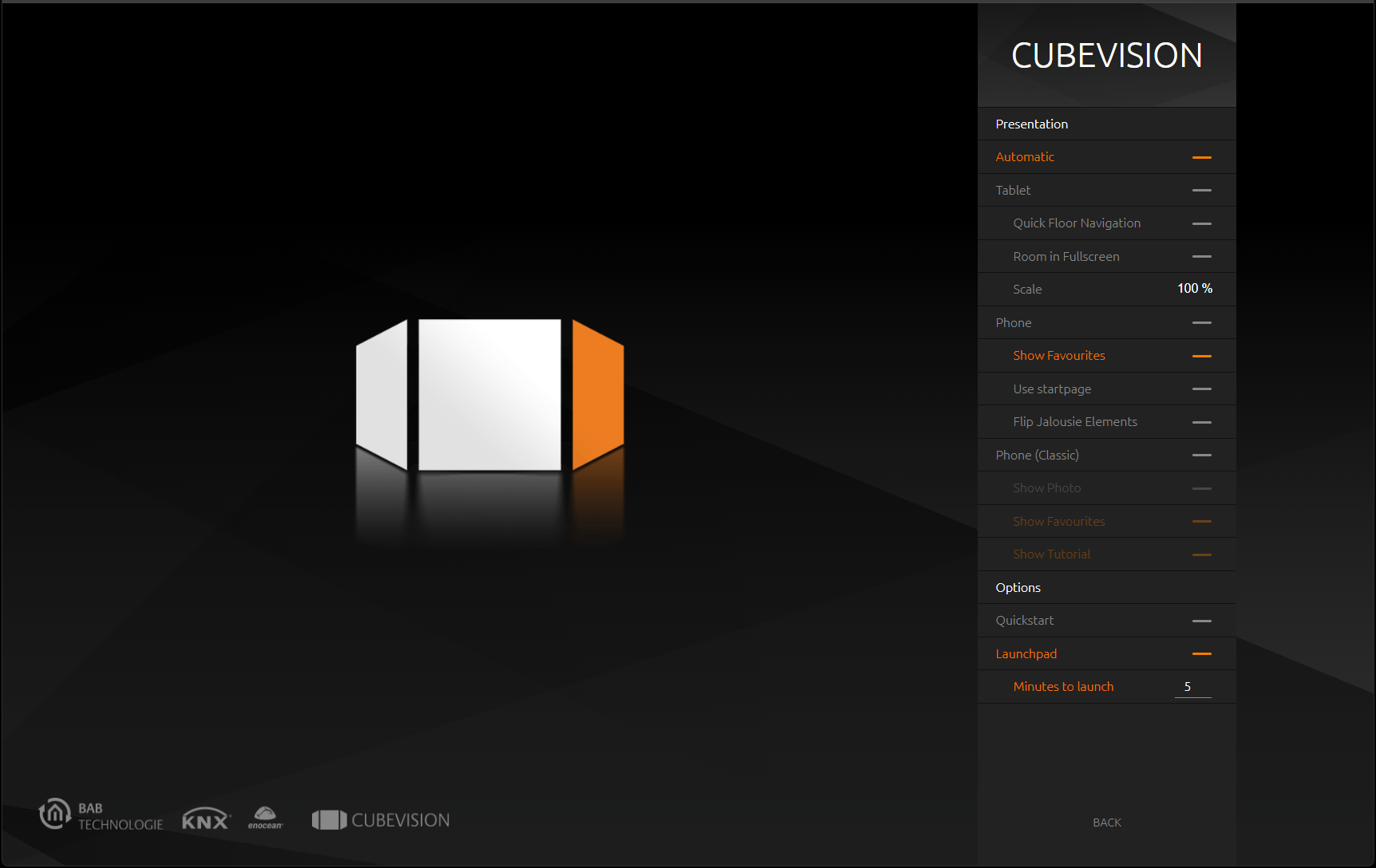
The following configuration options are available:
Presentations
-
Automatic
-
Tablet
-
Phone
The CUBEVISION has two display modes. "Tablet" describes the 3-D cube display for devices with larger displays, "Phone" the display for smaller, e.g. smartphone displays. The "Automatic" setting is used to select the respective display depending on the resolution of the CUBEVISION itself. The visualisation automatically scales to the screen size:
Minimum size (minus respective status bars) with "Automatic" for tablet display = 950x700 (according to DPR).
Show photo
Background pictures are also displayed in the phone view
Show favourites
Favourites are also displayed in the phone view
Show tutorial
The user is guided through the operation at the first start (applies to the phone view).
Always show demo
Only relevant for the CUBEVISION APP. Shows a demo project even if no project has been created.
Quickstart
Only relevant for the CUBEVISION APP. Calls the last opened project directly.
Quick Floor Navigation
On mobile devices (smartphone, tablet) the Quick Floor Navigation optimises the performance of the CUBEVISION by using less memory.
Scale
This can be used to change the scaling of the visualization elements if required. For high-resolution displays, you can increase the scale from 100% to 200% (in 25% increments) to enlarge the visualization elements.
Launchpad
Activates or deactivates the Launchpad. If the launchpad is active, a time in minutes can be set for the launchpad to appear automatically (1-65535 minutes).
Confirm your selection with "OK" and call up the required visualization project (building).
Using in the CUBEVISION APP
For iOS and Android devices, an APP for calling up CUBEVISION is available in the respective stores. This APP is called "CUBEVISION APP". The application is free of charge. In order to call up CUBEVISION from the CUBEVISIONMODULE X in the APP, please proceed as described below:
-
Install the APP from the respective store (Google Play, Apple App Store).
-
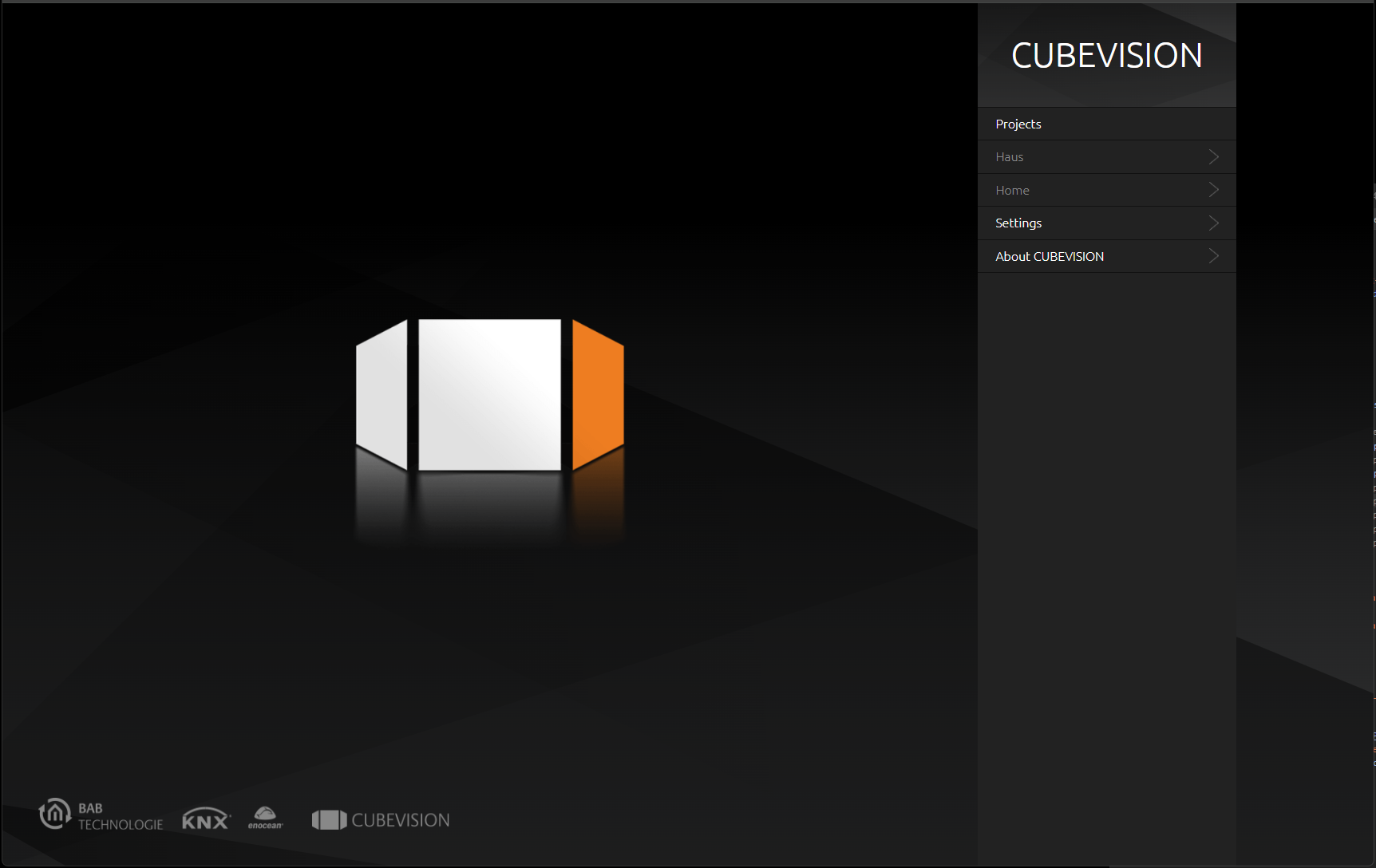
Start the application. The start screen of the APP opens up. If CUBEVISION-compatible end devices (EIBPORT, CUBEVISIONMODULE, CUBEVISIONMODULE X and FACILITYMASTER) have already been added before as favourites, they are listed here. They can be deleted again using the "Remove favourites" button. The start settings of the visualization are changed using the “Settings” button
-
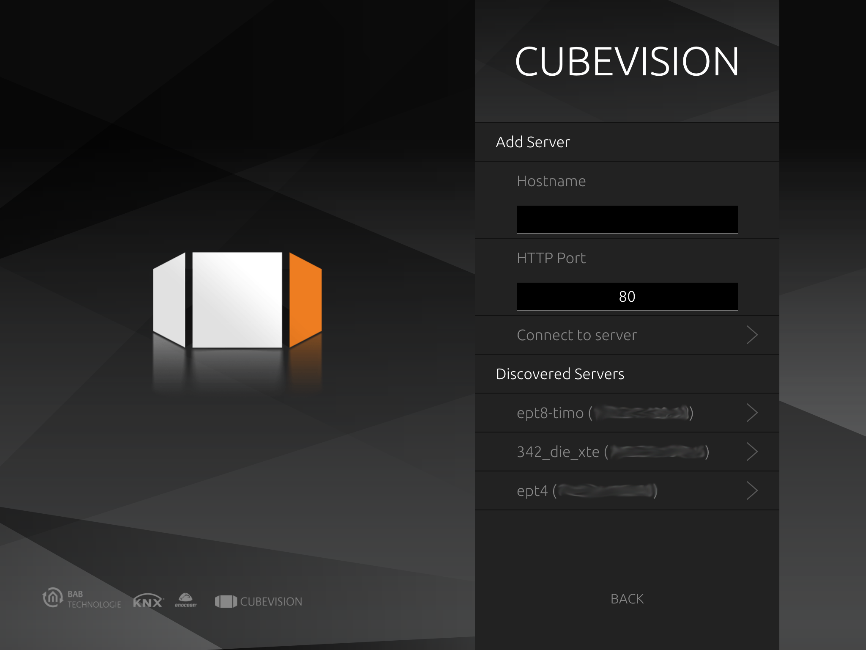
In order to add a new server (device), click the “Server Discovery” button. A second screen opens up and shows you all devices available in the network are shown at “Discovered Servers” with their respective serial numbers. Both EIBPORT or FACILITYMASTER EIBPORT (serial number starts with "BT01"), CUBEVISIONMODULE ("BT103") and CUBEVISIONMODULE X are displayed.
-
If the required server (device) is not available, an additional server can be added using the “Add server” menu and entering the respective hostname and http port.
-
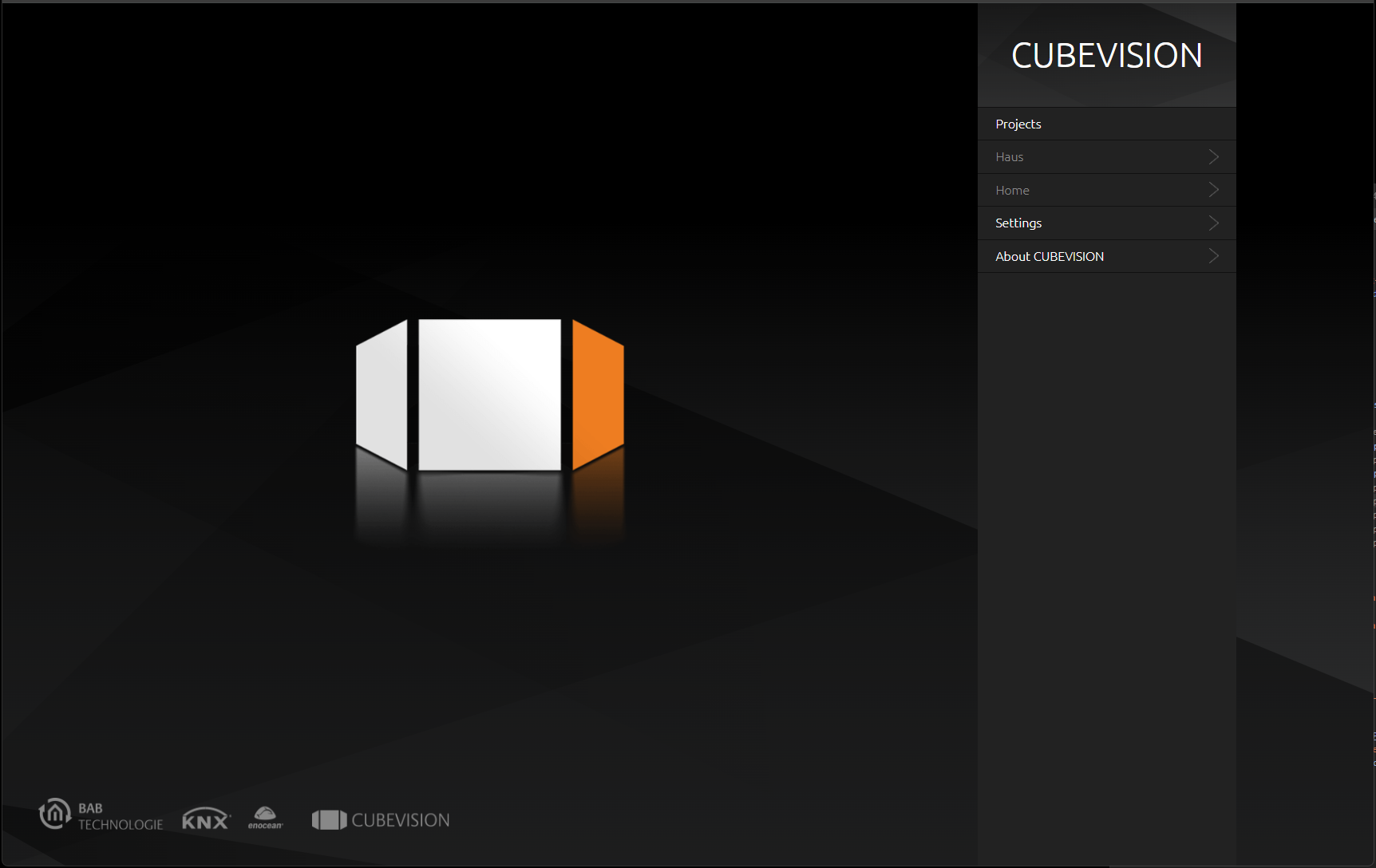
If there are several CUBEVISION projects (buildings) on the required server (device), a project (building) selection is shown after the server has been selected. In order to save the server as a favourite in the above-mentioned list of favourites, the "Save as favourite" check box must be activated.
-
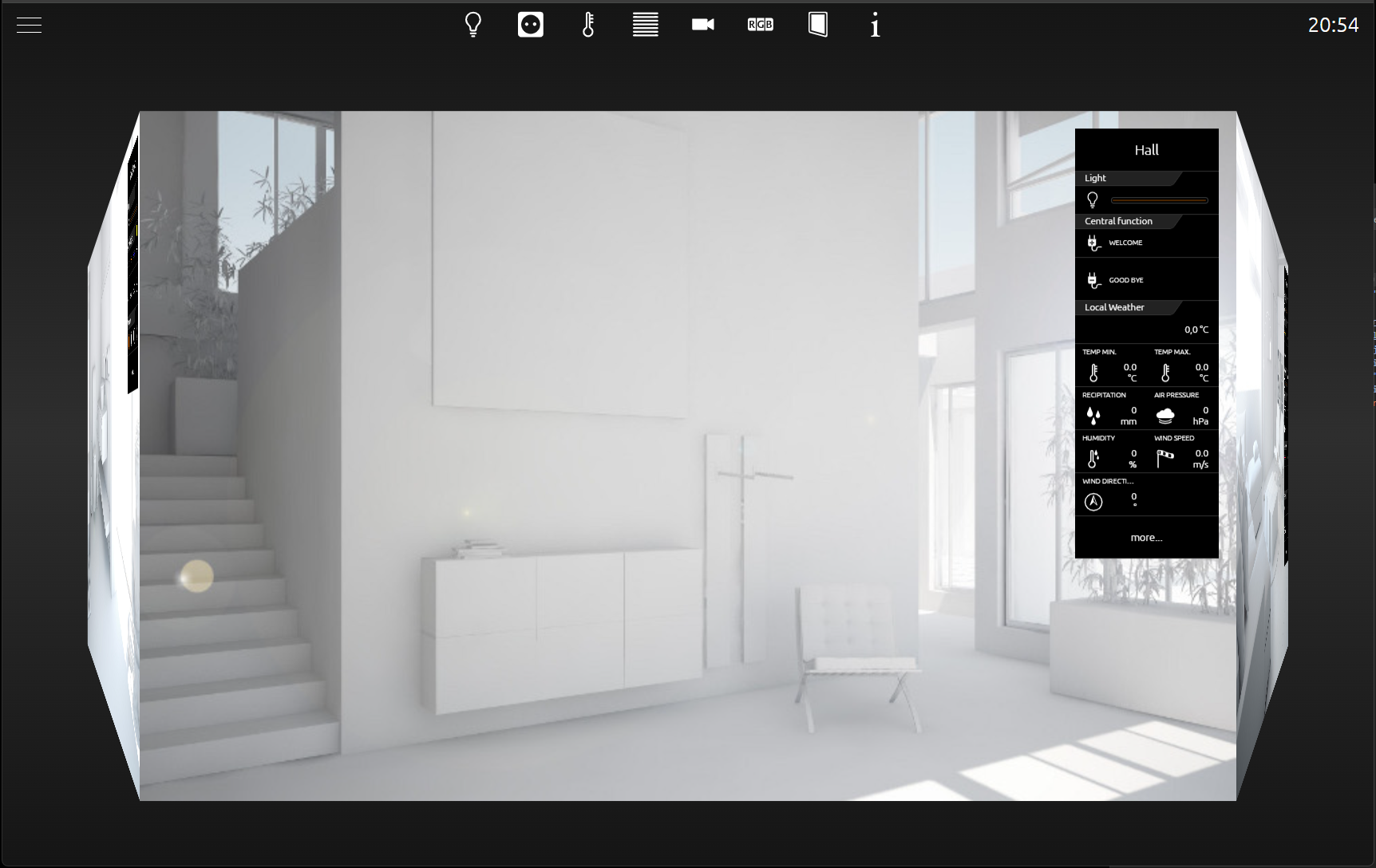
After the required project (building) has been selected, the visualization is started with the start page set and specified in the configuration.
Limitation of project sizes on mobile devices
Because of the memory usage, the size of the CUBEVISION project is limited. The limit on iOS devices is reached a bit earlier than on Android devices. If a critical memory level has been reached, a "Memory Warning" appears. Due to the fact that the CUBEVISION APP shares the resources with other applications, the limit can also be reached earlier if a resource-intensive application is used.
Optimizing performance
In order to optimize the performance of the CUBEVISION, please take the following aspects into account:
-
Reduce rooms and floors as far as possible
-
Use optimized background images
-
Use the Quick Floor Navigation to ensure that only one floor at a time is loaded
///