
Assembly
The device shown in these operating instructions is the CUBEVISIONMODULE X (item no. 10562). Modular device (REG) housing 4TE.
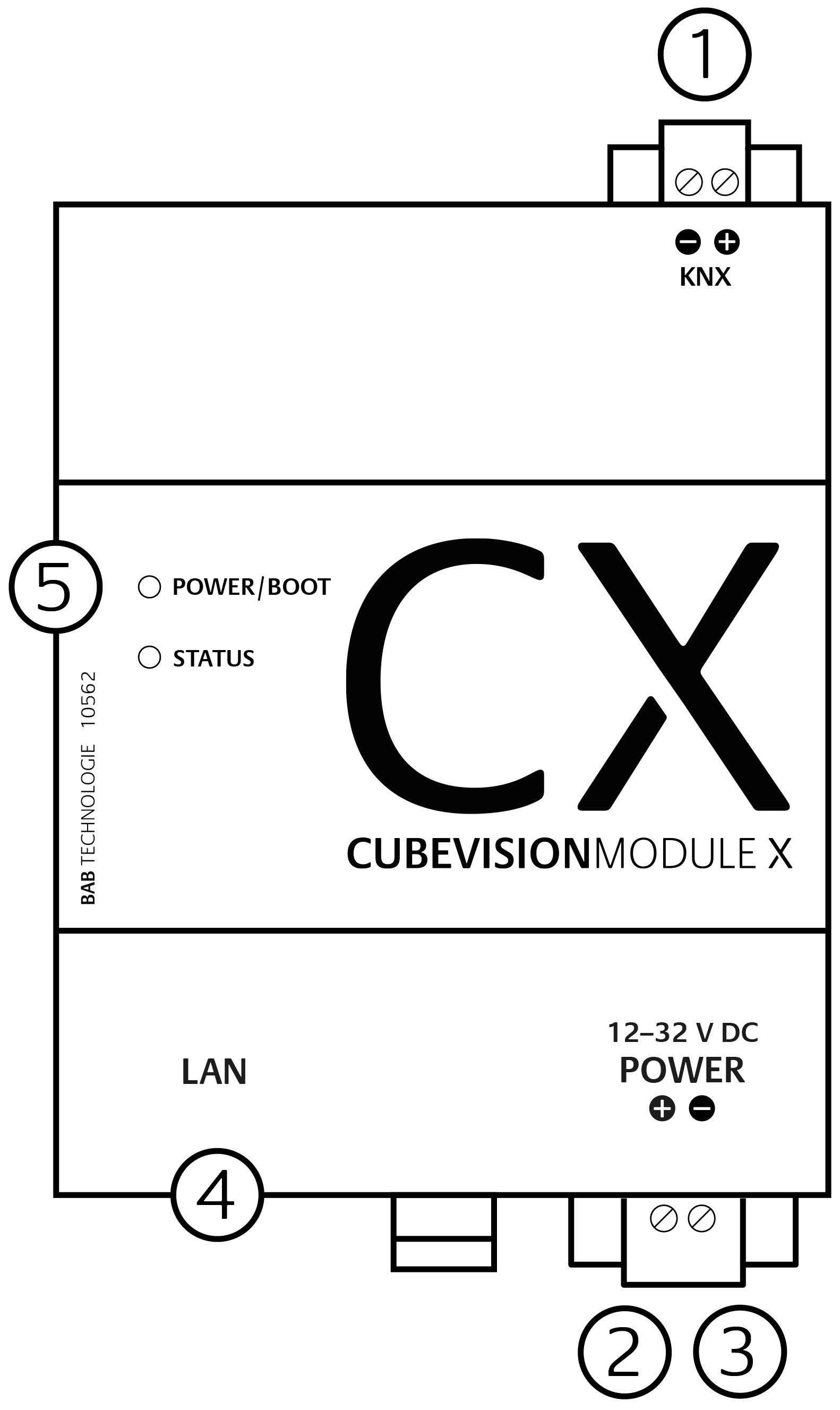
CUBEVISIONMODULE X Connections
(1) - KNX connection (type 10495) via screw plug-in terminal
(2) - Power supply via screw plug-in terminal 12-32V DC
(3) - USB connection (is not activated)
(4) - RJ-45 female connector for Ethernet LAN
(5) - Power LED and Status LED
Dimensions (width x height x depth): 70 x 90 x 63 mm.
In order to assemble the device, please proceed as described below:
The operating voltage of the CUBEVISIONMODULE X is 12-32V DC.
Please observe the polarity as shown on the front of the housing.
-
Remove the pluggable screw terminals to facilitate the connection process.
-
Now connect the power supply cables and the KNX line (in case of the KNX/TP version) to the respective screw plug-in terminals.
-
Insert the screw plug-in terminals into the respective connections.
-
Snap the device onto the mounting rail according to DIN EN 60715 and connect the network cable.
-
Switch on the supply voltage and check the LED status (see chapter below).
LED Status
The CUBEVISIONMODULE X has two DUO LEDs ("Power/Boot" and "Status"). Each DUO LED has a green and a red LED. The top LED is the "Power/Boot" LED, the bottom LED is the "Status" LED.
POWER / BOOT LED
|
LED display |
Status |
|
OFF |
The device is not ready for operation. No operating voltage is supplied. |
|
GREEN |
The device is ready for operation. |
|
FLASHING ORANGE |
The device is booting. |
STATUS LED
|
LED display |
Status |
|
OFF |
The device is booting |
|
FLASHING GREEN |
The device has been started; the LED simulates a "heartbeat". The flashing interval increases depending on the device utilization. |
|
FLASHING RED |
KNX: device is communicating over KNX |
Explanation:
The green "Power/Boot" LED lights up as soon as the CUBEVISIONMODULE X is supplied with power. Two to three seconds after the power supply has been switched on, this LED also starts to flash red (flashing orange) until the booting process has been completed. Then the LED is permanently illuminated green, while the "Status" LED flashes green (simulates a "heartbeat"). The flashing frequency increases depending on the device utilization.
It takes approx. three (3) minutes to start the CUBEVISIONMODULE X.
Initial operation
If the CUBEVISIONMODULE X has been mounted and started as described in chapter "Assembly", commissioning can now be continued as specified below.
Factory setting on delivery:
|
IP Address |
192.168.1.243 |
|
Subnet Mask |
255.255.255.0 |
|
Username |
admin |
|
Password |
admin |
|
Device Name |
CX |
The password must be changed immediately when logging in for the first time. If the password is lost, the device cannot be reset!
System requirements
|
Operating system: |
Platform-independent |
|
For configuration: |
Current browser (Chrome, Safari, Firefox, Edge) |
|
CUBEVISION: |
Software: Current Webkit / browser (Chrome, Safari, Firefox, Microsoft Edge)
|
Because CUBEVISION uses latest HTML 5 technologies and is containing 3-D animations, there could be problems running it on older hardware and hardware with too little hardware performance. In case of doubt, please check out functionality with our demonstration-CUBEVISION on our website www.bab-tec.de in the “Live” menu.
Establishing connections
In order to configure the CUBEVISIONMODULE X and to retrieve the visualization, a current browser and a network connection to the device are required. If the device is in the condition on delivery, it can be accessed at the above-mentioned IP address and the network settings must be adjusted to the address range, where necessary. To do this, please follow the instructions provided in chapter "Adjusting the network settings of your computer".
BAB STARTER
If you do not know the network settings of the device, the BAB STARTER can help you to find out with which IP address the device is available. The software is available for Windows and MAC systems and can be found on the supplied CD or at www.bab-tec.de in the download section. For detailed information, please observe the separate documentation with respect to BAB STARTER!
BAB STARTER installation
For Microsoft Windows, you receive a *.zip file to download. For MAC OS X, a *.mpkg file is available.
A detailed description for BAB STARTER can be found in the related documentation on the supplied CD or can be downloaded at www.bab-tec.de.
Windows installation
-
Run "BAB_STARTER_[Version]_setup.exe" to start the installation.
-
Follow the instructions in the InstallShield Wizard and click on "Continue".
-
In the end, confirm the installation with "Finish".
Thereafter, the BAB STARTER can be found in the Windows Start menu folder "BAB TECHNOLOGIE GmbH".
MAC OS installation
Double click on "BAB STARTER_[Version].mpkg".
Your system may notify you of an unverified developer. The detailed description of how to carry out the installation for non-verified applications is described in detail in the BAB STARTER documentation: https://support.apple.com/de-de/HT202491
Follow the instructions of the installation process and click on "Continue" to continue the installation.
The message "The installation was successful" confirms the successful installation. The BAB STARTER icon now appears in the "Programs" folder.
Run BAB STARTER
Click on the BAB STARTER program icon to start the application.

With BAB STARTER, it is also possible to start the CUBEVISION Editor separate from the search for devices described below, irrespective of whether a local Java Virtual Machine (JVM) is installed!
To display all active BAB devices in the network, click on the "Search for Devices…" menu after you have called up the STARTER.
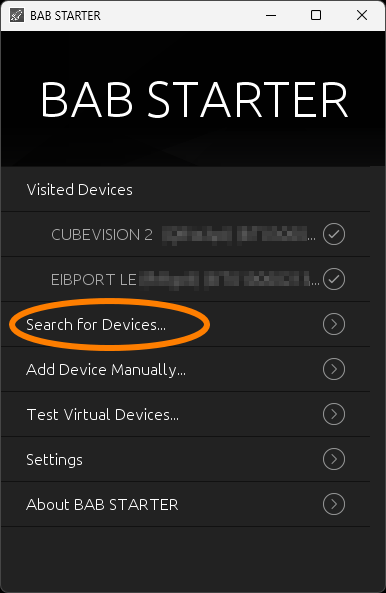
Devices in the foreign network area
The BAB STARTER shows in the list of devices found whether they are in the same address range (subnet) or not. If the entry is grayed out and an X is displayed on the right-hand side of the line, the CUBEVISIONMODULE X is located in a different address range than your computer and cannot be reached with the current network configuration.
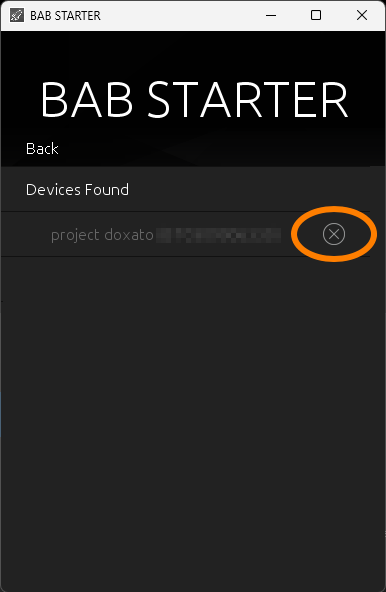
In this case, the current network setting of the CUBEVISIONMODULE X can be viewed with the BAB STARTER. To do this, select the entry in the list of devices found and then click on "Details".
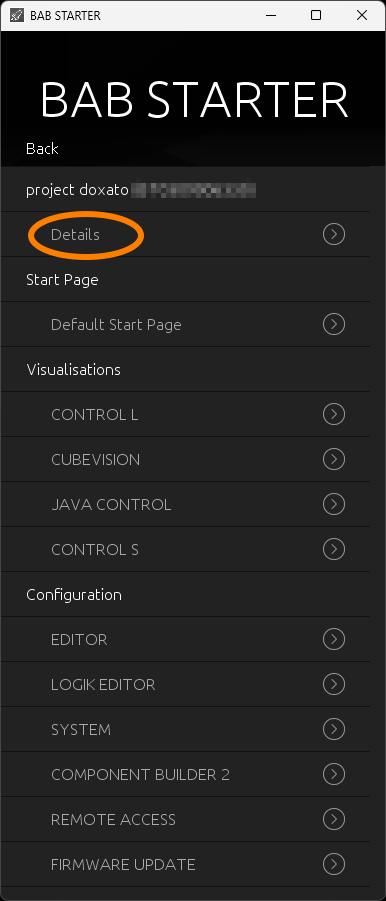
The "Detail" view shows the serial number, installed firmware version and current IP address (host). This allows you to determine the address range in which the device is located.
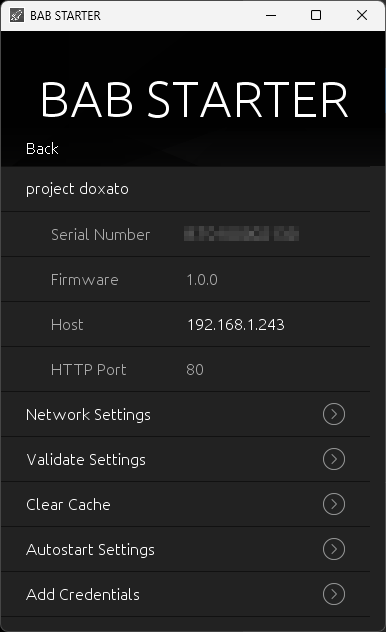
To bring the device into the network area of your computer, please proceed as described in chapter "Adjusting the network settings of your computer".
Devices in the same network area
If the entry is not grayed out and a check mark is displayed on the right-hand side, the CUBEVISIONMODULE X is located in the same network area (subnet). Direct access is possible.
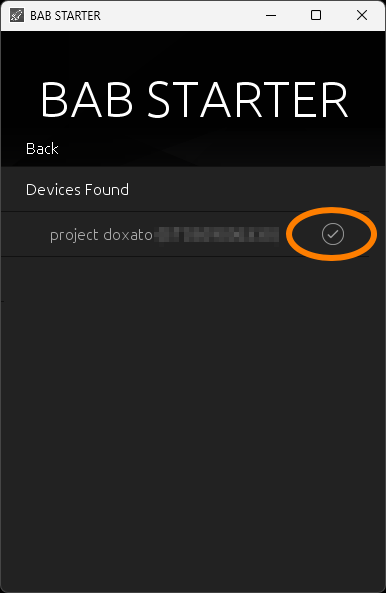
To do this, click on the entry to open the next menu. In addition to the device details, you have access to CUBEVISION, SYSTEM and REMOTE ACCESS. Further description from chapter "CONFIGURATION"
The CUBEVISIONMODULE X starts with the respective applications in the WEB browser via the menu items displayed. If you know the IP address, you can call up the start page of the CUBEVISIONMODULE X directly in the browser.
Adjusting the network settings of your computer
In order to adjust the network settings of your computer and establish a connection to the device, please proceed as described below:
Open the IP address settings (under Windows 11):
-
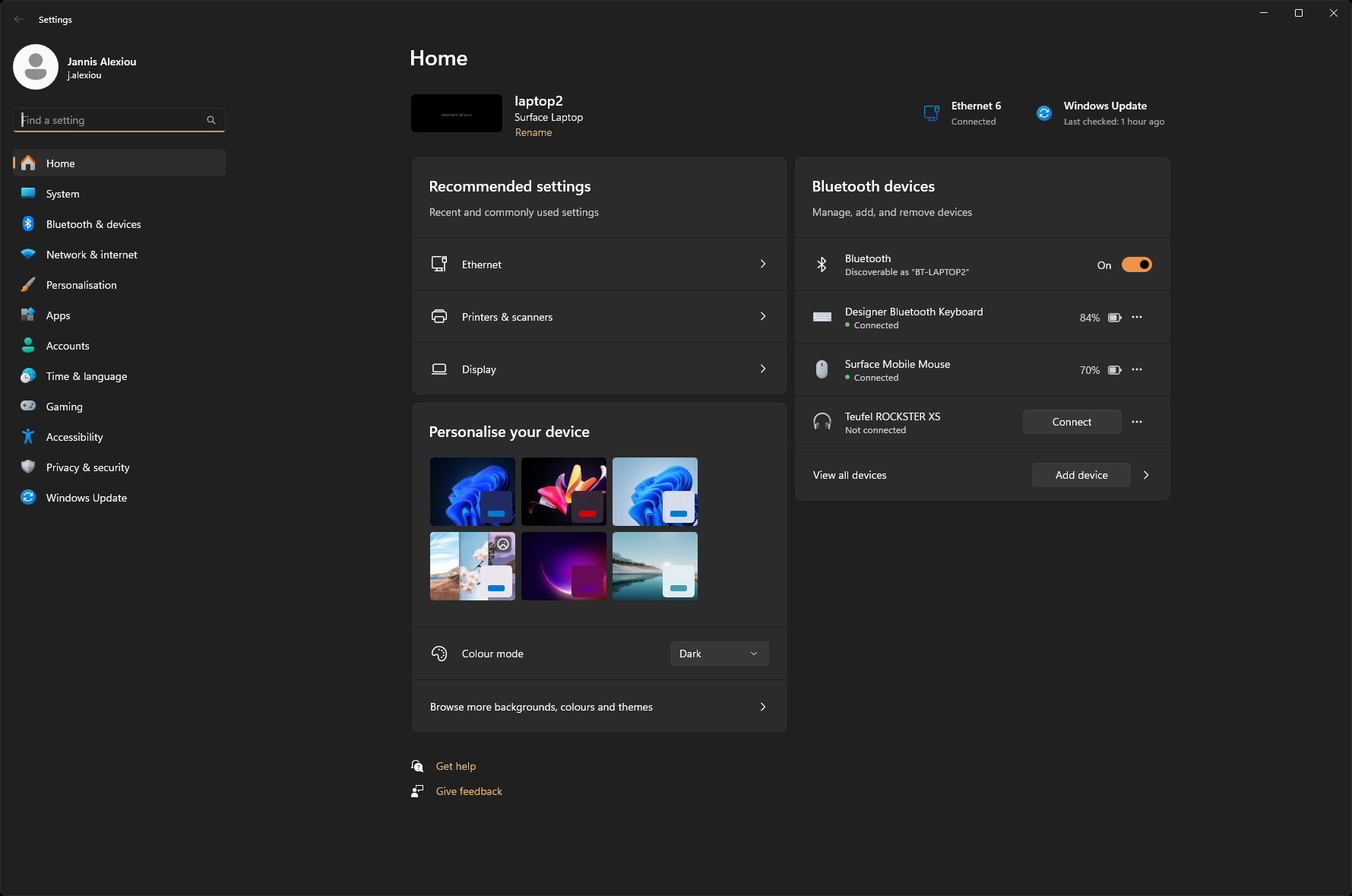
Click "Start Button" → "Settings"
-
Switch to the → "Network and Internet" section
-20240426-095444.png?cb=f6e257d3790a32d93654cd54c20cc1f9)
-
Select the network interface used from the list. Here in the example "Ethernet".
-20240426-095445.png?cb=0f6322e369140f59a4b011e98e9d13db)
-
Next, click on "Edit" for the IP assignment of the Ethernet interface:
Make a note of the current configuration or create a screen copy so that this configuration can be restored later.
-
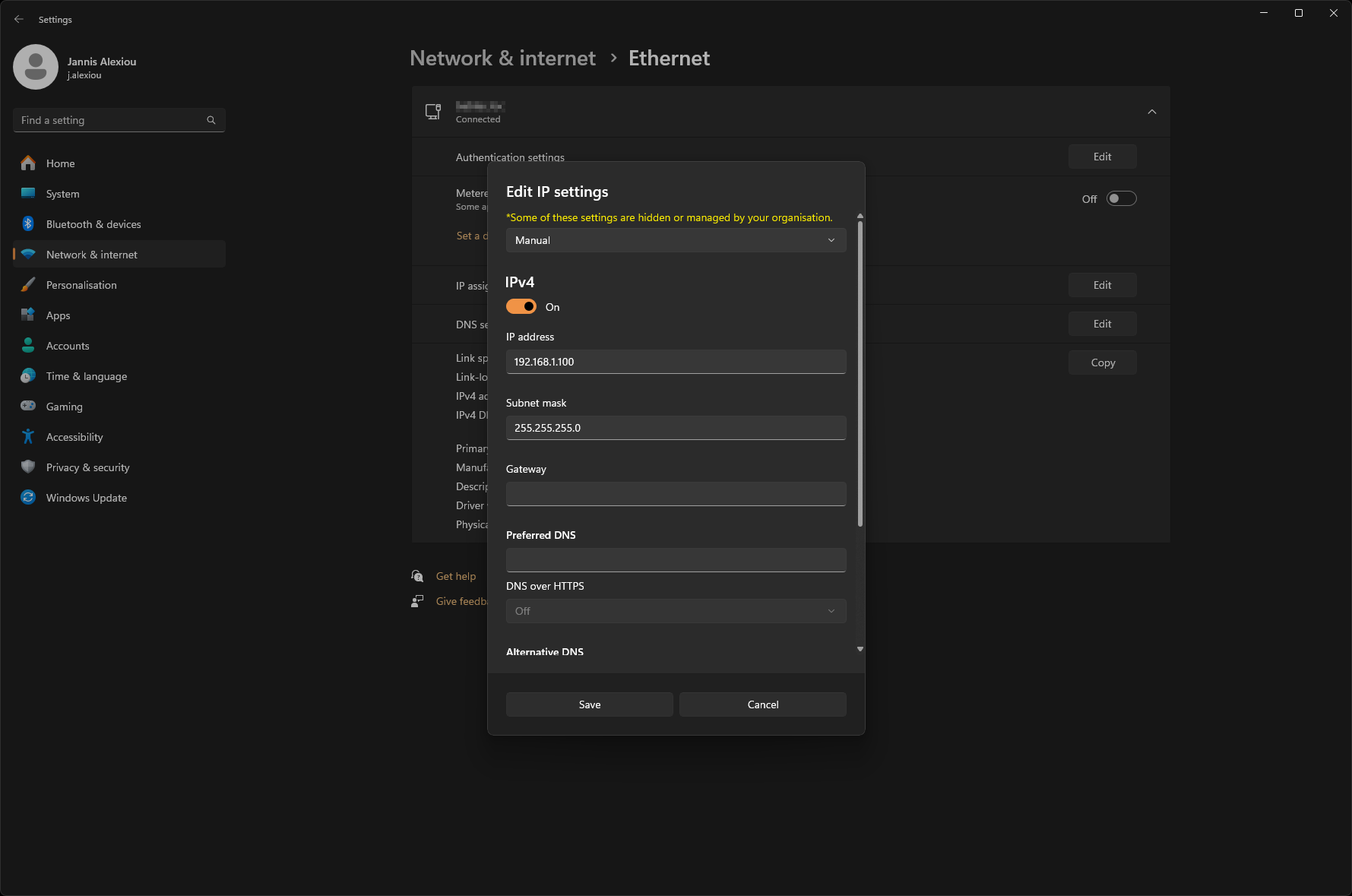
Select the "Manual" entry in the drop-down list and switch on the processing for IPv4.
-
Now change the IP address settings (IP address and subnet mask are sufficient) to switch to the IP address range of the CUBEVISIONMODULE X.
-
Example of a valid configuration for the factory settings of the CUBEVISIONMODULE X:
-
Free IP address: 192.168.1.228
-
Subnet mask: 255.255.255.0
-
-
Now confirm your input with "OK".
Thus, you have adjusted the network settings of your PC to those of the CUBEVISIONMODULE X. The web interface of the CUBEVISIONMODULE X can now be accessed by means of the browser. Please follow the instructions below to adjust the IP address setting of the device.
After the network setting for the CUBEVISIONMODULE X has been adjusted, the network setting of the PC can be reset to the previous state in order to continue with the setup of the CUBEVISIONMODULE X.
Adjusting the network settings of the CUBEVISIONMODULE X
If the network prerequisites have been created, you can now access the configuration of the CUBEVISIONMODULE X in order to adjust the network settings to the local requirements there. To do this, please proceed as described below:
-
Enter the IP address of the CUBEVISIONMODULE X in the address line of your browser (for factory settings: 192.168.1.243).
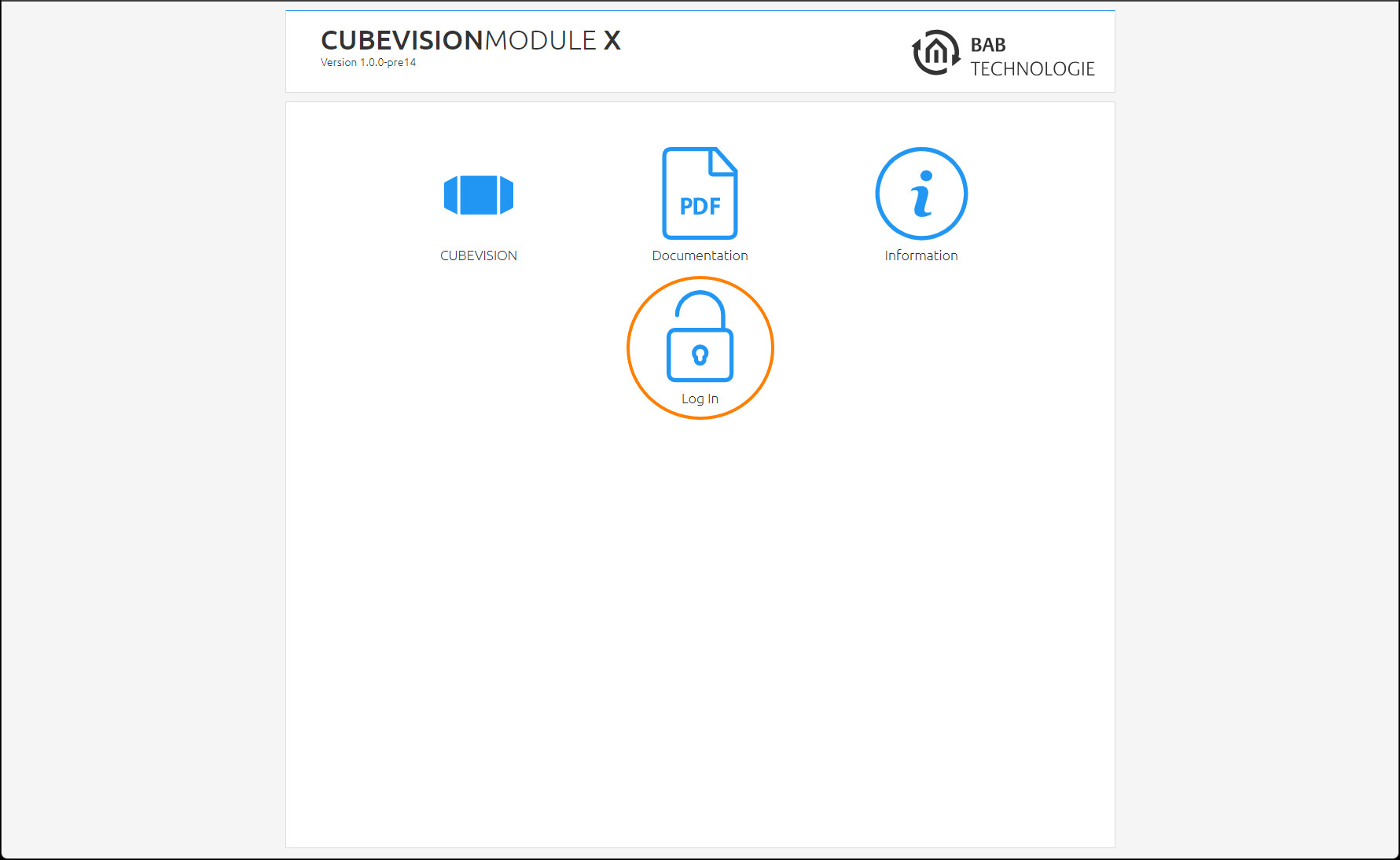
The start page of the CUBEVISIONMODULE X opens up. Click "Log In".
-
A login dialog appears. For factory settings, the login data is as follows:
Username: admin
Password: admin
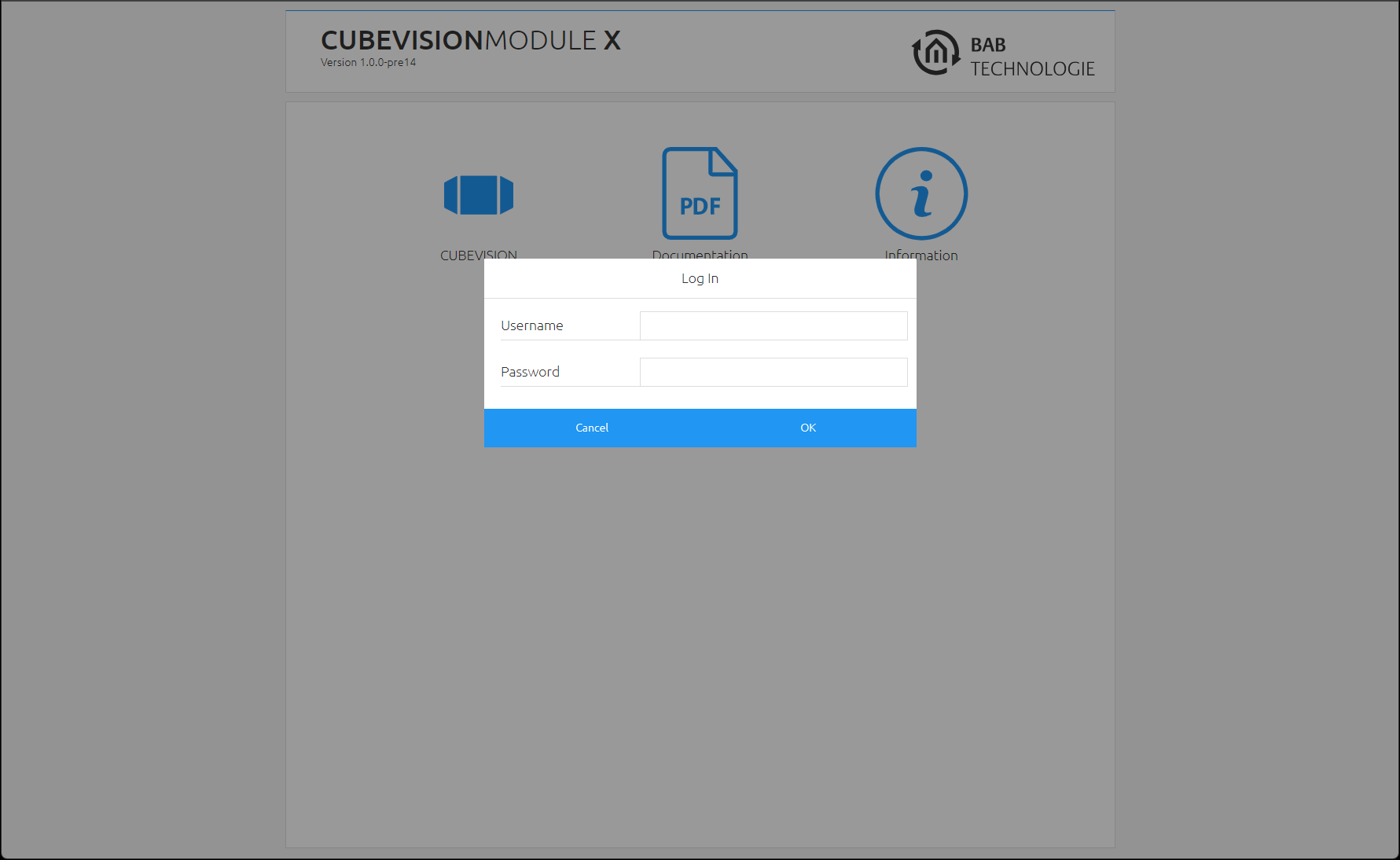
The password must be changed immediately when logging in for the first time. If the password is lost, the device cannot be reset!
Logging in only works if the browser is authorized to save cookies!
-
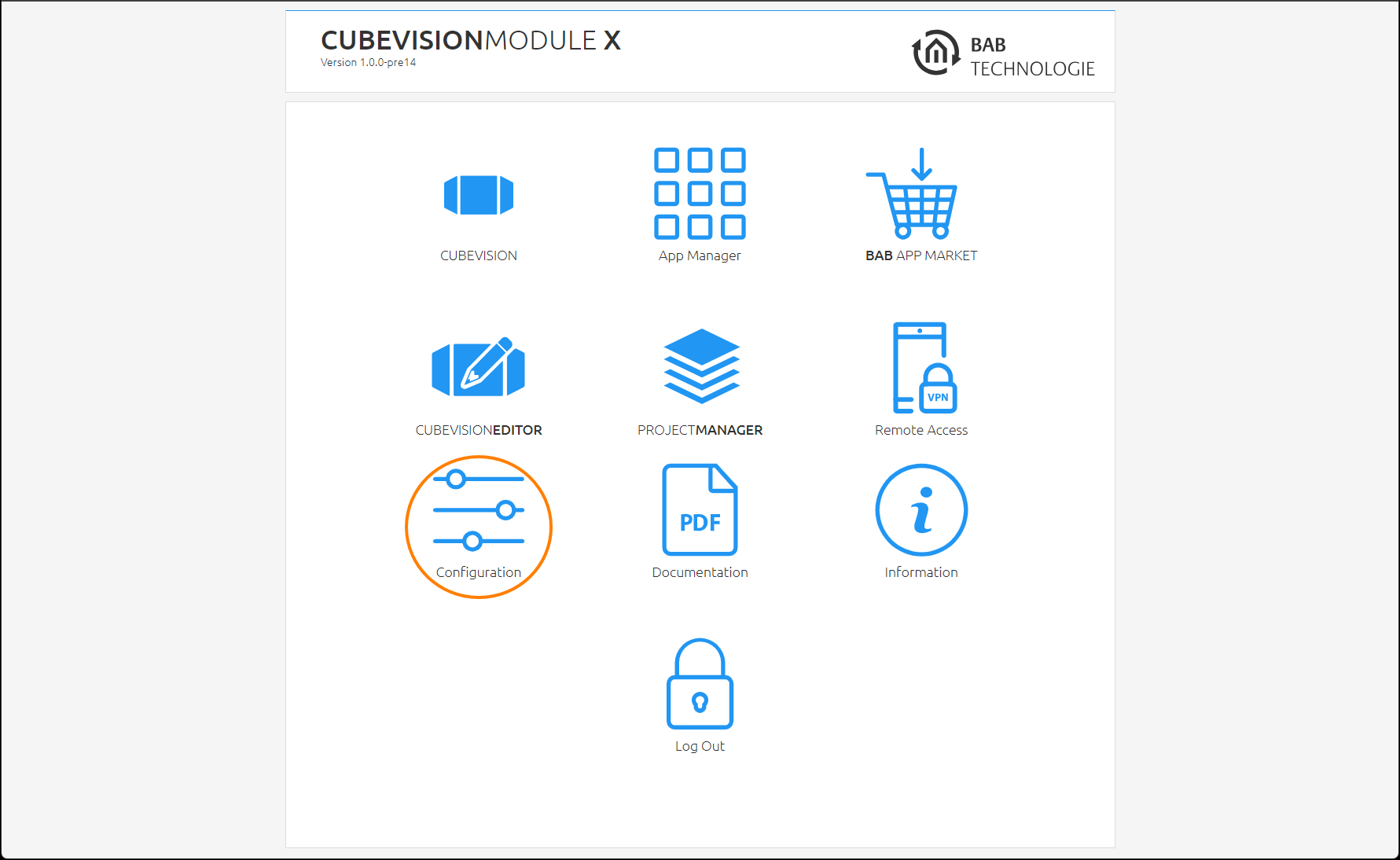
The view on the start page changes. You can now access the following levels:
-
CUBEVISION
-
App Manager
-
BAB APP MARKET
-
CUBEVISION EDITOR
-
PROJECT MANAGER
-
Remote Access
-
Configuration
-
Documentation
-
Information
-
Log Out
-
-
In order to change the IP address of the CUBEVISIONMODULE X, please click "Configuration"
|
DHCP: |
If DHCP is active, the device automatically obtains the network settings. A DHCP server must be available in the local network. |
|
IP address
|
Field for the static assignment of IP addresses. Please make also sure that the subnet mask (often 255.255.255.0) and the gateway entry are correct. (Often the IP address of the WLAN router). Without a correct gateway entry, the device will not be able to communicate with the Internet. |
|
DNS server: |
DNS is the abbreviation for Domain Name System. The DNS server converts Internet addresses, for example "www.bab-tec.de" into the IP address "85.214.89.170" and vice versa. Without a valid DNS entry, NTP, weather services from the Internet and Smart Home Apps do not work. |
|
NTP server: |
NTP is a free service for synchronizing the system time of Internet-compatible devices. If it is not possible to establish the connection to an NTP, the system time must always be checked and adjusted manually
|
The configuration menu opens. The following settings can be made in the "Network" menu item:
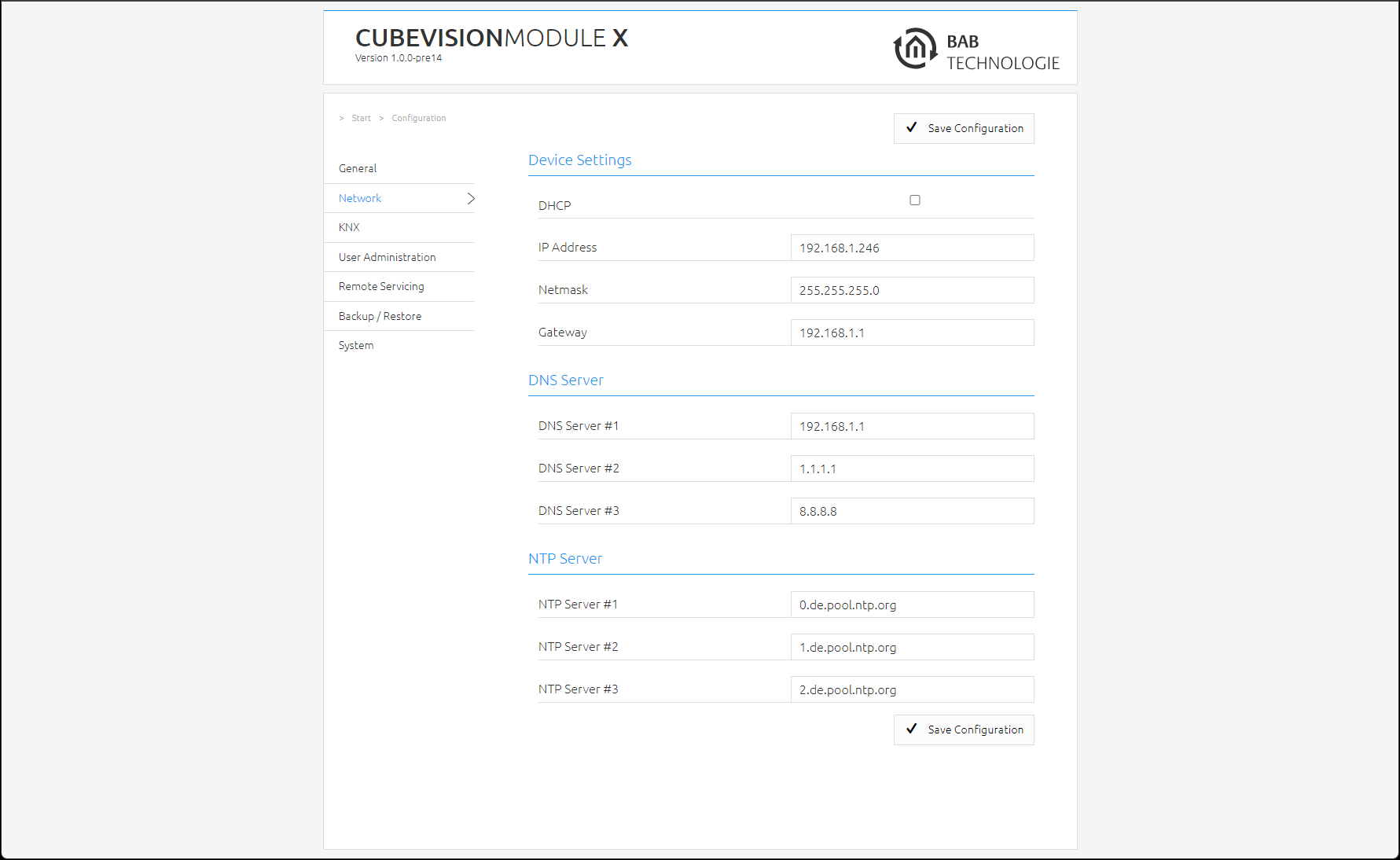
Change the IP address settings as required. To save the settings made, click "Save Configuration". The server in the device is restarted, the browser automatically connects to the new IP address if possible.
Please note that you may have to reset the IP address of your computer to the original value in order to be able to reach the CUBEVISIONMODULE X again after the change.
Special feature when activating DHCP
If you have activated DHCP for the CX according to the steps mentioned above, please use the DiscoveryTool as described in chapter "BAB STARTER" to find out the current IP address configuration of the device.
Port Settings
We strongly advise against using port forwarding for external access. For external access, please use the integrated HOOC solution or VPN Plug&Play (Chapter Plug & Play VPN).
Should be necessary port forwarding in special cases, the following should be observed.
If the connection between CUBEVISIONMODULE X and client is monitored by a firewall or cross-network access is to be enabled, the following port settings must be taken into account:
Visualization: TCP Port 80 (http)
Configuration: TCP Port 80 (http) and TCP Port 36
If you want to make your CUBEVISIONMODULE available for external access, please protect the access with secure passwords. In this respect, follow the currently applicable password rules.
Calling up the CUBEVISIONMODULE X web interface
The CUBEVISIONMODULE X is configured via a web interface that can be accessed in any standard web browser. The ‘CUBEVISION Editor’ and ‘Project Manager’ applications are available directly in the browser - without additional software installation.
In order to call up the web interface, please proceed as described below:
-
Open a browser and enter the IP address of the CUBEVISIONMODULE X into the address line (Information on the factory settings can be found in chapter "Initial operation")
-
You can access the CUBEVISION start page. From there, you can access the CUBEVISION visualization "CUBEVISION" and system information "Information".
-
Use the user data to log in to the web interface: "Logging in". (Information on the authorization settings can be found in chapter "Initial operation”
You can then also access the "Configuration" menu item. See chapter "CONFIGURATION"
-
To return back to the main menu, click on “Start”.
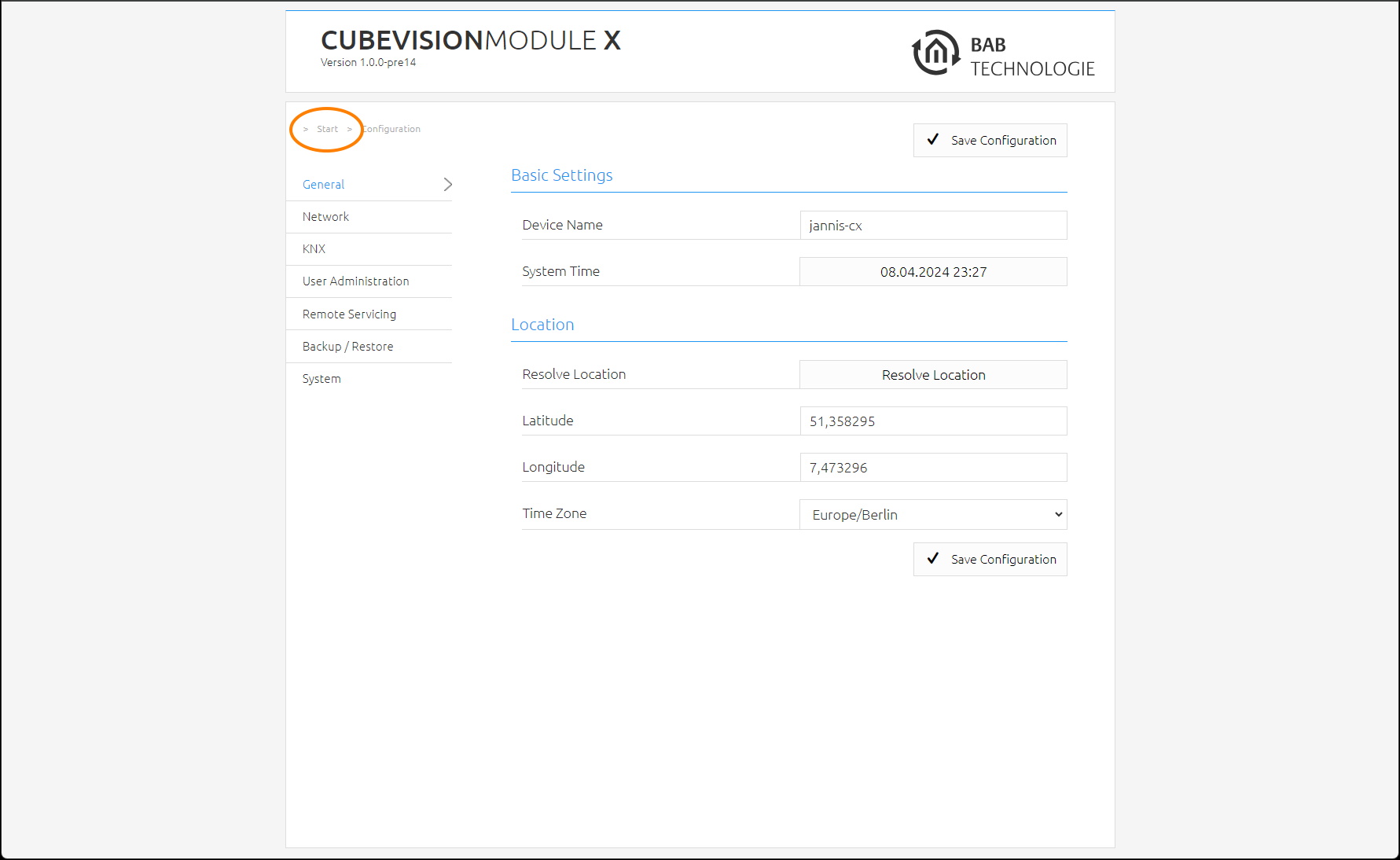
Initial operation of CUBEVISIONMODULE X KNX
There is no ETS application for the CUBEVISIONMODULE X KNX/TP (item no.). All KNX-relevant settings are made via the web interface of the CUBEVISIONMODULE X.
Please use a "dummy" application for the ETS project in order to document that the physical address of the CUBEVISIONMODULE X is used.
-
Call up the website of the CUBEVISIONMODULE X and log in (See "Calling up the CUBEVISIONMODULE X web interface")
-
Switch to the "Configuration" menu > "KNX".
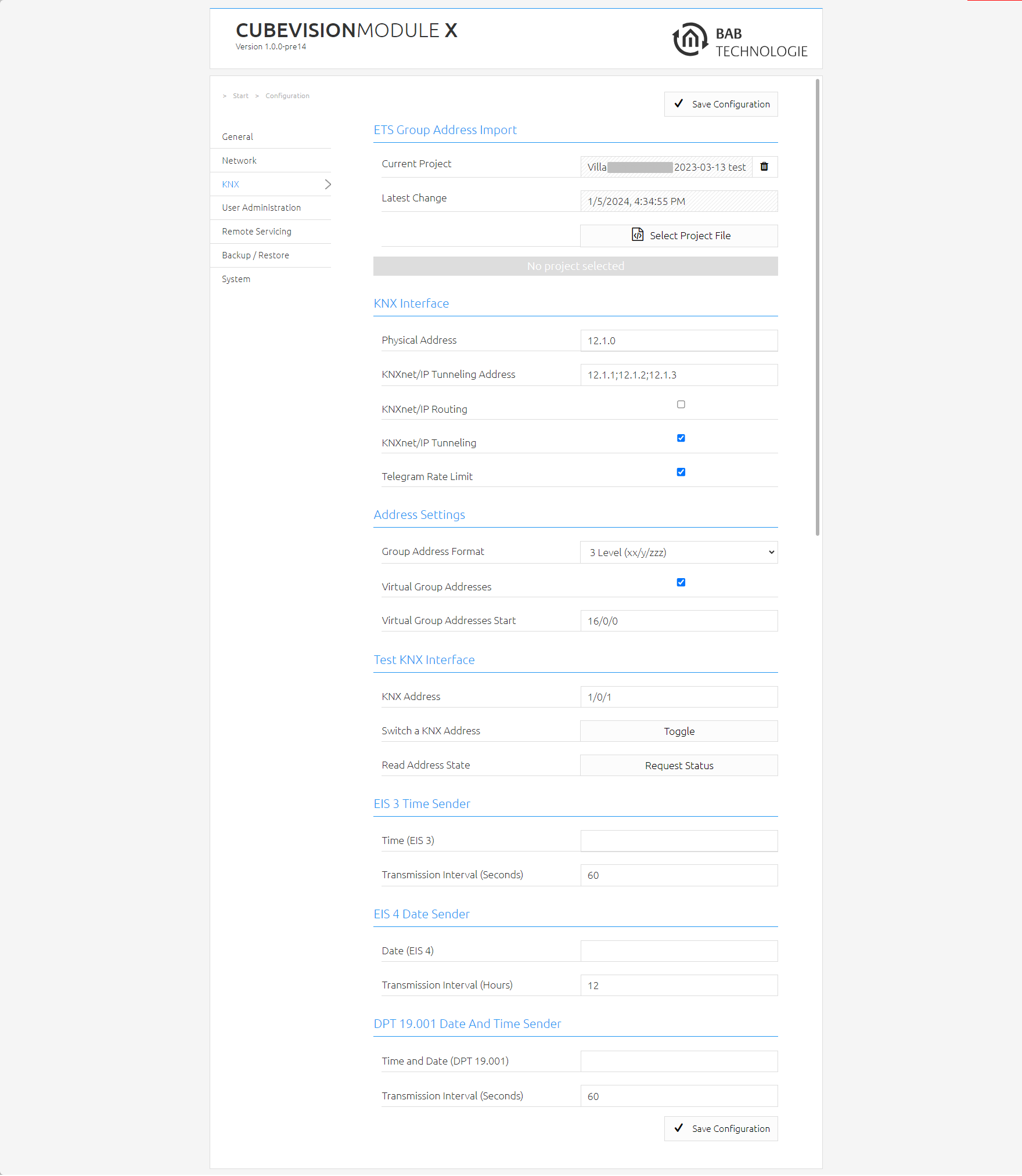
-
Change the "Physical address". Please observe the standards applicable to the assignment of physical addresses (Upper input field) in a KNX system!
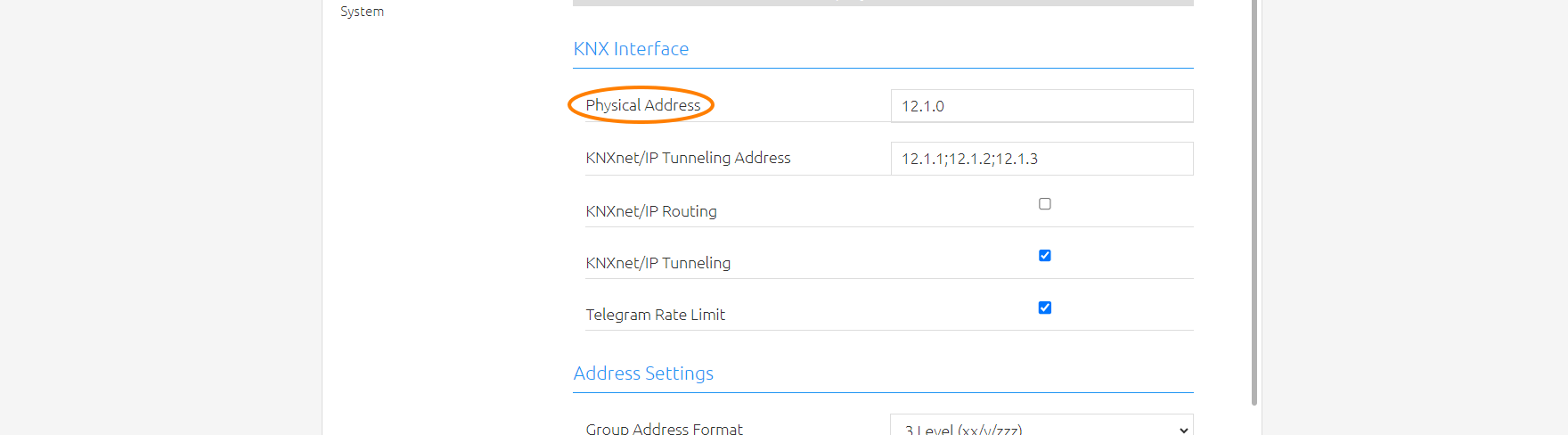
-
Assign at least two (2) addresses (which are not used in the respective line) for KNXnet/IP tunnelling (Lower input field).
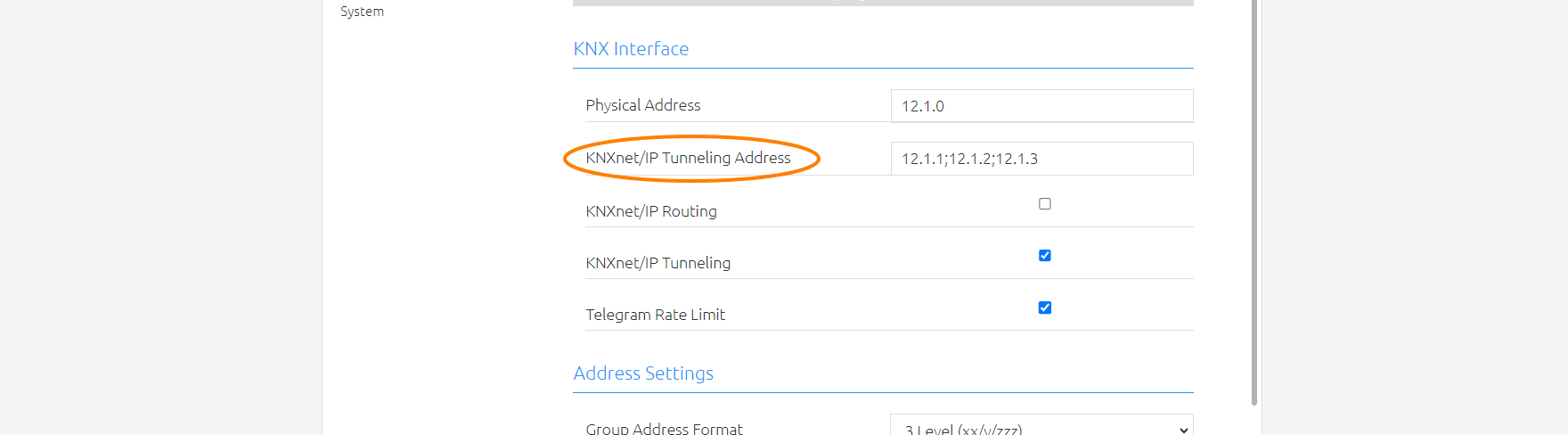
These addresses are required in particular to establish the connection of the initial operation software ETS in order to use the CUBEVISIONMODULE X as an interface to KNX. Since ETS 5, at least two (2) free addresses are required here.
-
Save the configuration
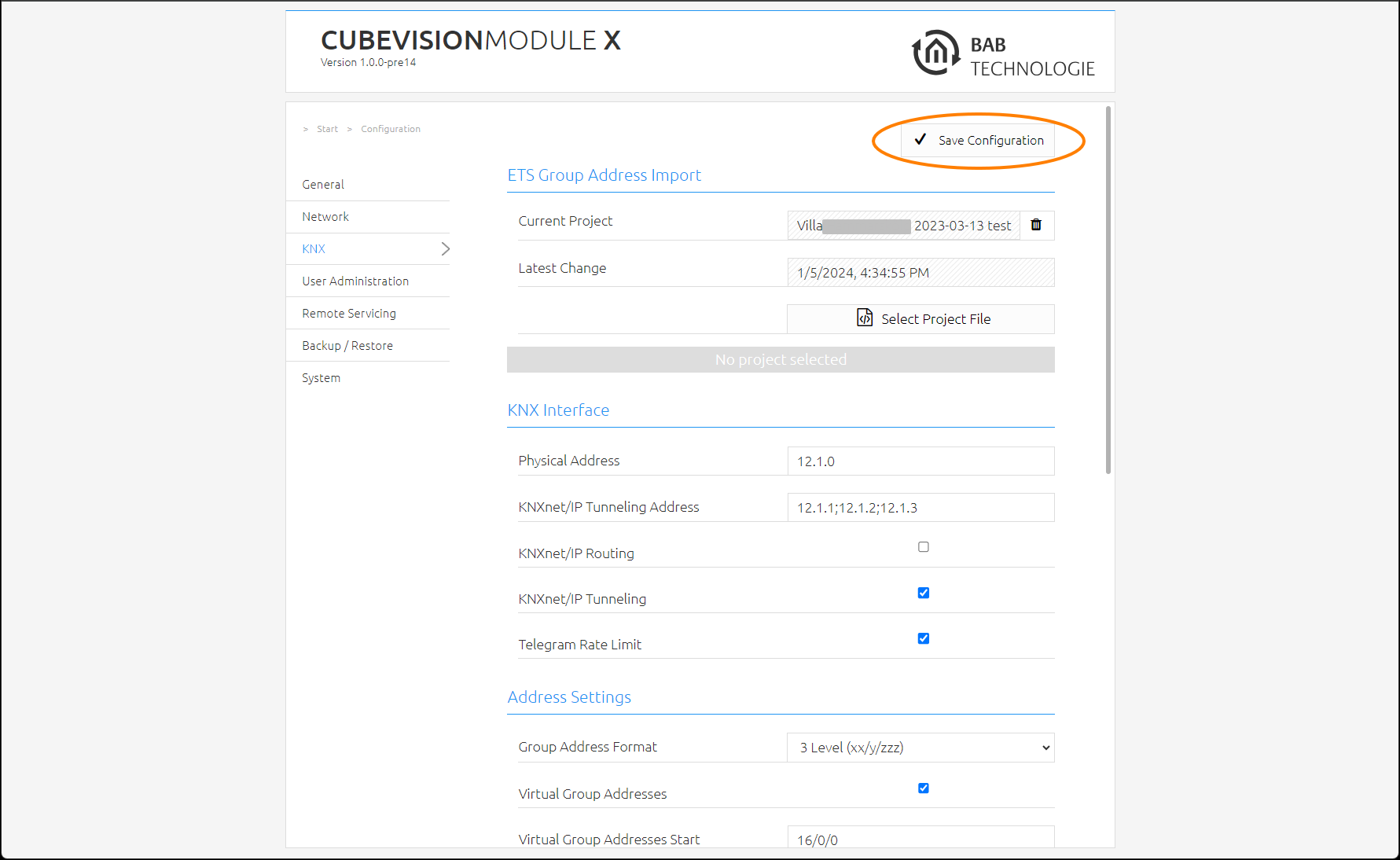
Further information on the KNX configuration and setup of KNXnet/IP can be found in chapter "KNX"
///