
From the start page of the CUBEVISIONMODULE X you can open the "PROJECTMANAGER". As the name already indicates, the central project management takes place in this menu item. Individual menu items of the PROJECTMANAGER are also linked in other menus.
Thus, the complete project management in the PROJECTMANAGER consists of:
-
A dashboard, as an overview for project management on the CUBEVISIONMODULE X.
-
The user administration for the visualisations on the CUBEVISIONMODULE X.
-
A central image and icon administration.
-
The menu item long-term databases, for the administration of which.
-
Project data, related to the visualisations and group addresses.
Dashboard
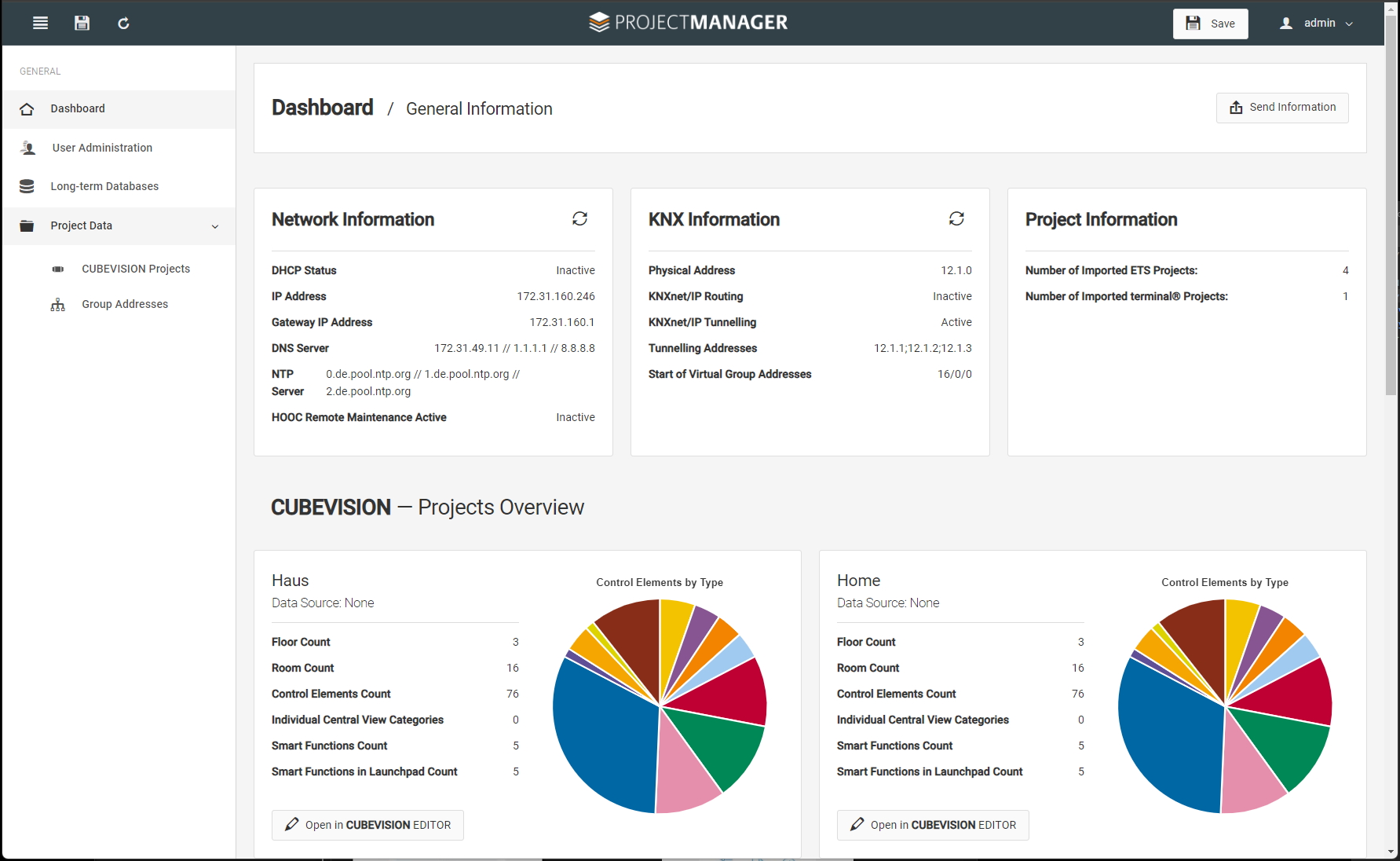
The dashboard allows you to see necessary information at a glance. Messages from the unit are displayed as well as statistics on system utilisation.
The following overviews are available in the dashboard:
-
Network information
-
KNX information
-
Project information
-
CUBEVISION Project overview for the respective projects
This information and messages should help you to monitor the status of the CUBEVISIONMODULE X and the processes efficiently to ensure a high stability of your visualisation and building control.
Network settings:
The current network settings of the CUBEVISIONMODULE X are clearly displayed.
KNX settings:
The settings from the configuration/KNX are displayed in a compact overview. This allows you to see immediately whether, for example, tunnelling or routing is activated.
Project databases:
The number of existing project databases is displayed.
Project overview:
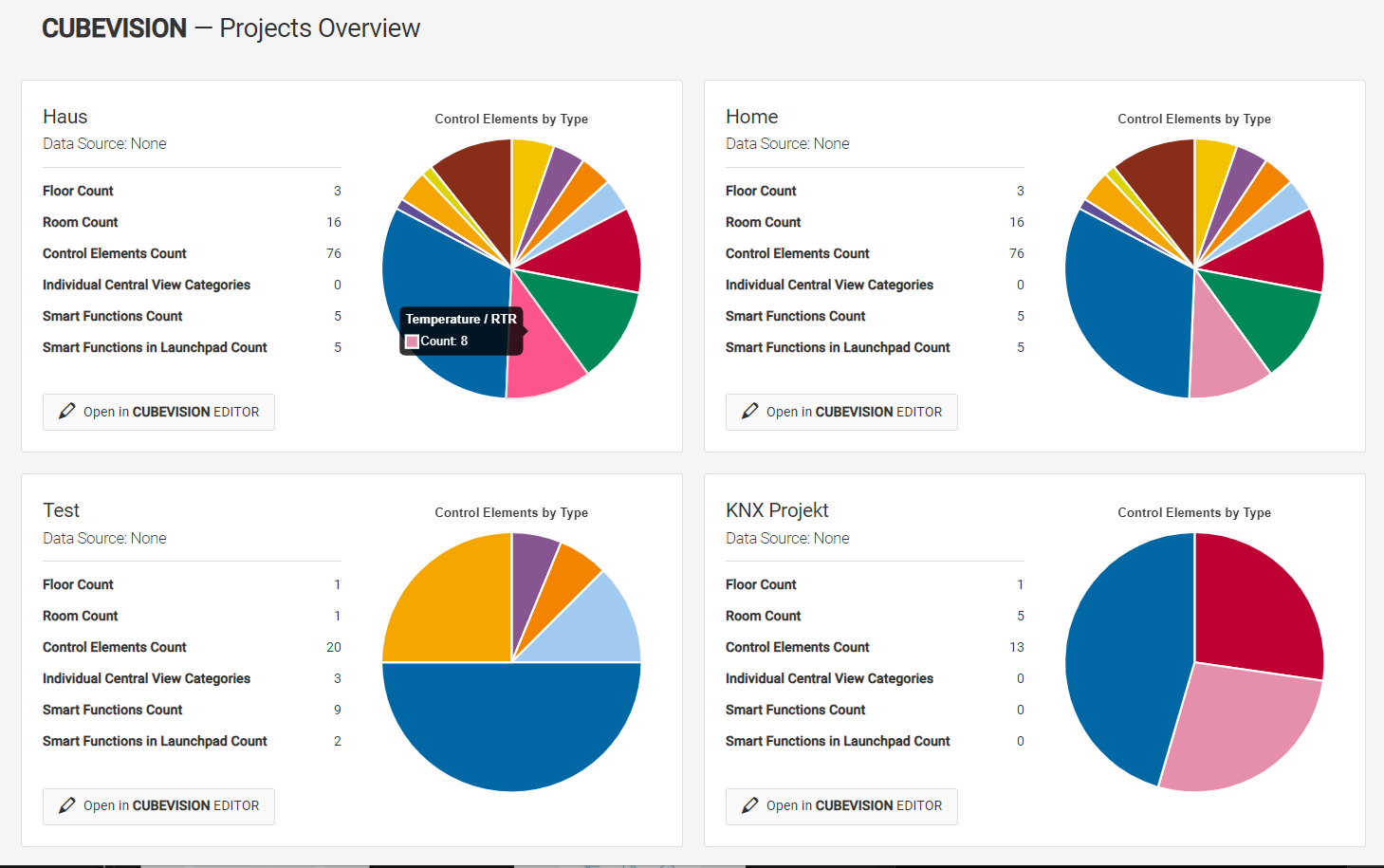
A graphic overview is created for each project on the unit.
This overview shows whether the project is connected to a project database or whether there is no assignment yet.
The overview of the visualisation elements used is available as a circle graphic. The respective element type is displayed when the colour area is touched.
In addition, the respective number of visualisation structures (levels, rooms, control elements) is listed.
Further characteristic values are available as an overview, such as: Central View categories, Smart Functions, information on the Launchpad.
User administration
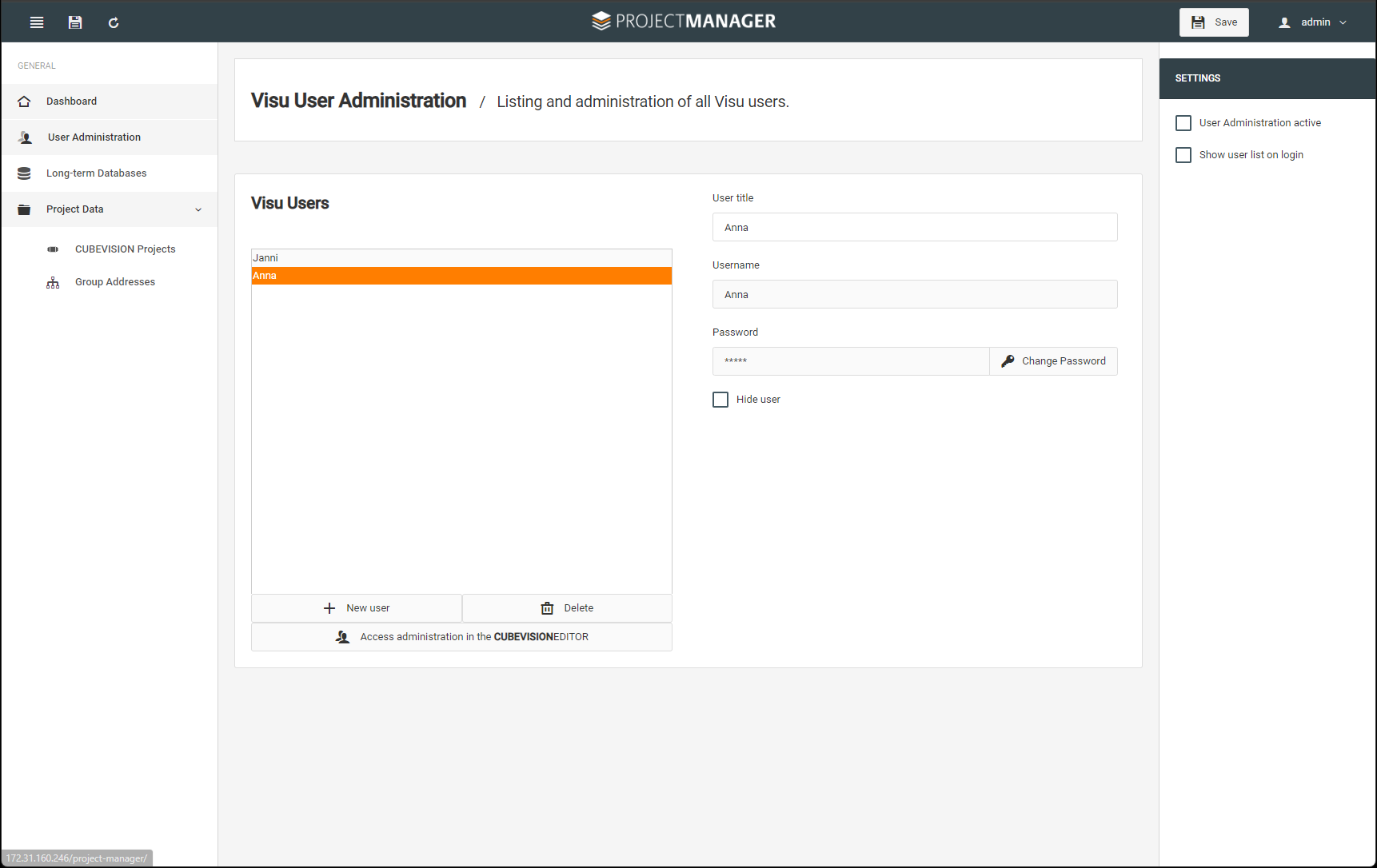
Only the users for accessing the visualisations are managed in the user administration. The assignment of the respective rights in the visualisation is assigned in the CUBEVISIONEDITOR when editing the visualisation. This user administration is thus central for all visualisations that are created in this device.
Similarly, this user administration is not related to the user administration for the device CUBEVISIONMODULE X, which can be found in the Configuration -> User administration menu.
Visu-user
Create a new user here with "+ New user" or delete a user. The username is assigned. You can adjust the display name via User title. E.g. you have a user profile "Guest" with user name "Guest". If necessary, the display name can be changed without having to make further changes, e.g. the name of the guest as user title "Mr. Scholz".
-
Assign a password for the created user.
-
If necessary, the user can be hidden, e.g. for automatic access.
-
Save your settings!
Settings:
-
Here you can activate or deactivate the user administration.
-
Determine whether the user list should be displayed at login.
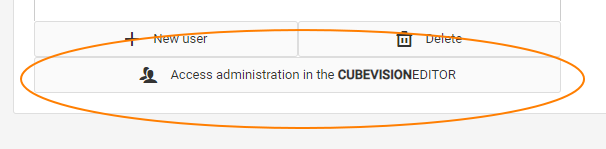
You can immediately switch to access management via the link field in order to assign the respective access rights to the users created.
The assignment of access rights for users is described in the CUBEVISIONEDITOR section.
To edit your projects quickly, you can also use the window switch via the open tabs of your browser.
Long-term database
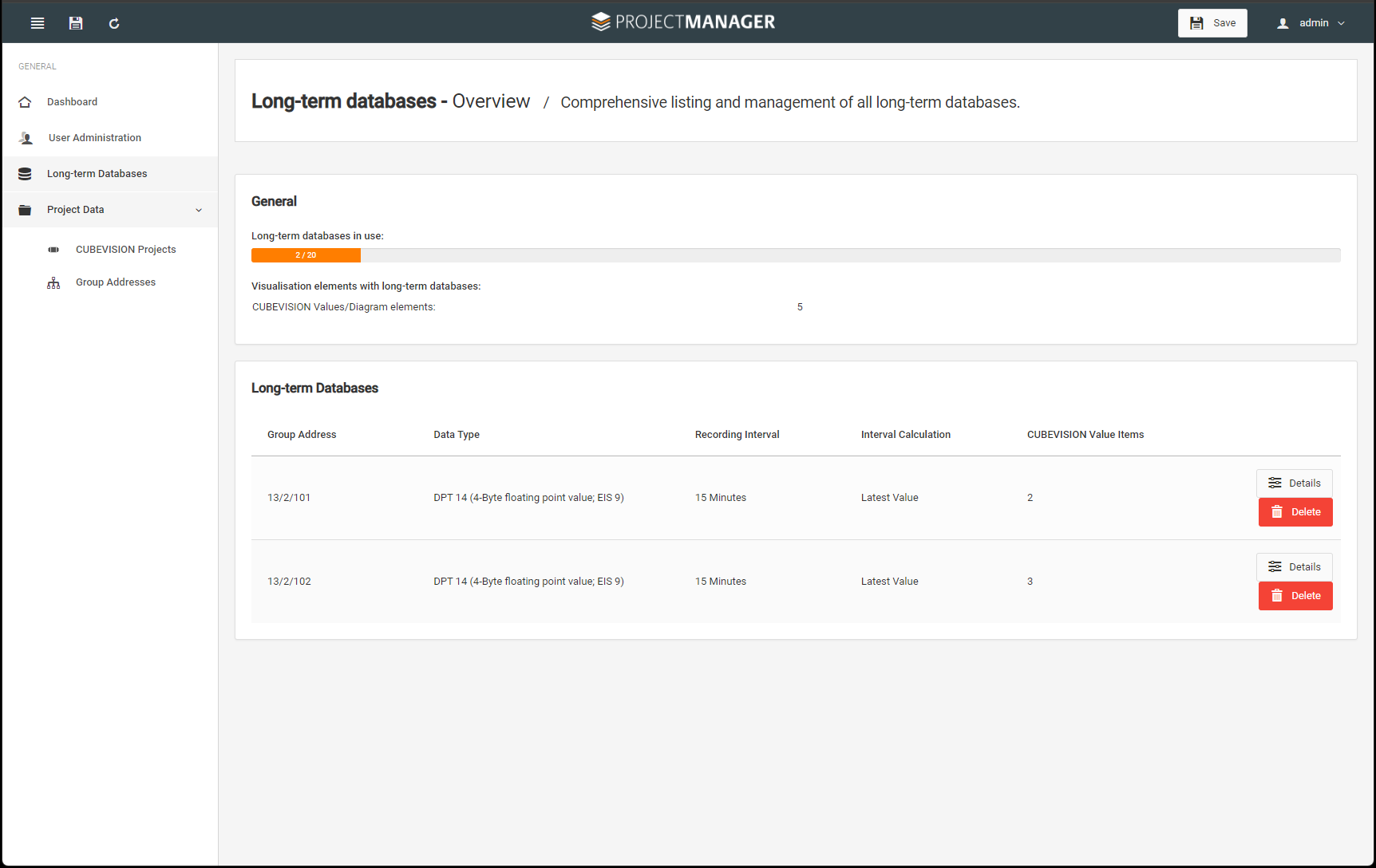
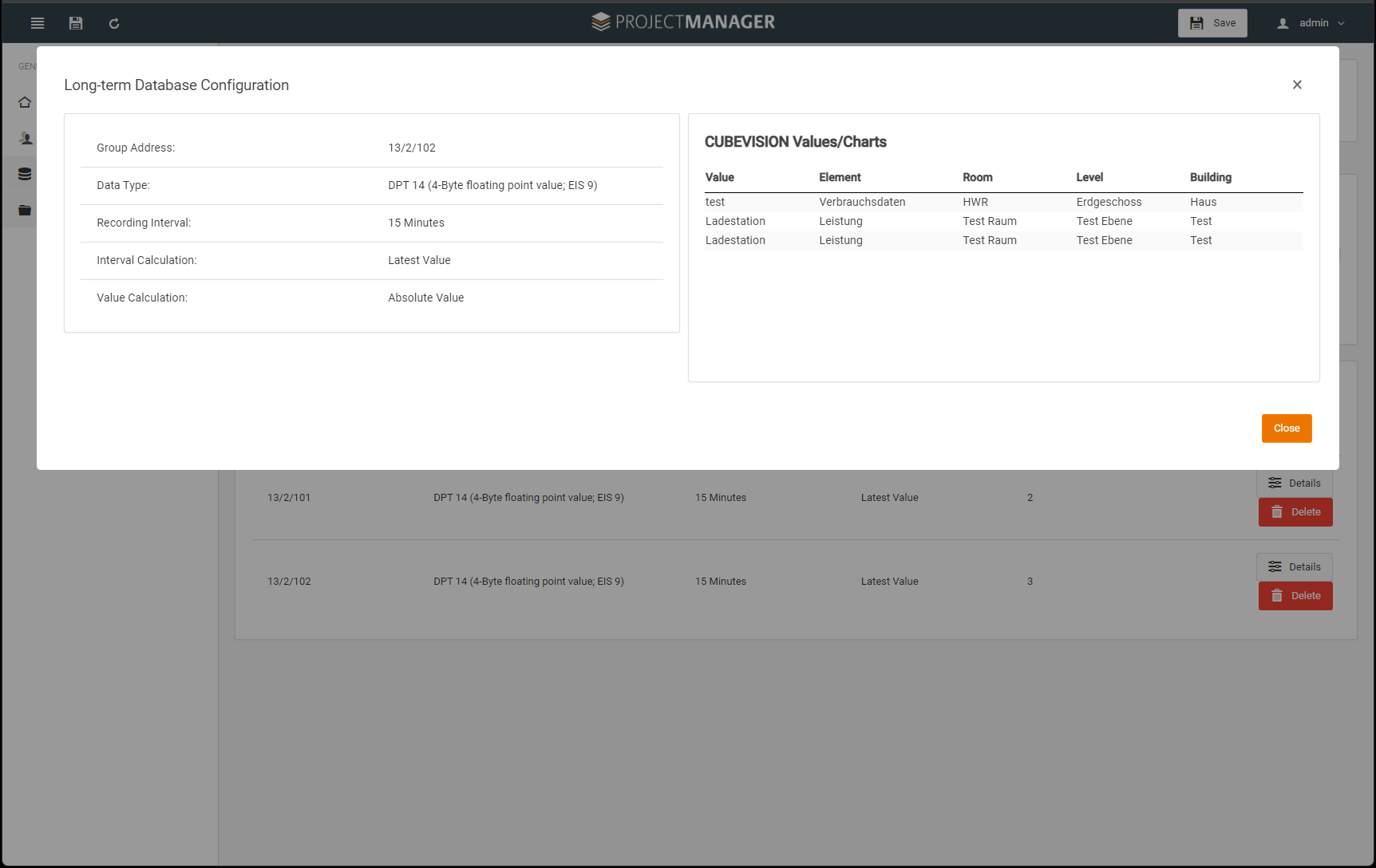
In this dialogue you can see the current status of long-term databases in use. Up to 20 databases can be activated and used via the CUBEVISION visualisations. When the databases are created, the respective group address and the DPT are adopted. Once a long-term database has been configured, it can no longer be edited. The use of these long-term databases is possible as often as desired for the corresponding visualisation elements.
You have an overview in the "General" information window:
-
About the number of used long-term databases up to the maximum number 20 and
-
their use in the CUBEVISION visualisation.
There is also another information window to display details of the long-term databases or to delete the databases.
Here you can view the details, the existing configuration, for your selected long-term database.
Project data
To save or archive your projects and to transfer them to other devices (device exchange), there is the Project data menu.
Here the project data is exported or imported as CUBEVISION projects.
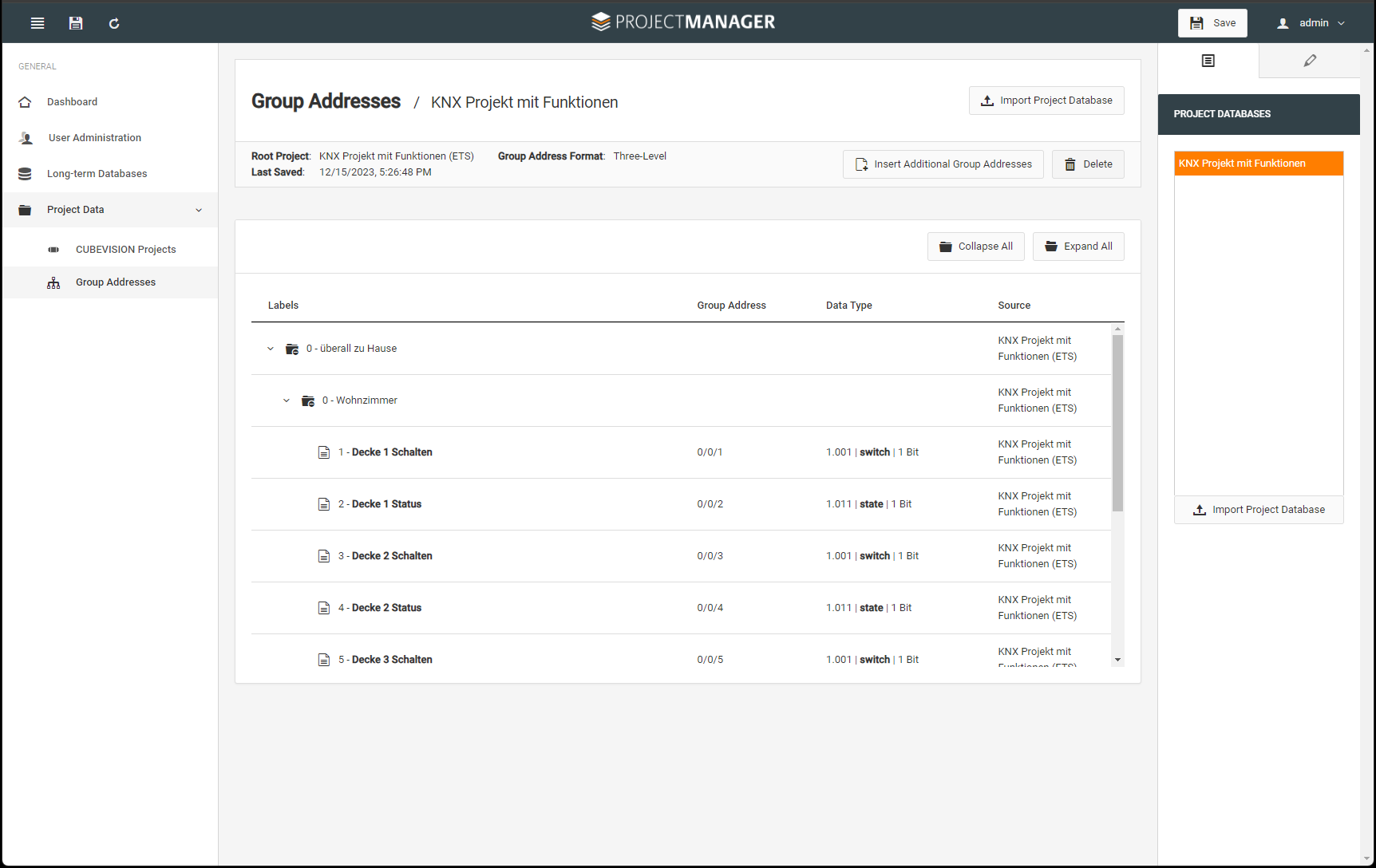
In the KNX data area there is the Group addresses menu where you can import your data as *.esf, *.esfx, *.knxproj, *.terminal.
CUBEVISION Projects
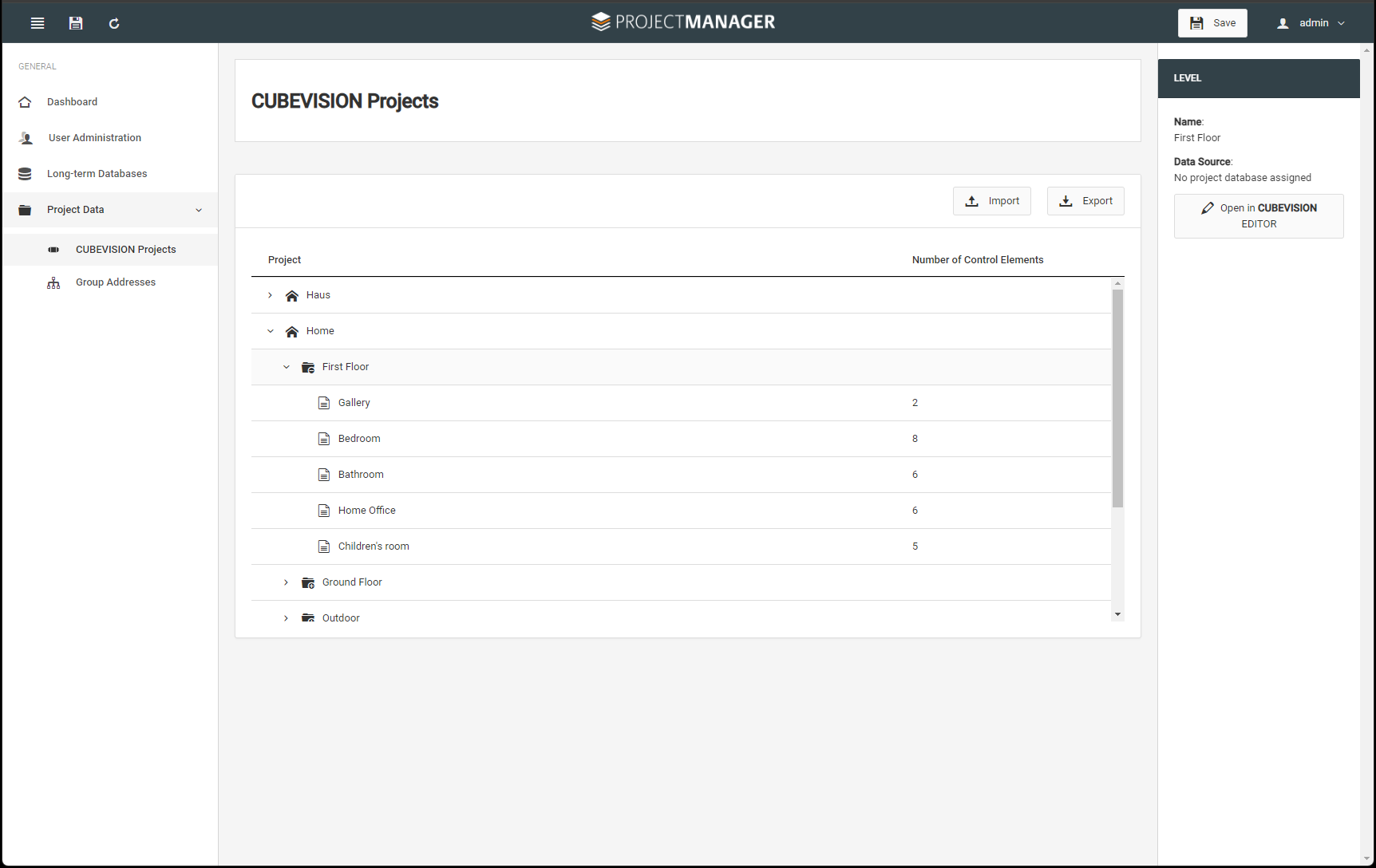
When importing or exporting your CUBEVISION projects, you can edit complete projects or just parts of projects, right down to individual rooms. This makes sense especially if you want to create templates for rooms, for example. The project file is saved as "*.cvproj".
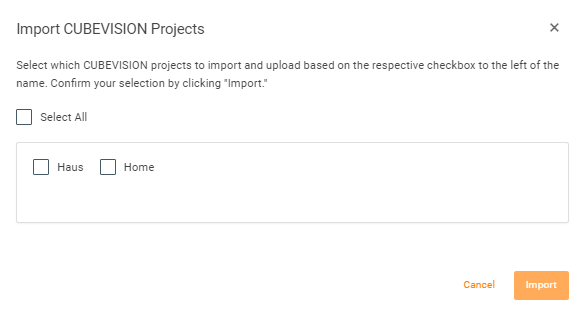
When importing CUBEVISION projects, either all projects of the project file or selected individual projects can be imported.
Group addresses
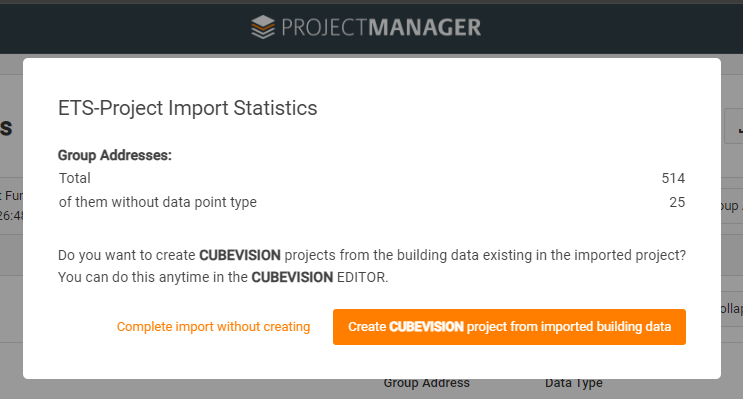
For the KNX area, in order to import KNX project or group addresses, the following file formats can be used: *.esf, *.esfx, *.knxproj and *.terminal
///