
By creating and editing Steps, individual lighting effects can be created and linked together. This allows both dynamic lighting sequences and static lighting scenes to be created.
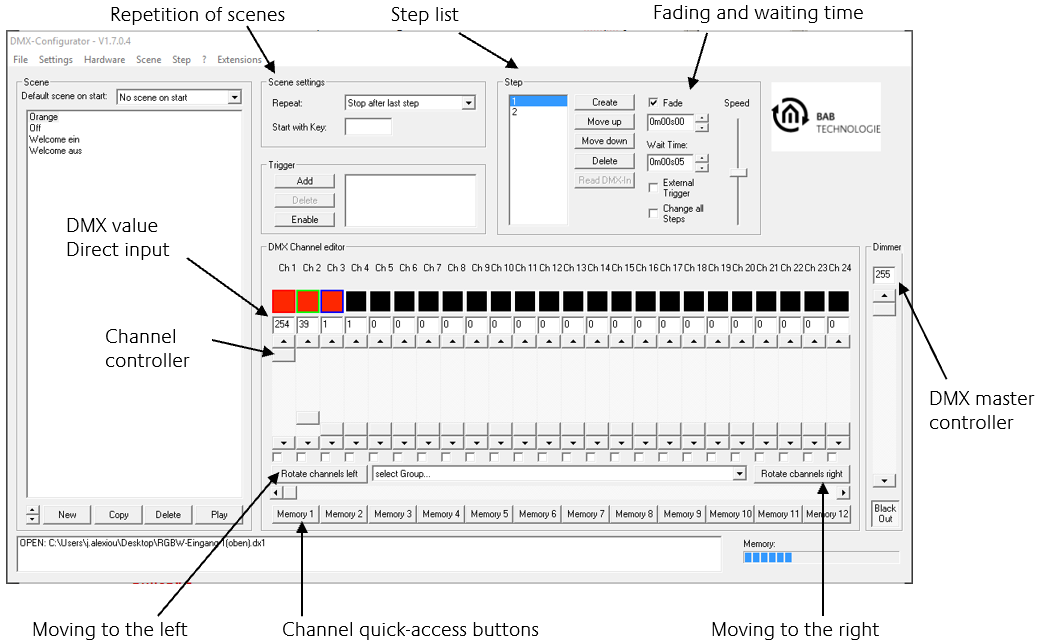
Configuring DMX Channels
DMX values are adjusted using the channel sliders. Each slider is labeled with its corresponding DMX channel number.
To access all 512 DMX channels, select the desired channel range using the horizontal slider located below the channel controls.
For faster navigation, channel shortcut buttons are also available. These can be assigned to any DMX channel under "Application Settings" for quick access.
Configuring Steps
Each step can contain individual DMX values for every channel.
By arranging multiple steps with different DMX values, dynamic lighting sequences can be created.
The Step List displays all configured steps in their current order.
The following parameters can be configured individually for each step:
-
Fade Time
-
Wait Time
Using the "Change All Steps" option, modifications to Fade Time and Wait Time are applied to all existing steps.
Shifting DMX Values
The "Shift Right" and "Shift Left" functions move all configured DMX values by one channel:
-
Shift Right: +1 channel
-
Shift Left: −1 channel
This feature is especially useful for creating running light (chaser) sequences.
///