
To change the network settings of a DUODMX GATEWAY that has already been commissioned, proceed as follows.
Note
For network configuration, the PC must be located in the same IP subnet as the DUODMX GATEWAY.
If this is not possible, the network configuration can alternatively be transferred using an SD card.
Procedure
-
Open the following tab in the DMX Configurator:
-
-
"LAN/KNX" for "KNX" and "KNX Master/Slave"
-
-
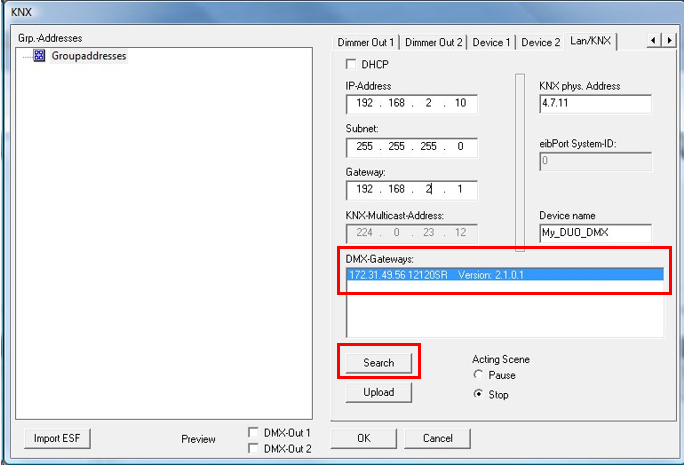
Click "Search" below the "DMX Gateways" list.
All available DUODMX GATEWAY devices on the network are displayed, regardless of the current IP settings of the local PC.
Note
If the device does not appear after clicking "Search", there is most likely a problem with your network configuration (for example, firewall or router settings), or multiple network interfaces are enabled simultaneously.
Check your network configuration. If the problem persists, please contact BAB TECHNOLOGIE Support.
-
Verify the current IP address of the gateway in the "DMX Gateways" list.
-
If necessary, adjust the IP configuration of your PC so that it is located in the same IP subnet as the DUODMXGATEWAY.
Note
Configuration data can only be transferred when the PC and the DUODMX** GATEWAY** are located in the same network (subnet).
Changing the PC IP Address
Proceed as follows:
-
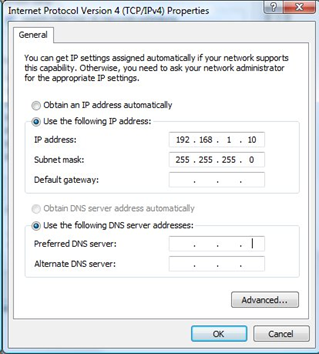
Open the network settings of your computer (example: Windows 7).
-
Assign an IP address that belongs to the same subnet as the DUODMX GATEWAY.
Changing the Gateway Network Settings
-
Open the "LAN/KNX" tab in the DMX Configurator.
-
Modify the IP settings as required.
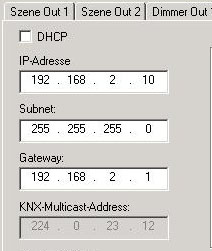
Figure 53: DMX Configurator – IP Settings
-
Optionally assign a device name.
-
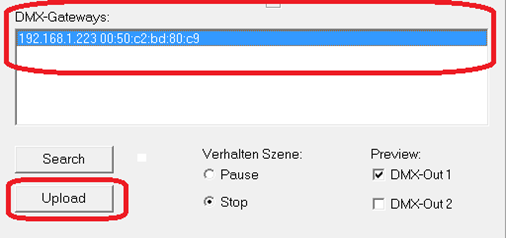
Click "Search", then select the desired DUODMX GATEWAY from the "DMX Gateways" list.
-
Click "Upload" to transfer the new configuration to the DUODMX GATEWAY.
After a successful transfer, the message "Upload successful" is displayed.
If an error message appears, verify the network settings of both the PC and the DUODMX GATEWAY.
Saving the Project
-
Close the configuration window by clicking "OK".
-
Save the current project using "File" → "Save As…" in the .dx1 project format.
Use this project file as the basis for all future modifications.
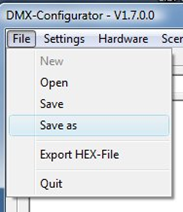
Figure 55: DMX Configurator – Save Project
Note
If you create a new project or use a different project, pay attention to the stored IP configuration.
A new project always starts with the factory default IP settings.
An existing project transfers the IP settings stored in the project file to the DUODMX GATEWAY.
///