
User administration of ConfigTool is independent from the user management for the visualization (Visualisation Editor). Here you can administrate user access to Editor and ConfigTool (“System”). To manage access to visualisation und its projects, the user management in the Editor must be activated.
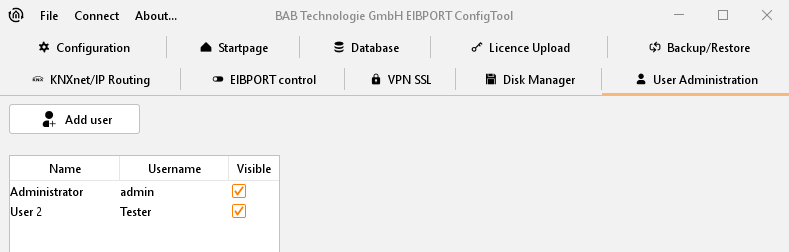
In menu you can find a table of applied user. In delivery condition only user “administrator” is entered. In the first column real name and in the second column username will be shown. Last column shows if user is visible or not. This column serves only for information. If user should be visible in selection menu of account or not, ca be defined in the user settings.
Add user
One new user will be applied by button „Add user“. At first name of user must be defined. This is the name, which will be requested later by registration process. After confirming with “OK”, user will appear in the list. As the real name automatically “User” will be entered. Account “user” will be numbered serially self-acting. Every user will be applied initially without any rights.
Assinging user privileges
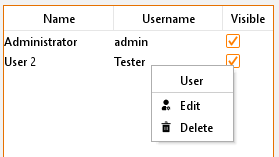
New applied users own no rights. To apply these or to modify rights of an existing account, you have to open the context menu by a right click to username. This menu offers the possibility to edit user or to erase user. By selecting “edit”, a new dialogue will appear, in which specific settings of a user can be made.
User
Label of user, not the account name.
Username
Account name for registration (will be determined by applying of a new user)
Password
Password for the user account. For invoicing typing errors password must be entered twice.
Change password
If set, user will be invited to enter a new password by next registration.
Visible
If set, username will be displayed in user selection list.
Visualization editor
Only when set, user will get access to Visualisation Editor.
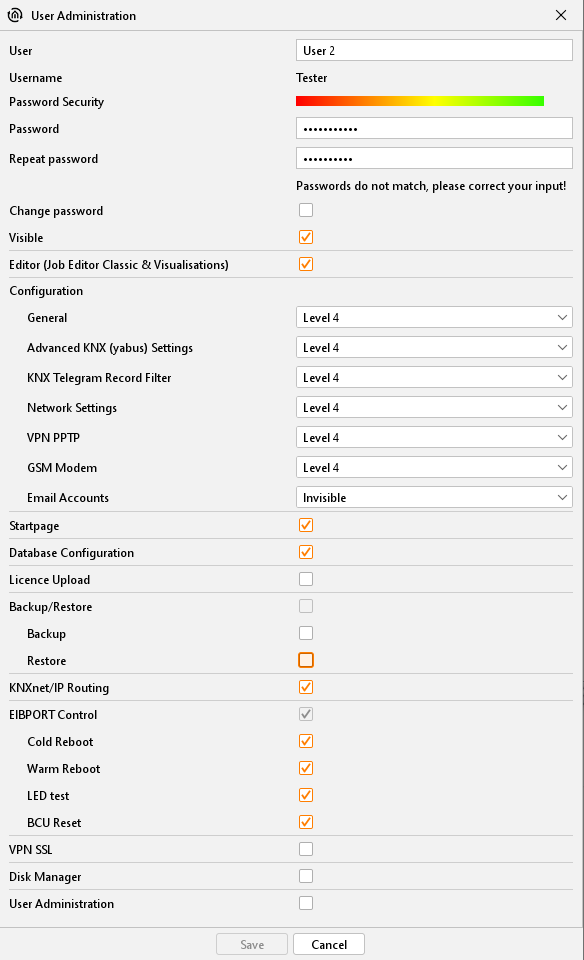
Following parameter define, on which areas in ConfigTool, user will get access. To release access, check mark has to be set. Areas, which are not released, will be blanked out for respective user in ConfigTool.
User administration
If set, user gets access to user administration of ConfigTool.
Database Configuration
Access to the tab “database connection”.
Startpage
Access to the start page settings.
Licence Upload
Access to licence upload.
KNXnet/IP
Access to KNXnet/IP settings.
Backup/restore
Access to the backup / restore dialogue, in which access to backup or restore can be managed particulary.
EIBPORT control
Access to the EIBPORT control. It can be set particularly, which function of four functions user is allowed to operate.
Configuration
For options in configuration menu, access can’t only be blocked, but also subdivided in five steps.
-
Invisible:
Parameter category is blinded out. -
Level 1:
Commissioning; only parameter will be shown, which will be necessary for start-up. -
Level 2:
Standard -
Level 3:
Extended access -
Level 4:
Complete access to all parameters.
By mouse-over help (to pause awhile pointer of mouse to selected step) will be displayed, which settings in which level would be activated. Detail “false” means inhibition of settings, “true” means, that setting can be modified.
After modifying the settings, you have to save them.
Delete a user
A user will be erased with the help of the context menu (right click on username in user overview).