
A BAB SECURELINK connection is a VPN connection specially adapted to BAB devices which enables you to easily set up secure coupling of several system parts over network domains. Currently, SECURELINK is available for the following devices:
-
LINKMODULE
-
EIBPORT
-
FACILITYMASTER
Connection principle
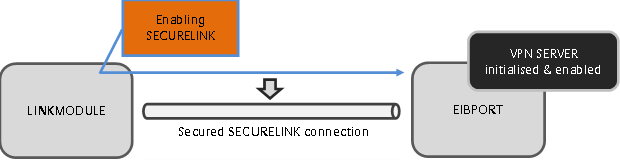
The figure below provides an example of the SECURELINK connection principle by describing a connection between LINKMODULE and EIBPORT. The device (here: LINKMODULE) from which the SECURELINK connection is established serves as VPN client, the requested device is the VPN server (here: EIBPORT). In addition, the EIBPORT can serve as client and, like the LINKMODULE, establish a connection to a FACILITYMASTER.
Requirements
The following requirements must be met for a successful SECURELINK connection:
-
Complete network settings in both devices (Standard Gateway, DNS)
-
VPN server in the opposite device must be initialised and enabled (use correct external IP address / host name)
-
Communication on TCP port 1724 possible between both devices
Notes: To set up the SECURELINK connection, a corresponding certificate is created for the VPN server and must be transferred to the VPN client. Port 80 is required as a forwarding for this. The release for this port 80 is therefore required for the first data exchange. After the connection has been established, this port release should be deleted again, since further communication takes place via TCP port 1724 only.
Establishing SECURELINK connection
To establish a SECURELINK connection proceeded as follows:
-
Check port shares in your router 1724 and 80.
-
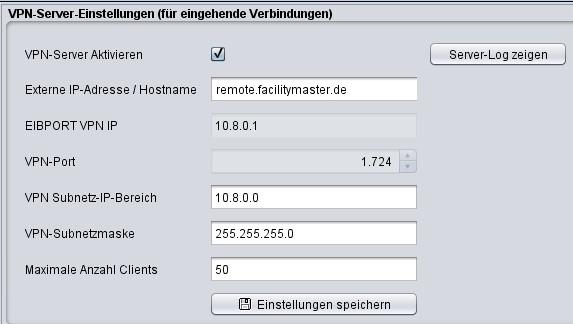
The VPN server is set up as described above. Enter the external address as the server address, just as the VPN server can be reached.
-
Change to VPN client for settings
-
Go to the "BAB SECURELINK" configuration window.
-
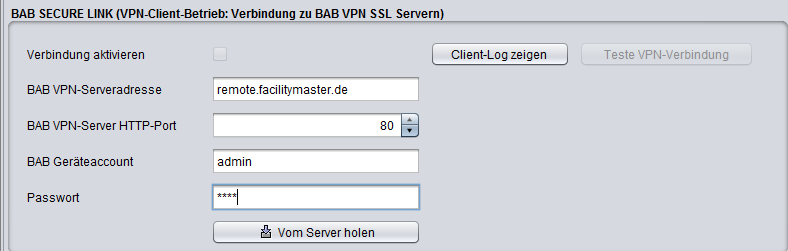
Fill in the fields under BAB SECURELINK.
-
BAB VPN server address:
Enter here the IP address or host name of the opposite BAB devices which has enabled the VPN server. -
BAB VPN server HTTP port:
Enter here the http port of the opposite BAB device. -
BAB device account / password:
Specify the "admin" user data of the opposite BAB device.
-
-
Click on "Retrieve from server". The required SECURELINK user data will be loaded from the remote BAB device.
-
Check the box "Enable connection" under "Connection status". The connection will then be established.
Display client log
Displays log messages for checking the connection.
Test VPN connection
This function enables pre-testing of the VPN connection.