
ConfigTool is divided in several areas which are displayed in tabs. After starting it the first tab, which is shown is called “configuration”.

Menu bar
File:
File > Change Theme
Via "File > Change Theme" you can change the view of the ConfigTool to a light theme or a dark theme.
File > Quit
File: By „File > Quit“ ConfigTool will be closed.
Connect:
By click on “Connect > Search/connect EIBPORT (s)...“, “Discovery Tool” will be opened. This program shows all EIBPORT s existing in LAN, independent from their network configuration. All units are displayed with name. (EIBPORT name) If a device will be marked with green colour, device is reachable in the same subnet; if the device is marked yellow, it has another network configuration as the client PC. If you will mark one device, IP and port number of it will be shown. To start a connection to another EIBPORT, the button “Ready” can be used. After that you have to enter character string of regarding device.
About…:
„About“ dialogue contains following important information: name, firmware version, serial number, IP-address, http-port, ssh-port, MMX TCP and UDP-port, so as used java version of client PC.
Tab bar
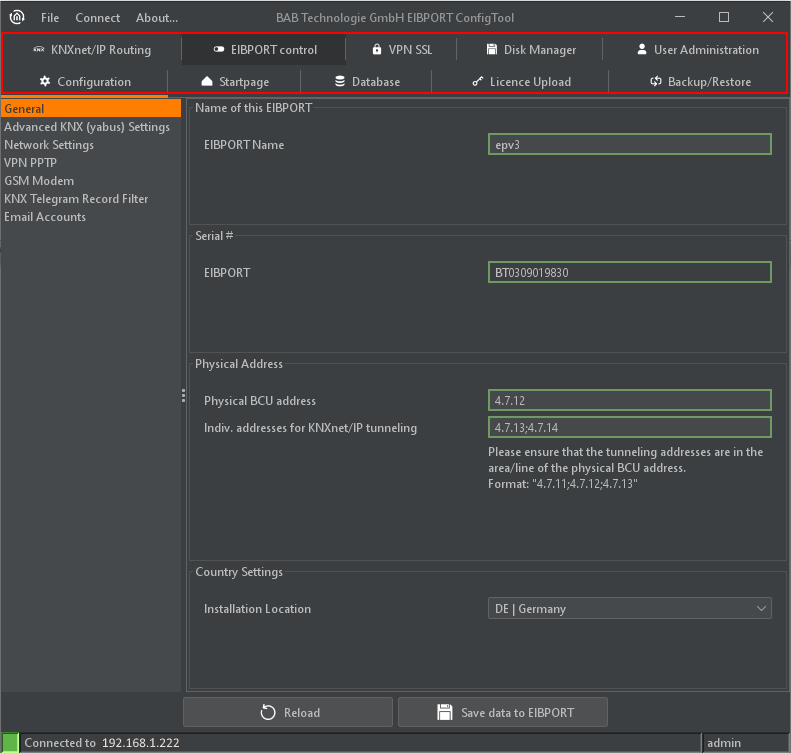
Adjustment possibilities are categorised in several tabs. The following tabs are available:
-
Configuration
-
Start page
-
Database
-
License Upload
-
Backup/Restore
-
KNXnet/IP Routing
-
EIBPORT control
-
VPN SSL
-
Disk Manage
-
User administration
ConfigTool opens itself always with the tab “Configuration” at first. To perform modifications, chose the considering tab. Settings will be done in the middle of window. The tab “Configuration” contains on its left-hand side additional submenus.
Save data to EIBPORT / Reload
After changing a setting, it is necessary to save the data to EIBPORT. This happens with a button located in the lower part of the window. In the Tab “Configuration”, the settings of all particular pages can be saved together by on action. Depending on which values have been changed, the EIBPORT will automatically reboot.
