
The start page is the page, which will be displayed if the address of EIBPORT is entered in the browsers’ address bar. In this tab you have the possibility to determine which behaviour takes place in this case. To use your own background image, you are able upload it into EIBPORT by function in field at the bottom.
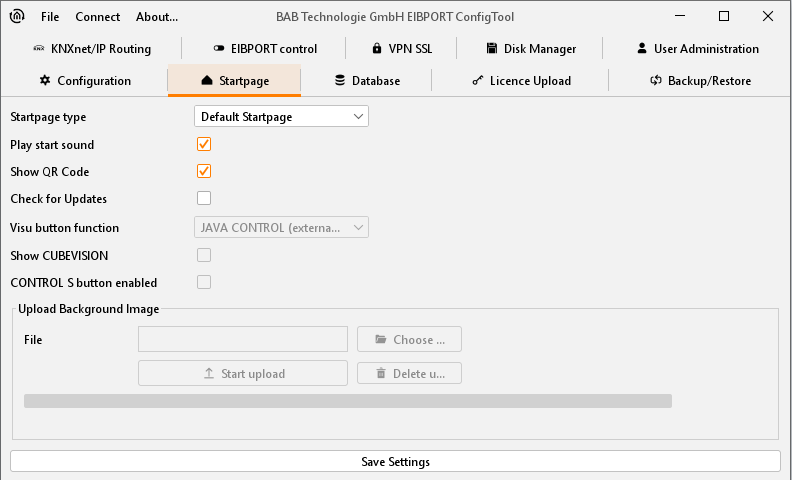
Possible start page functionalities
The drop-down menu "Start page" offers the following options:
Standard start page
The known start page containing the menu items Visualisation, Editor, System is shown (condition on delivery). The following additional settings can be made:
Play start sound:
A sound is played when the start page is called up.
Display QR code:
A link with a QR code is placed on the start page. The QR code contains the URL to the EIBPORT start page.
Search for update:
If this option is enabled, it is verified whether the current firmware is installed on the EIBPORT.
Individual start page
The image uploaded here is used as start page. The visualisation is called up via a "Start" button which is placed on the individual background image. The following additional settings can be made:
Play start sound:
A sound is played when the start page is called up.
Display QR code:
A link with a QR code is placed on the start page. The QR code contains the URL to the EIBPORT start page.
Search for update:
If this option is enabled, it is verified whether the current firmware is installed on the EIBPORT.
Display Visu button: Determines which visualisation is to be called up via the "Start" button:
-
JAVA CONTROL (external window)
-
JAVA CONTROL (browser window)
-
CONTROL L
-
No Visu button
Display CUBEVISION:
The start page displays a link to CUBEVISION.
Display CONTROL S:
The start page displays a link to CONTROL S.
An individual start page image can be uploaded using the "Background image" menu.
JAVA CONTROL (in external window)
The "JAVA CONTROL" visualisation is immediately opened in the external window.
JAVA CONTROL (in the browser window)
The "JAVA CONTROL" visualisation is immediately opened in the browser window.
CONTROL L
The "CONTROL L" visualisation is immediately opened in the browser window.
CUBEVISION
The "CUBEVISION" visualisation is immediately opened in the browser window.
CONTROL S
The "CONTROL S" visualisation is immediately opened in the browser window.
Note: Irrespective of the settings made in this section you can access the standard start page directly via the URL http://<EIBPORT IP>/bmxJava2/default.php
Additional options
These options can be selected, which will appear after that on the front page, for example „QR code“ and „ Searching for updates“. At this place also can be enabled or disabled „start sound“.
Autologin
If the start page setting changes at the same time enabled user management (for visualization), it is necessary for direct access to the visualization, to give the user data in the URL call. Otherwise, first the username and password are required. The information can be found in the "Autologin / Log Remember”