
The “Autostart Settings” function allows you to configure the Java-based JAVA CONTROL visualization of an EIBPORT to launch automatically when BAB STARTER starts.
When combined with the operating system's autostart feature, this allows the visualization to launch immediately after the computer boots up.
This is particularly useful for touch panel PCs or permanently installed visualization stations where the visualization should start without additional user interaction.
Configure Autostart
To configure the automatic startup of the visualization, follow these steps:
-
Open the Device Menu of the desired EIBPORT.
-
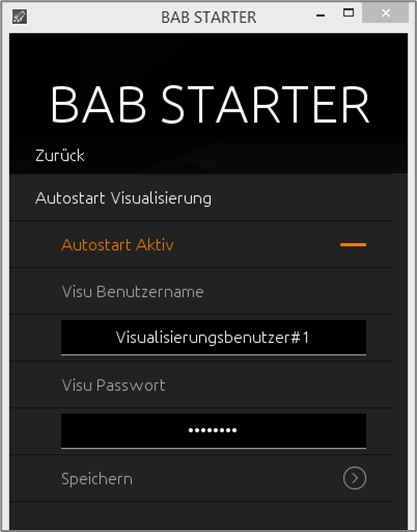
Select “Details” and then “Autostart Settings”.
-
Enable the function by selecting “Autostart Active”.
-
Enter the username and password of the desired visualization user.
-
Click “Save” to apply the settings.
The autostart function will take effect the next time BAB STARTER is launched.
Note
If you want the visualization to start without displaying an additional project selection screen, use a visualization user who has access to only one visualization project. This ensures that the corresponding project opens directly during autostart.
Launch BAB STARTER Automatically with the Operating System
To open the visualization automatically after the computer starts, BAB STARTER must be configured to launch automatically with the operating system.
Microsoft Windows
When the autostart function is enabled, a shortcut to BAB STARTER can be created in the Windows Startup folder.
By default, this folder is located at:
C:\Users\<Username>\AppData\Roaming\Microsoft\Windows\Start Menu\Programs\Startup
Alternatively, you can open the Startup folder directly:
-
Press Windows + R.
-
Enter
shell:startup. -
Click “OK”.
If the corresponding shortcut does not already exist, you can create it manually in the Startup folder.
macOS
On macOS, BAB STARTER can be configured to launch automatically using the current user's login items.
-
Open “System Settings”.
-
Navigate to “General” → “Login Items & Extensions”.
-
Add BAB STARTER to the list of applications that open automatically.
BAB STARTER will then launch automatically when the user logs in.
Cancel Autostart
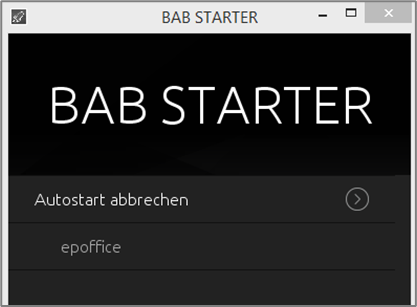
When BAB STARTER is launched in autostart mode, a screen appears allowing you to cancel the automatic startup of the visualization.
You have 5 seconds to interrupt the automatic startup process.
-
Launch BAB STARTER in autostart mode.
-
Click “Cancel Autostart” within the displayed countdown period.
-
The automatic startup of the visualization is canceled, and the regular BAB STARTER main menu opens.
If autostart is not canceled within the specified time, the configured visualization will launch automatically.
Permanently Disable Autostart
If you no longer want the visualization to launch automatically, you can disable the autostart function.
-
Open BAB STARTER and cancel the automatic startup if necessary.
-
Select the corresponding EIBPORT.
-
Navigate to “Details” → “Autostart Settings”.
-
Disable the “Autostart Active” option.
-
Click “Save” to apply the changes.
If you also want to prevent BAB STARTER itself from launching automatically with the operating system, remove its shortcut from the Windows Startup folder or from the macOS Login Items.
Note
Canceling autostart during the 5-second startup countdown does not permanently disable the function. The visualization will launch automatically again the next time BAB STARTER starts, as long as the autostart function remains enabled.
///