
The EIBPORT Device Menu provides access to the available visualizations, editors, system settings, and other applications of the device.
The Device Menu opens when you select an EIBPORT from the device list.
BAB STARTER distinguishes between browser-based and Java-based applications:
-
Browser-Based Applications: Automatically open in the operating system's default web browser.
-
Java-Based Applications: Launch directly through BAB STARTER. A separate Java installation is not required.
Note
The available applications and menu items depend on the device and its installed firmware version. If a connection to the EIBPORT cannot be established, the available software modules and applications cannot be detected and therefore will not be listed.
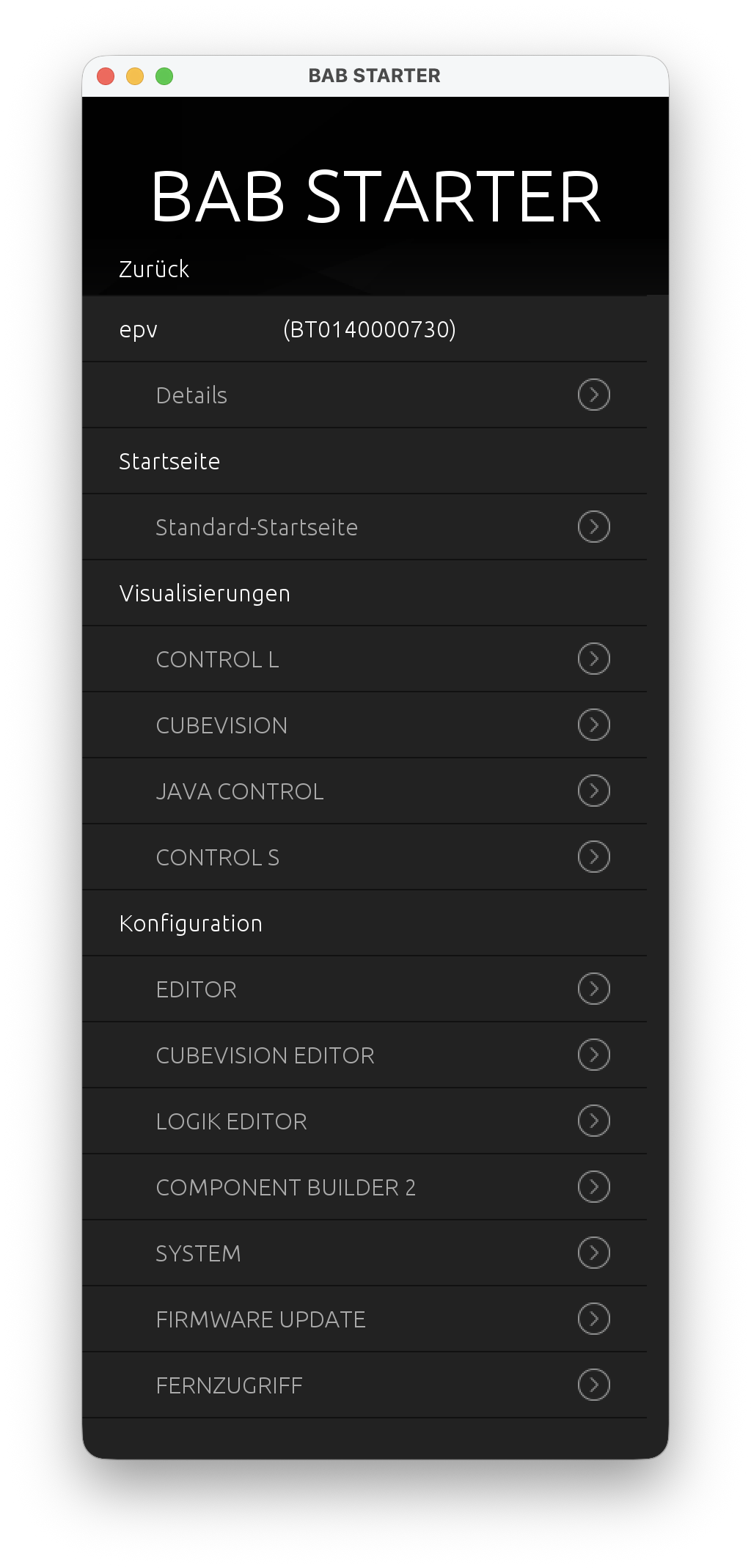
Details
The “Details” menu item allows you to view information about the selected EIBPORT and, if supported, modify device settings.
This includes device information, firmware version, and network configuration.
Home Page
The “Default Home Page” menu item opens the EIBPORT home page in the operating system's default web browser.
From there, you can access the device's web-based functions.
Visualizations
The “Visualizations” section allows you to directly launch the visualization interfaces available on the EIBPORT.
Depending on the firmware version and device configuration, the following visualizations are available:
-
CONTROL L: Opens the CONTROL L visualization in the default web browser.
-
CUBEVISION: Launches the CUBEVISION visualization.
-
JAVA CONTROL: Launches the Java-based CONTROL visualization directly through BAB STARTER.
-
CONTROL S: Opens the CONTROL S visualization.
Configuration
The “Configuration” section provides access to various EIBPORT editors and management functions.
EDITOR
Opens the EIBPORT configuration and editor environment.
This menu item provides access to various editors and tools, including:
-
Visualization Editor
-
Job Editor Classic
-
CONTROL S Editor
-
CUBEVISION Editor
-
Additional device-specific tools
LOGIC EDITOR
Launches the EIBPORT Logic Editor, which allows you to create and modify logic functions.
SYSTEM
Opens the EIBPORT system configuration, where device-specific system settings can be adjusted.
COMPONENT BUILDER 2
Launches ComponentBuilder 2 for creating and editing custom visualization components.
REMOTE ACCESS
Opens the functions for setting up and managing remote access to the EIBPORT.
FIRMWARE UPDATE
Opens the web-based interface for updating the EIBPORT firmware.
Note
The available functionality depends on the firmware version and configuration of the EIBPORT. Unsupported applications may not be displayed in the Device
///