
The LAN/KNX tab is used to configure all network and KNX-specific settings of the DUODMX GATEWAY. It is also used to transfer the project data to the device.
Important
If the DUODMX GATEWAY cannot be found during the device search, disable all network interfaces except the one currently in use.
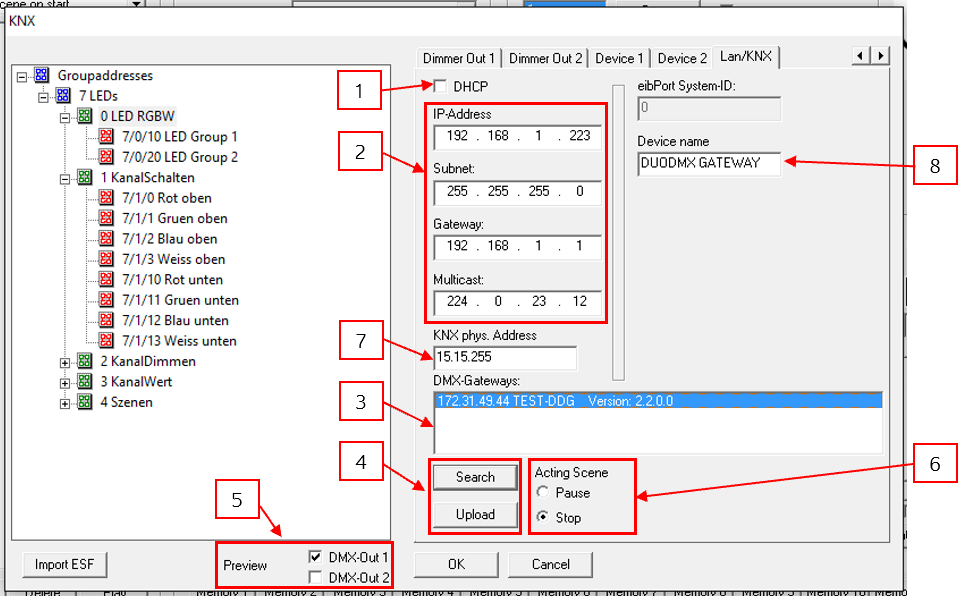
The individual sections of the window have the following functions:
|
No. |
Description |
|---|---|
|
1 |
Enables or disables DHCP. |
|
2 |
Configuration of the IP address, subnet mask, gateway, and the KNXnet/IP Routing Multicast Address. |
|
3 |
Displays all DUODMX GATEWAY devices found on the network. The list is updated by clicking "Search". The IP address, device name, and firmware version (from firmware version 2.0.0.1) are displayed. If no device name has been assigned, the MAC address is shown instead. Selecting a device allows it to be used for configuration upload or Unicast Preview. |
|
4 |
Clicking "Search" discovers all available DUODMX GATEWAY devices on the network. After selecting a device and clicking "Upload", the current project configuration is transferred to the device over the network. The PC and the DUODMX GATEWAY must be located in the same IP subnet. |
|
5 |
Selects the DMX interface(s) for which the DMX Preview is enabled. Enabling one or both checkboxes activates Broadcast Preview. If a device is also selected from the DMX Gateways list, the preview is sent only to the selected device (Unicast Preview). The PC and the gateway must be located in the same subnet (see chapter "Activating the DMX Preview Function"). |
|
6 |
Defines how a running scene behaves when a "0" telegram is received on its linked group address. With Pause, the scene is paused and continues from the same position when triggered again. With Stop, the scene starts again from the beginning when retriggered. |
|
7 |
Assigns the physical KNX address of the device. |
|
8 |
Assigns a unique device name. This name is displayed in the DMX Gateways list instead of the device's MAC address. |
///