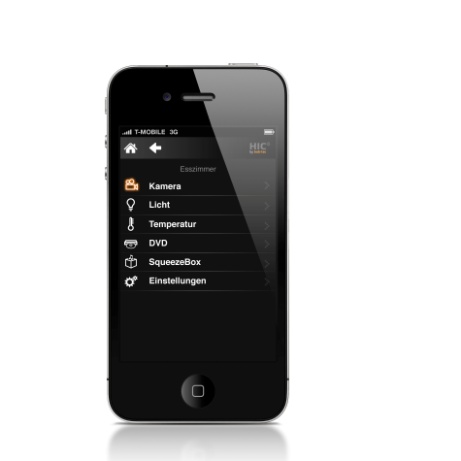
JAVA CONTROL can be called up in two different modes:
-
External window: Visualisation will be opened in a separate window.
-
Embedded: Visualisation will be opened in a just been used browser window.
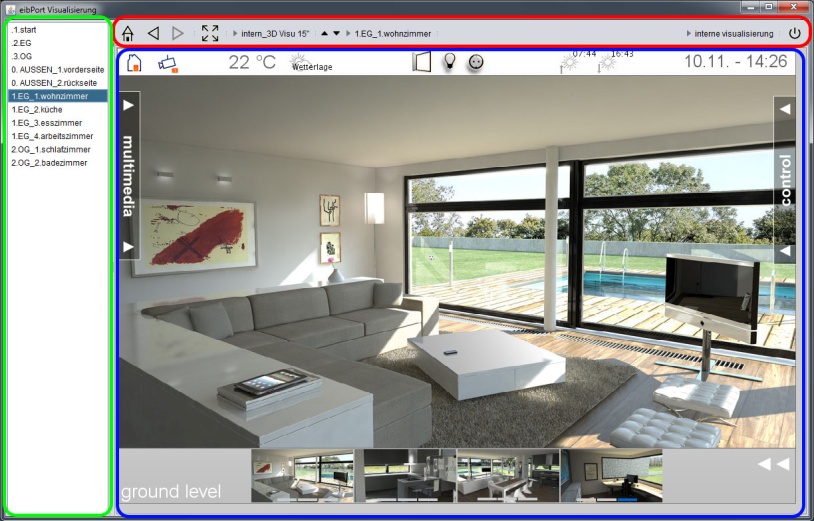
Depending on adjustments, Visu ToolBar and the page index will be opened in addition to visualisation. See allocation.
|
Red frame |
Visu ToolBar |
|
Green frame |
Page index |
|
Blue frame |
Visualisation area |
In the left window area, the project pages will be displayed. On the border of page index and visualisation, little arrows are located, which will allow you, to fade in or to fade out respective views. In case the page index is not activated in your project settings, it will not appear in visualisation.
Visu ToolBar
Above the visualisation surface, the Visu ToolBar simplifies navigation in visualisation. The ToolBar and its functions are configurated in Visualisation Editor.

Note: The VisuToolBar will not be shown in the CONTROL L visualisation. It is only for the java visualization.
Navigation
Navigation enables to browse project pages and, with help of the house-symbol, jumping back to the frontpage of your project.
Kiosk
Pressing this button, kiosk mode can be activated while using visualisation, but settings for ToolBar and page index will be preserved.
Change of project
If several projects are created, you can switch between them.
Paging
All pages of the project are shown on the screen. Change happens while using the arrows or using the overview of pages. Overview appears by key-click on the page-name.
Change of user
If user administration has been activated, you can change between several user, without restarting visualisation. Usernames are displayed if you click on the actual user.
Restart; exit
Pressing this button, visualisation will be closed or the application restarts. Restarting the visualisation surface requires a new authentication by user.
Important information
Authentication
The "security settings" which can be accessed in the Visualisation Editor can be used to protect the visualisation from access by unauthorised users. (See chapter “Password protection for visualisation”)
Java Cache
Java Cache means the activation of the "temporary internet files" within the Java machine. In this way temporary files are accessed which might not be current anymore. Please read the information included in the chapter on the Java settings (COMMISSIONING via the browser / Java settings / preparations on client PC)
Simultaneous connections
The number of simultaneous connections with JAVA CONTROL is limited to 15 connections per minute.