
In the Moods overview, existing Moods can be selected by tapping them.
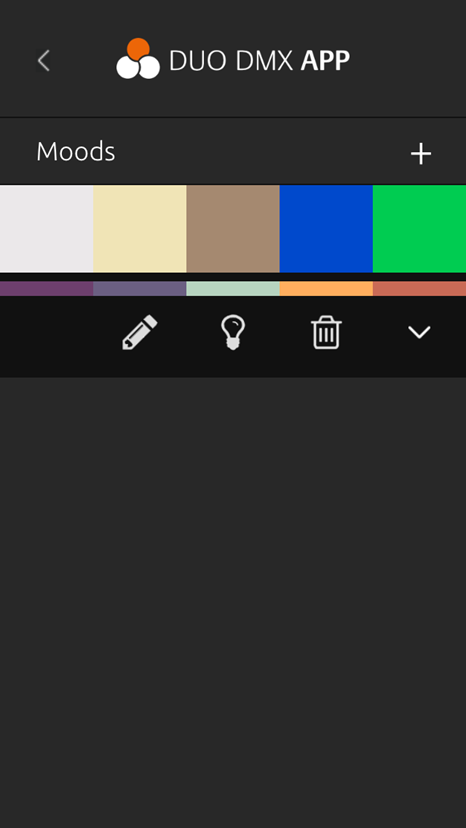
After selecting a Mood, a submenu is displayed with the following functions:
-
Edit Mood (

-
Delete Mood (

-
Open Mood Control (

Selecting "Open Mood Control" opens the control view for the selected Mood.
Figure: Moods Overview (left) and Mood Control (right)
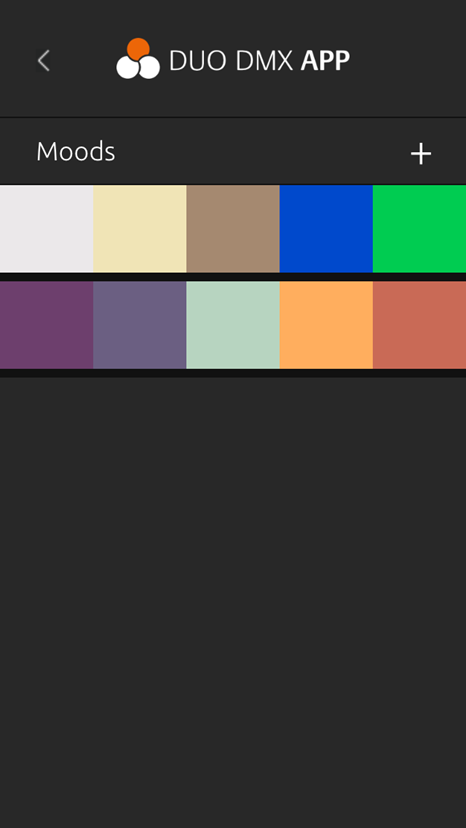
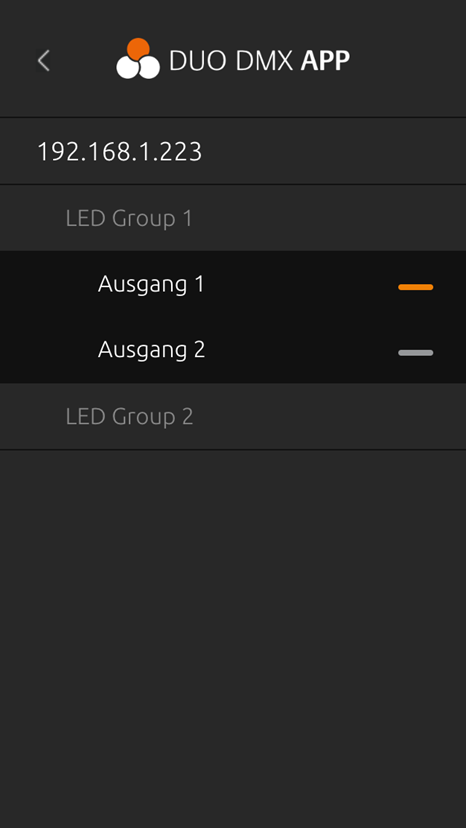
When the Mood Control view is opened, all configured DMX lights are displayed.
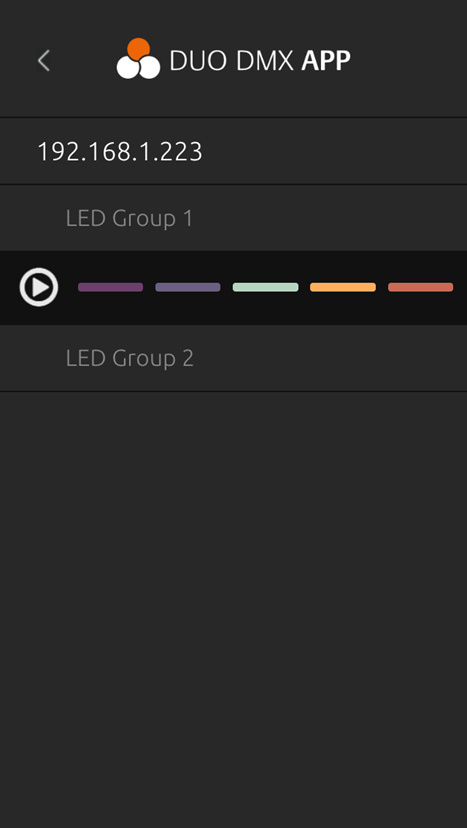
After selecting a light, the colors of the selected Mood are shown. Tapping one of the colors immediately applies it to the selected light.
Tap the Play icon to start the color sequence. The colors stored in the Mood are then played back one after another using the configured playback speed.
Figure: Mood Control
Note
When a light is accessed for the first time, the corresponding DMX output must be assigned.
For more information, refer to the chapter "Preparing Lights and Scenes".
///