
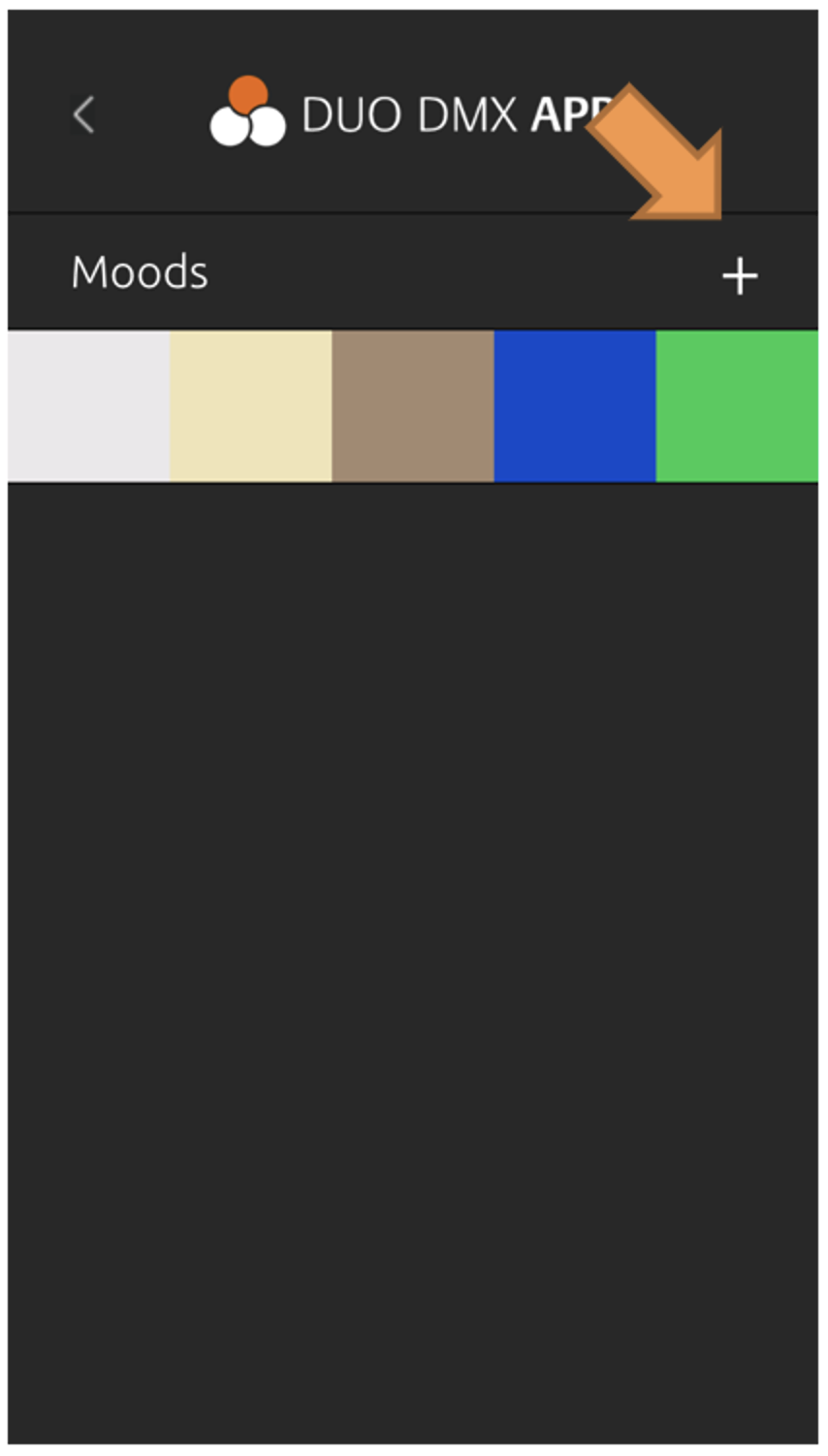
To create a new Mood, tap the "+" icon. This opens the dialog for selecting a photo.
Figure 70: Add Mood
After selecting a photo, the DUODMX APP displays the image together with five automatically positioned color selection points.
Figure 71: Selecting Colors
The color selection points can be moved freely within the image to select the desired colors.
The color bar above the image displays the five selected colors. These colors are played back as a color sequence from left to right.
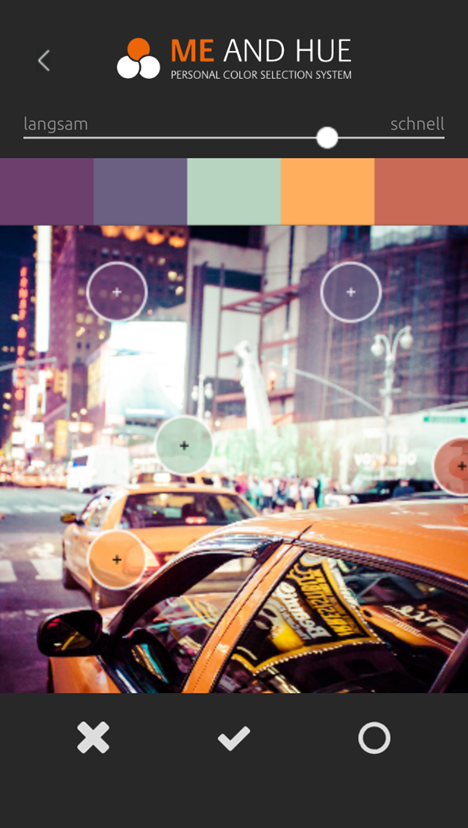
The slider above the image is used to adjust the playback speed of the color sequence.
The following functions are available below the image:
-
Canale (

-
Apply (

-
Open Color Picker (

See Figure 72: Creating a Mood without a Photo
Eigene Farben auswählen
Selecting Custom Colors
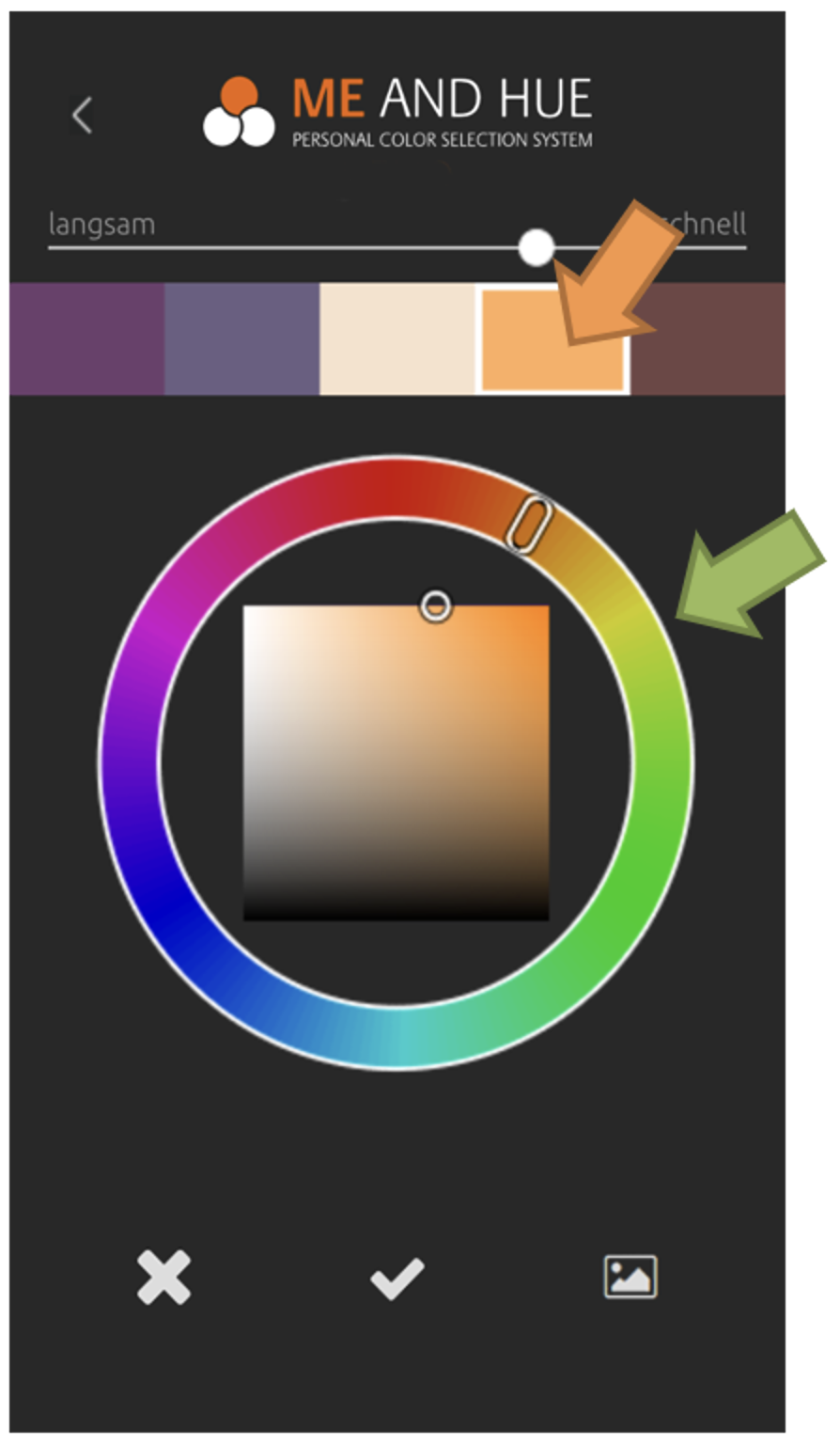
The Color Picker ( 
When the Color Picker is opened, the selected image is hidden and replaced by a color wheel. The corresponding icon can be used to switch back to the image view ( 
To modify one of the five colors:
-
Select the favorite color to be changed (orange arrow). The selected color is highlighted with a white border.
-
Choose the desired color using the color wheel (green arrow).
-
Confirm the selection by tapping "Apply" (

The selected colors are then saved for the current Mood.
///