
To transfer configuration data to the DUODMX GATEWAY over the network, the PC and the DUODMX** GATEWAY** must be located in the same network (subnet).
If necessary, first adjust the network settings of your PC (see chapter "Changing the IP Configuration").
Procedure
-
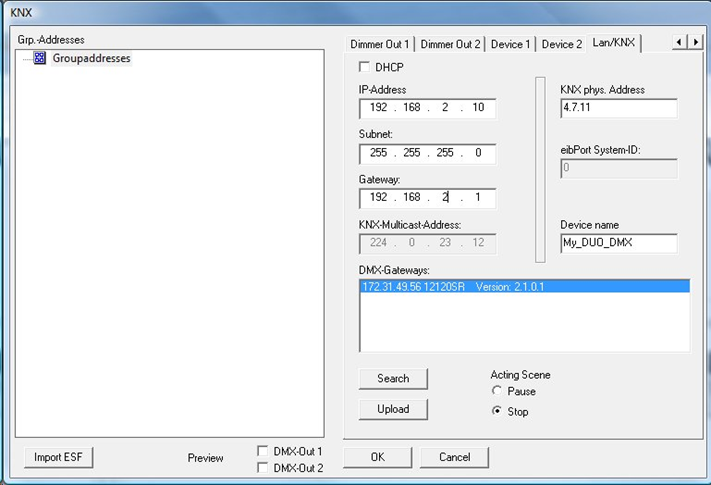
Open the following tab in the DMX Configurator:
-
-
"LAN/KNX" for "KNX" and "KNX Master/Slave"
-
-
Click "Search" below the "DMX Gateways" list.
All available DUODMX GATEWAY devices on the network are displayed, regardless of the current IP settings of the PC.
Note
If the device does not appear after clicking "Search", there is most likely a problem with your network configuration (for example, firewall or router settings), or multiple network interfaces are enabled simultaneously.
Check your network configuration. If the problem persists, please contact BAB TECHNOLOGIE Support.
-
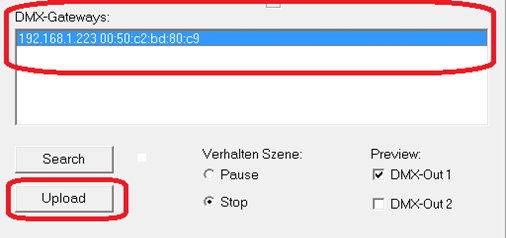
Select the desired DUODMX GATEWAY from the "DMX Gateways" list.
-
Click "Upload" to transfer the current configuration data to the device.
After a successful transfer, the message "Upload successful" is displayed.
If an error message appears instead, verify the network settings of both the PC and the DUODMX GATEWAY.
Note
Uploading transfers the configuration data only to the DUODMX GATEWAY. The current project is not automatically saved on your PC.
If you close the DMX Configurator without saving the project first, all changes made since the last save will be lost.
///