
Creating MQTT Connections
An MQTT connection contains the connection settings for an MQTT broker or MQTT server. Multiple MQTT data points or topics can be created for each connection.
Click + Add Connection to create a new MQTT connection in the MQTT Connections list.
A maximum of 20 MQTT connections can be configured.
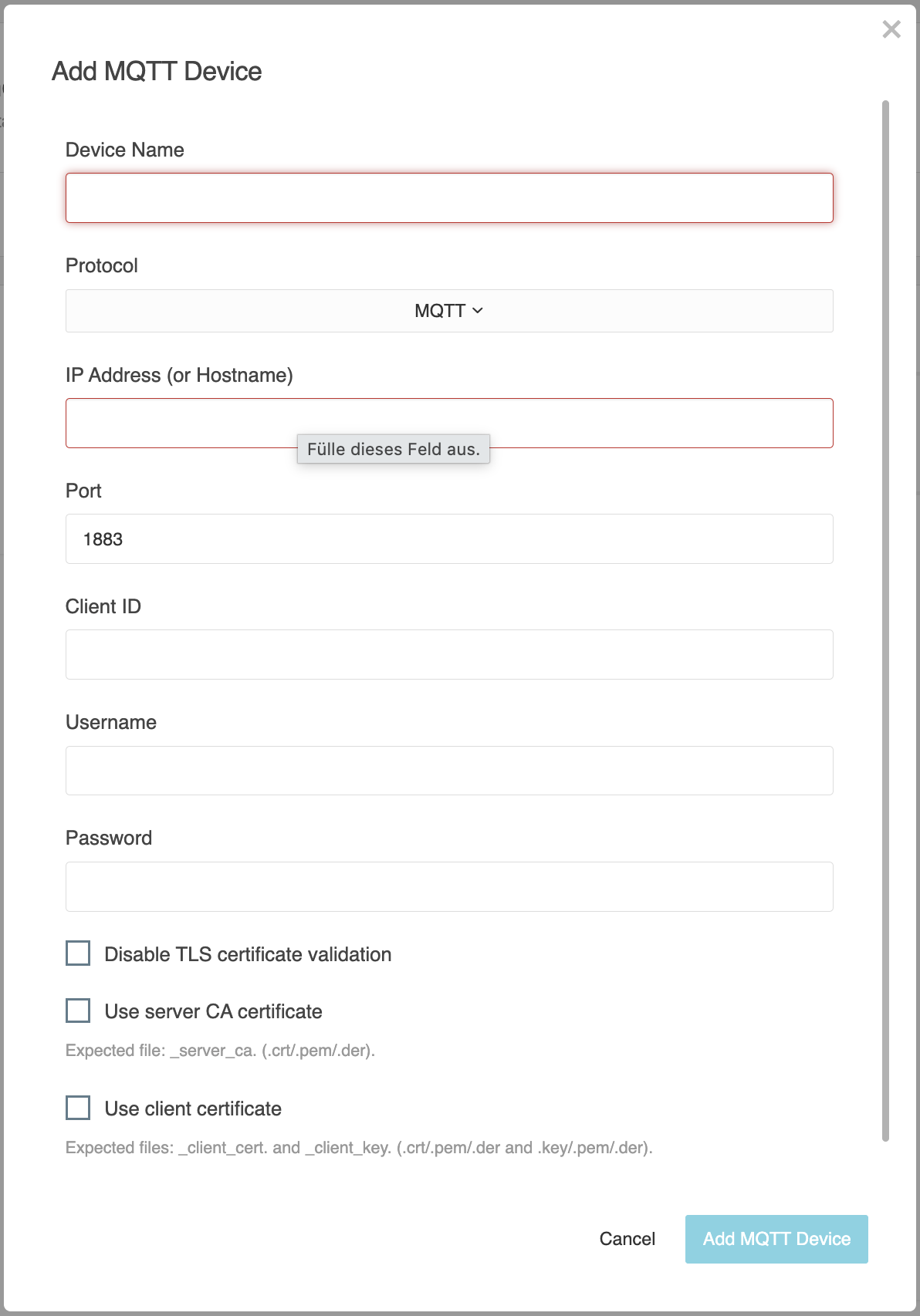
An MQTT connection can only be saved if at least the connection name and host are entered correctly.
Note
Changes to MQTT connections and MQTT data points are applied to the working copy only after clicking Save.
Unsaved changes are lost if you leave or reload the configuration.
Connection Settings
The following settings are available for each MQTT connection:
Connection Name
Enter a unique name for the MQTT connection so that it can be clearly identified in the overview.
The name is also used in the selection lists of the MQTT Value Input and MQTT Value Output logic elements.
Protocol
Select the protocol to be used for the connection to the MQTT broker.
The following protocols are available:
-
MQTT
-
MQTTS
-
WebSocket
-
Secure WebSocket
IP Address or Hostname
Enter the IP address or hostname of the MQTT broker to which the connection is to be established.
Port
Enter the port used for the connection to the MQTT broker.
Typical default ports are:
-
1883 for MQTT
-
8883 for MQTTS
Depending on the MQTT broker, other ports may also be used.
Client ID
Enter the unique identifier of the MQTT client.
The Client ID is used to identify the connection at the MQTT broker. Each simultaneously active connection should use a unique Client ID.
Username
Enter the username used for authentication at the MQTT broker.
Password
Enter the corresponding password used for authentication at the MQTT broker.
Warning
Username and password can also be transmitted over unencrypted connections. In this case, the credentials are transmitted without encryption and may be intercepted by third parties.
For authenticated connections, use MQTTS or Secure WebSocket whenever possible.
Disable TLS Certificate Verification
This option disables verification of the server certificate.
Warning
Disabling certificate verification poses a security risk because the identity of the MQTT broker is no longer verified.
As a result, manipulated or untrusted servers may also be accepted.
Disable certificate verification only for testing purposes or in appropriately secured and trusted networks.
Use Server CA Certificate
This option allows a CA certificate to be used to verify the trustworthiness of the MQTT broker.
Expected certificate file:
_server_ca
Supported file formats:
-
.crt -
.pem -
.der
Use Client Certificate
This option enables client authentication using a client certificate.
The following files are required:
-
_client_cert -
_client_key
Supported file formats:
-
client certificate:
.crt,.pem, or.der -
private key:
.key,.pem, or.der
Certificates and TLS
When using MQTTS or Secure WebSocket, certificates can be used for encrypted communication and authentication.
A server CA certificate can be stored to verify the server certificate.
For certificate-based client authentication, a client certificate and the corresponding private key are required.
Selected or previously uploaded certificates are displayed in the user interface. If the expiration date of a certificate can be read, it is also displayed.
Note
If TLS certificate verification is disabled, the user interface displays a warning about the associated security risk.
Management
+ Add Connection
Click + Add Connection to create a new MQTT connection.
Copy
Use the copy icon to duplicate the selected MQTT connection.
The copied connection is created as a new entry and receives the prefix Copy of … in its name.
The associated MQTT data points are also copied.
The broker address as well as connection-related credentials and security settings must be checked and, if necessary, re-entered for the new MQTT connection.
Note
After copying, check in particular the host, port, Client ID, credentials, and TLS and certificate settings before using the new connection.
Delete
Use the trash can icon to remove the selected MQTT connection.
Before deletion, the LOGIKEDITOR checks whether the MQTT connection is used within logic groups.
-
If the connection is used in an active online logic group, it cannot be deleted.
-
If the connection is used only in a working copy, it can be deleted. However, this affects the corresponding logic groups.
Warning
Deleting an MQTT connection also deletes all associated MQTT data points.
Before deleting the connection, check whether the connection or any of its data points are used in logic groups.
///