
The following is a description of setting up a mobile device with Apple iOS and using CUBEVISION 2 APP:
Add the desired redirect with "+". The following data must now be entered:
Target: select "ios"
Type: set to "app"
Name: Your device name'
Link enter here: cubevision://
Confirm the data by the check mark at the end of the line. If the data is correct, they will be shown that the forwarding has been set up. Otherwise, you need to correct.
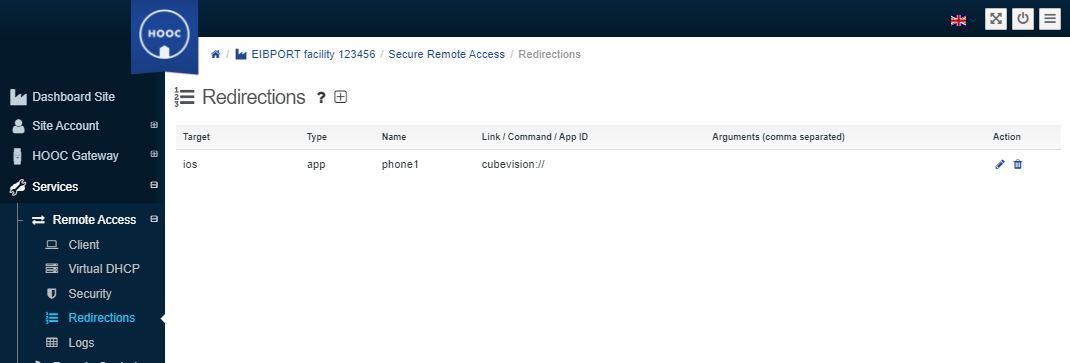
Now the connection is set up on your iOS device:
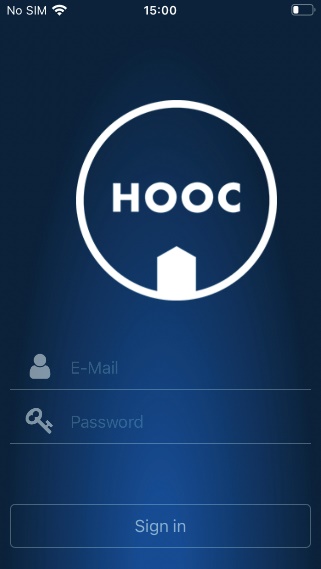
Install the HOOC Client APP on your iOS device. Log in with your HOOC Portal access data.
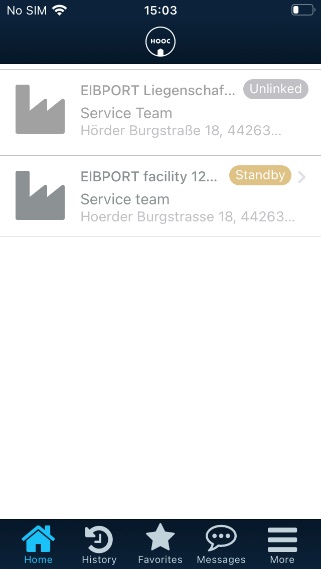
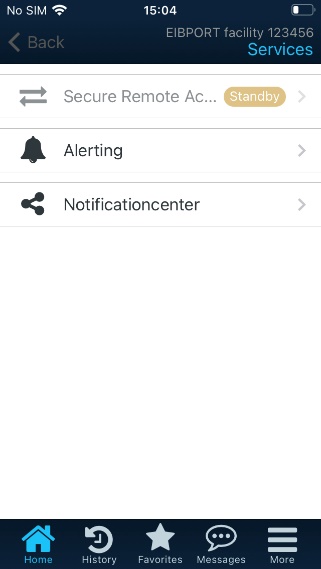
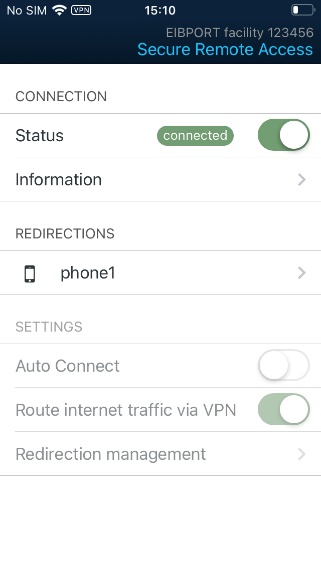
After logging in, your facility will be displayed, which is also available online. Go to the icon for <next>. Via icon <next> in "Secure Remote Access" you can access the connection settings of your facility. Now the switch is to be activated in the status, so that VPN is activated. The VPN availability is also displayed in the status of the iOS device.
This puts you in "Secure Remote Access" mode.
Finally, go to the REDIRECTIONS that you have created in the HOOC portal.
iOS HOOC Client - APP
|
|
|
|
This takes you directly to the CUBEVISION 2+ APP for the visualization of your facility.
Note: It is important to make sure that your CUBEVISON 2+ APP has higher version than 2.2.6, otherwise this internal link will not be forwarded, and you have to make the settings manually.
Without specific arguments in the forwarding settings, only the profile for a CUBEVISION 2+ APP is created in the iOS device.
///