
-
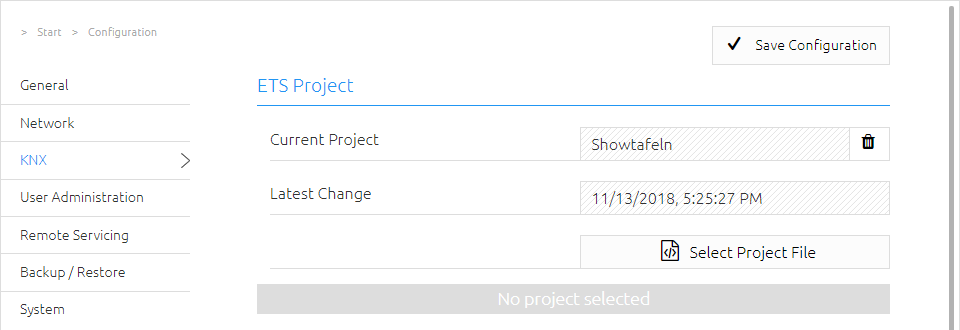
Current Project: Shows the current imported ETS project.
-
Last Changed: Shows the time when the currently imported project was last changed with the ETS.
The imported ETS project is then available in the App configuration.
Use ETS project
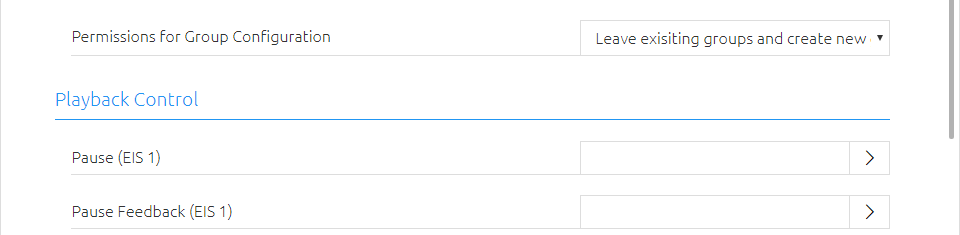
After the installation of an app for the APPMODULE the ETS project is available to you. Click with the left mouse button to the right of the input field for the group address.
The window "Group Address Selection" opens, here you find the imported ETS project.
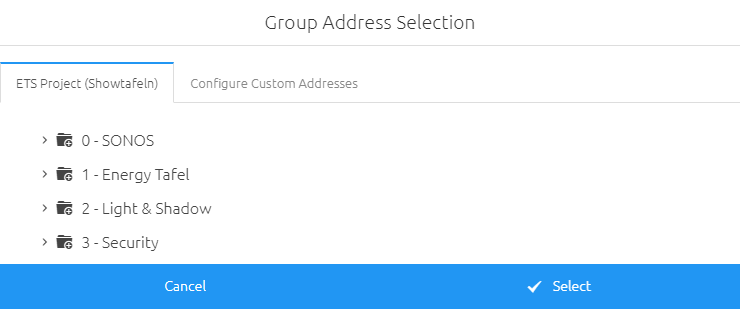
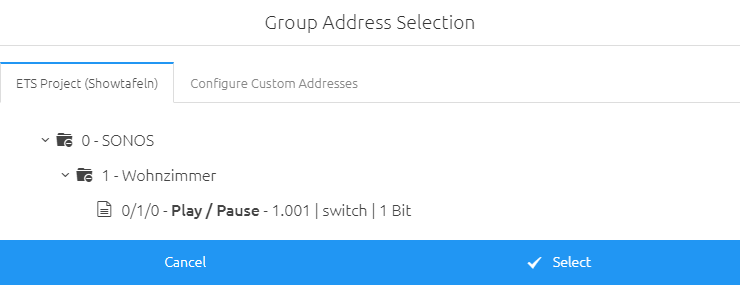
Navigate here like in a file browser. Click on a main group with the left mouse button. All middle groups of this main group are displayed. Click again with the left mouse button on a main group to close it again.
Click with the left mouse button on a middle group. All group addresses of this middle group are displayed. Click again with the left mouse button on a middle group to close it again.
You can transfer a group address to the group address field in two ways. Mark the group address with a click of the left mouse button and then press the "Select" button or double-click the group address with the left mouse button. In both cases, the group address is transferred to the group address field.

Configure Custom Addresses
Group addresses can be added manually in the " Group Address Selection " window. To do this, switch to the "Configure manual addresses" tab.
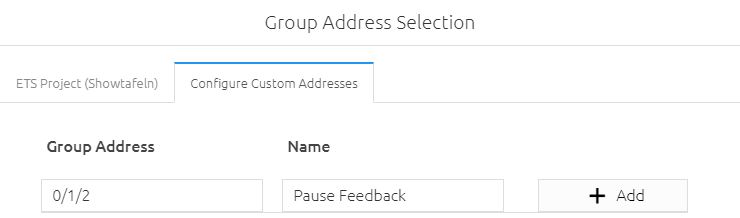
Enter the group address and the name here. The group address can be entered as a 2-digit or 3-digit group address. The 2-digit group address is automatically converted into a
3-digit group address. With the button "Add" the group address is added to the input field for the group address. With a click on Save the group address is saved in the APPMODULE.

If group addresses and the corresponding data points are greyed out in an imported ETS project, these data points are currently not implemented in the APPMODULE and are not required by any app.
///