
APPMODULE
Item no. 10495 / 13501
(Status: 08.2024)
FACTORY DEFAULTS
Default IP: 192.168.1.224
User name: admin
Password: admin
BAB TECHNOLOGIE GmbH
Hafenpromenade 1-2
DE - 44263 Dortmund
Phone: +49 (0) 231 / 476 425-30
Fax: +49 (0) 231 / 476 425-59
E-Mail: info@bab-tec.de
Internet: http://www.bab-tec.de
Made in Germany
SAFETY INFORMATION
Electronic devices may be mounted and assembled by qualified electricians only. The applicable accident prevention regulations shall be observed.
-
Network technology skills are required for the initial operation.
-
The choked bus voltage must not be used as operating voltage 12–32 V DC.
-
The Registration Key for the BAB APPMARKET is located on a sticker on the back side of the device and in this quick reference (see below). Please keep this key carefully. It is necessary for registration in the APP MARKET.
-
The device may only be operated with the specified operating voltage.
Applying a higher operating voltage may result in damage to the device. -
If the device is connected to the Internet, please observe the common safety measures in order to protect it from unauthorized access (firewall rules, passwords etc.).
Failure to observe these instructions can result in damage to the device, fire or other dangers. The quick reference guide is part of the product and must remain with the end user.
DEVICE STRUCTURE
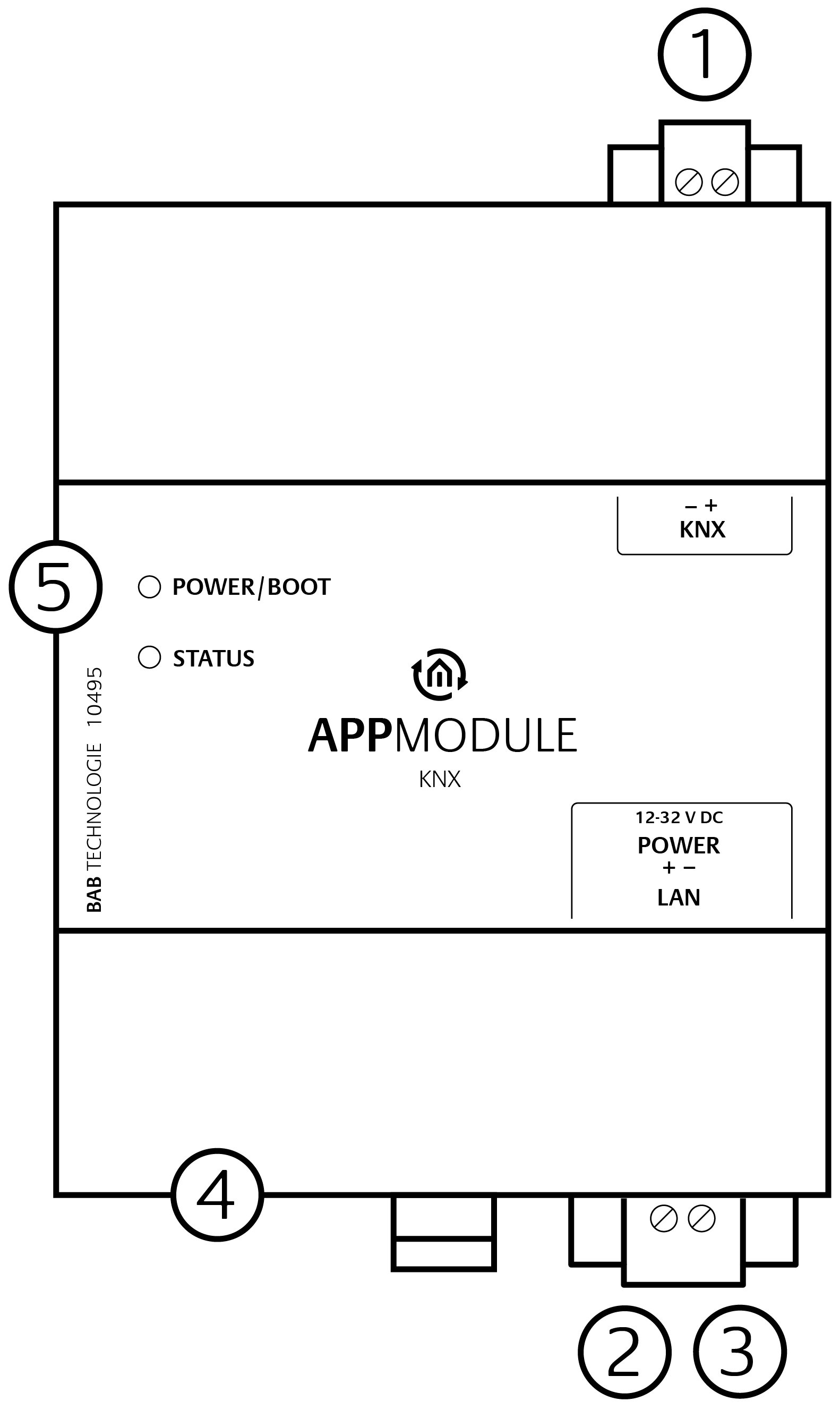
-
Bus connecting terminal KNX/EIB (type 10491)
SMA female connector for EnOcean antenna (type 13501) -
Connecting terminal for voltage supply
-
RJ-45 connector for Ethernet LAN
-
USB port—not in use
-
Signal LEDs
INFORMATION FOR QUALIFIED ELECTRICIANS
Mounting of the device
-
Snap the device onto the mounting rail according to DIN EN 60715.
-
The device heats up in operation. Please observe the maximum ambient temperature and provide sufficient heat dissipation.
Connection of the device (figure 1)
-
For KNX: Connect bus line with the bus connecting terminal (1).
-
For EnOcean: Connect antenna for SMA female connector for EnOcean antenna (1).
-
Connect voltage supply with the screw-type terminal (2) according to label (observe power consumption and polarity).
-
Plug network line (LAN) in the RJ45 female connector (3).
Final preparations
-
Switch on the power supply. Check the status LEDs.
-
For KNX: Switch on bus voltage. The BCU is not programmed via an ETS application, but via the web interface.
-
For EnOcean: Mount antenna and ensure sufficient reception.
OPERATING STATUS INDICATION
The APPMODULE has two Duo LEDs ("Power/Boot" and "Status"). Each Duo LED has a green and a red LED.
POWER / BOOT LED
|
LED display |
Status |
|
OFF |
The device is not ready for operation. No operating voltage is supplied. |
|
GREEN |
The device is ready for operation. |
|
FLASHING ORANGE |
The device is booting. |
STATUS LED
|
LED Anzeige |
Status |
|
OFF |
The device is booting. |
|
FLASHING GREEN |
The device has been started; the LED simulates a "heartbeat". The flashing frequency increases depending on the device utilization. |
|
FLASHING ORANGE |
Es findet Kommunikation per KNX. |
It takes approx. 2 minutes to start the APPMODULE.
ESTABLISHING CONNECTION
Adjusting the network settings of your computer (Windows):
-
Click "Start Button" --> "Control Panel" --> "Network".
-
Select "Network Connection", then "LAN Connection".
-
Click on "Properties".
-
Select "Internet protocol Version 4 (TCP/IPv4)" and click "Properties" again.
-
Note the current IP address settings (make a note or a screenshot). In our example, we refer to the 192.168.178.xx.
-
Now change the IP address settings (IP address and subnet mask) to the IP address range of the APPMODULE.
Example of a valid configuration for the factory settings of the APPMODULE:
Free IP-Address for PC: 192.168.1.100
Sub netmask: 255.255.255.0 -
Confirm your input with "OK".
Now the IP address settings of the APPMODULE can be changed to the IP address range in which the APPMODULE is to be operated.
RETRIEVE THE WEB INTERFACE
The APPMODULE is configured via its web interface, so it can be configured using a web browser.
In order to access the web interface, please proceed as described below:
-
Open a browser and enter the IP address of the APPMODULE (192.168.1.224) into the address line.
-
You will reach the APPMODULE start page. The “Log In” unlocks the “Configuration” functions whereas “Information” shows general system information.
For factory settings, the login data is as follows:
User name: admin
Password: admin
Please note that if the password is lost, the device cannot be reset for safety reasons.
-
You can then also access the "Configuration" menu item.
-
To return to the main menu, just click on the header graphic.
Adjusting the network configuration of the APP MODULE
-
Click on “Configuration“.
-
Open the “Network” menu.
The following settings are available:
DHCP
Automatically obtains the network settings. A DHCP server must be available in the local network.
IP-Address/ Subnet mask / Gateway
Static IP address configuration consists of the IP address, subnet mask and gateway.
Example Configuration:
IP-Address: 192.168.178.224
Subnet mask: 255.255.255.0
Gateway: 192.168.178.1
Without a correct gateway entry, the device will not be able to communicate with the Internet.
DNS Server
DNS is the abbreviation for Domain Name System. The DNS server converts Internet addresses IP addresses.
Without a valid DNS entry, Internet based services will not work.
NTP Server
NTP is a free service for synchronising the system time of Internet-compatible devices. NTP Server List: e.g. http://www.pool.ntp.org/zone/europe
Click on „Save Configuration“ to apply the settings to the device.
If necessary, adjust the previous IP address of the computer again.
Locate the device in the network
Using BAB STARTER, you can search for devices in the local networks:
http://www.bab-tec.de/starter/en
RETRIEVE THE DOCUMENTATION
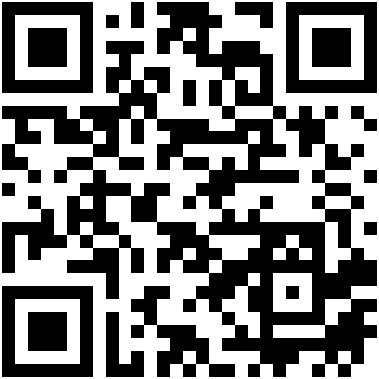
Further information can be found on the start page of the device, under ‘Documentation’ or the QR code.
NOTES FOR BROWSER USE
For access to the web interface, please use one of the following browsers:
-
Google Chrome/Microsoft Edge
-
Microsoft Edge
-
Mozilla Firefox
-
Apple Safari
FIRMWARE UPDATES
We inform you about new firmware for the APPMODULE in our newsletter or on our homepage.
SYSTEM REQUIREMENTS
Operating system:
-
Platform-independent
For configuration PC for commissioning
-
Web browser for configuration
TECHNICAL DATA
-
Operating voltage: 12–32 V DC
-
Maximal power consumption:
-
bei 12 V DC: 300 mA
-
bei 24 V DC: 150 mA
-
-
Typical power consumption: <= 5 W
-
Connection: Power supply via screw-type terminal up to 3.3 mm2
-
Connection: KNX via screw-type terminal up to 1.5 mm2
-
Ambient temperature:-5 to +35 °C
Mechanical Data
-
Assembly: Modular device (REG) housing 4 MW
-
Dimensions (W x H x D) in mm:
72 x 90 x 63 -
Housing: Plastic
-
Degree of protection: IP20 (according to EN 60529)
EnOcean Specification
-
Operating frequency: 868.3 MHz
-
Range: 300in an open field / 30 m in buildings (varies depending on building material)
-
Input objects: unlimited
-
Output objects: 128
-
External antenna: 2.50 m cable, magnetic base and SMA connector
GENERAL INFORMATIONS
External access via PLUG&PLAY VPN
The configuration menu is located in the web interface under the REMOTE ACCESS menu.
Further information on setting up, configuring and using the Plug & Play VPN solution can be found in the separate document at:
https://bab-tec.de/hooc/
Disposal instructions
Old appliances must not be disposed of with household waste! Dispose of old appliances at a collection point for electronic waste or via your specialist dealer. Dispose of the packaging material in the collection containers for cardboard and paper.
[WEEE-Reg.-Nr.DE55712707]
[DE1921130422687]
WARRANTY
We reserve the right to make technical and formal changes to our product in the interest of technical progress. We provide a warranty in accordance with the statutory requirements.
If you are not sure whether your device is damaged, please contact our support:
-
+49 (0) 231 / 476 425 30 or
Please only return defective devices together with our RMA form!
Please request the RMA form and RMA number using the contact details above.
Please request a RMA form before you send the damaged device. We cannot accept unpaid deliveries or deliveries without RMA form!
///