
Follow the steps below to install the BAB STARTER Software on Microsoft Windows.
1. Run the Installation File
Extract the downloaded ZIP archive (.zip) to a directory of your choice.
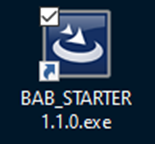
Open the extracted folder and double-click the installation file BAB_STARTER_[Version]_setup.exe to start the installation.
2. Launch the Installation Wizard
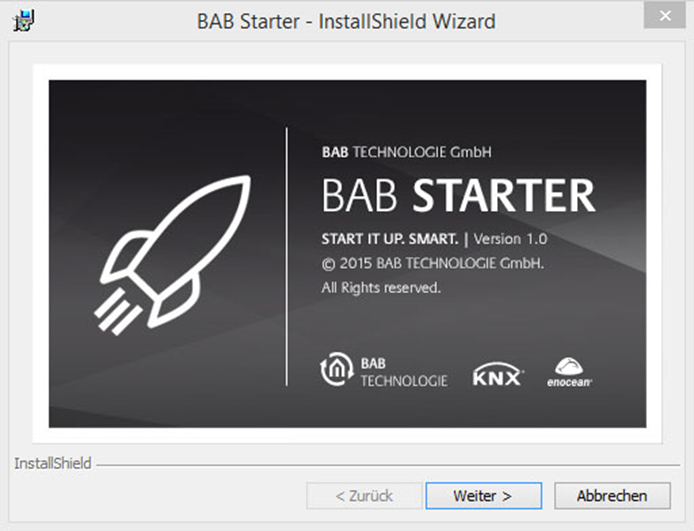
After running the installation file, the setup process is initialized. The InstallShield Wizard will then open and guide you through the installation process.
Click “Next” to continue.
3. Accept the License Agreement
Carefully read the displayed license agreement.
To proceed with the installation, you must accept the license terms. Select the appropriate option and click “Next”.
4. Select the Installation Directory
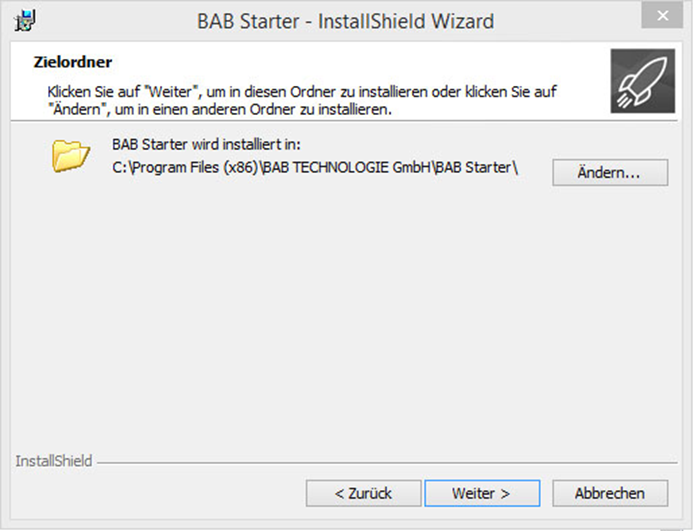
Choose the directory where the BAB STARTER Software should be installed.
You can accept the suggested default directory or specify a custom installation path.
Then click “Next” to continue.
5. Start the Installation
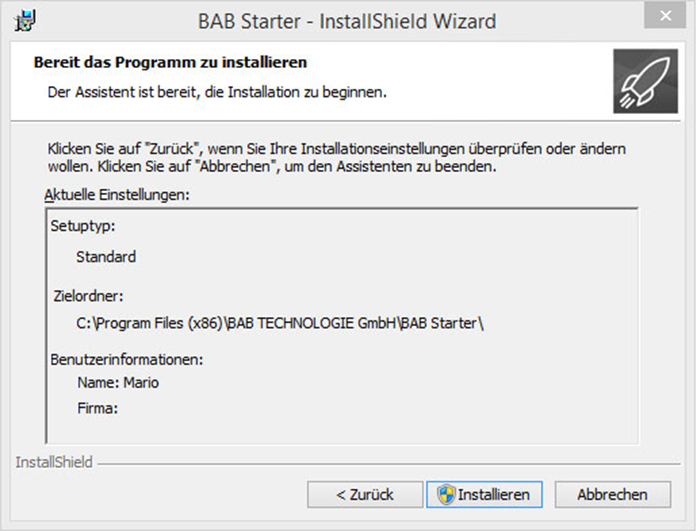
Review the selected installation settings.
Click “Install” to begin installing the BAB STARTER Software.
6. Run the Installation
The installation wizard installs the required program files on your computer.
Depending on your Windows security settings, a User Account Control (UAC) prompt may appear.
Click “Yes” to allow the installation to proceed.
7. Complete the Installation
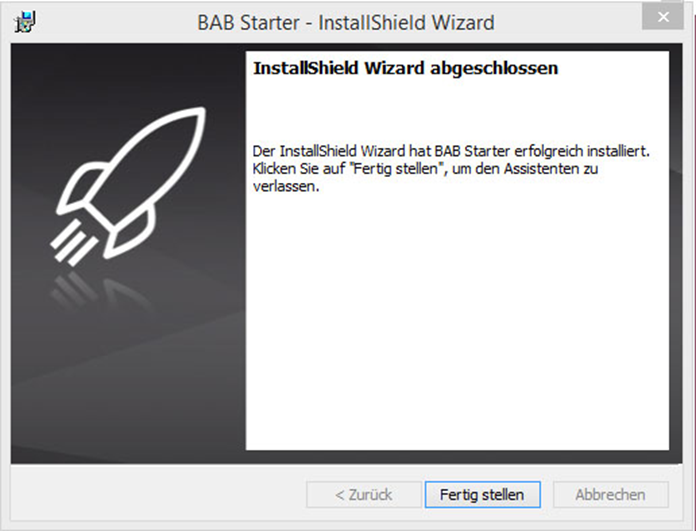
Once the installation is complete, the InstallShield Wizard displays a confirmation message.
Click “Finish” to close the installation wizard.
8. Launch BAB STARTER
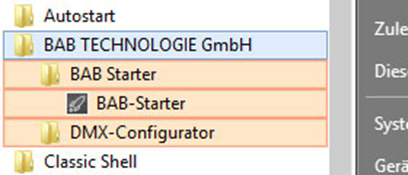
After installation, you can find BAB STARTER in the Windows Start menu under “BAB TECHNOLOGIE GmbH”.
Alternatively, you can use the Windows search function and search for “BAB STARTER”.
Launch the software by clicking the corresponding application entry.
///