
Follow the steps below to install the BAB STARTER Software on macOS.
1. Download the Installation File
Download the latest version of the BAB STARTER Software from the official BAB TECHNOLOGIE website: https://bab-technologie.com/produkte/software/bab-starter/
Two versions are available for macOS:
-
macOS Intel: For Macs with Intel processors.
-
macOS Apple Silicon: For Macs with Apple chips (M1, M2, M3, and newer generations).
Select the version compatible with your Mac.
2. Open the Installation File
Open the downloaded installation file and start the BAB STARTER installation.
Follow the instructions provided by the macOS installation wizard.
3. Confirm the Security Warning
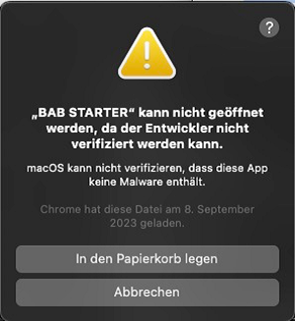
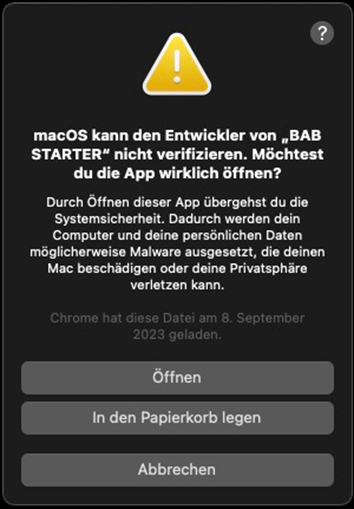
Depending on your macOS version and security settings, a security warning may appear when opening BAB STARTER for the first time, initially preventing the application from launching.
If this happens, click “Cancel” and open “System Settings” (or “System Preferences” on older macOS versions).
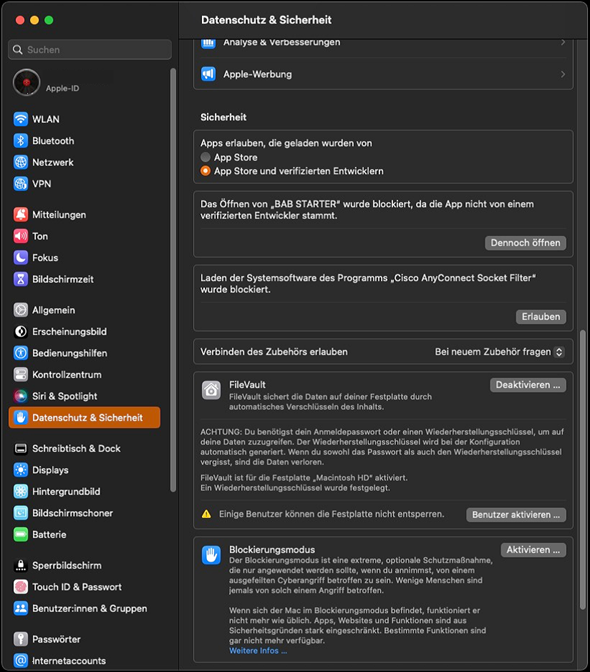
Navigate to “Privacy & Security”.
4. Allow the Application in Security Settings
In the “Security” section, a message may appear stating that BAB STARTER has been blocked from opening because the application is not from an identified developer.
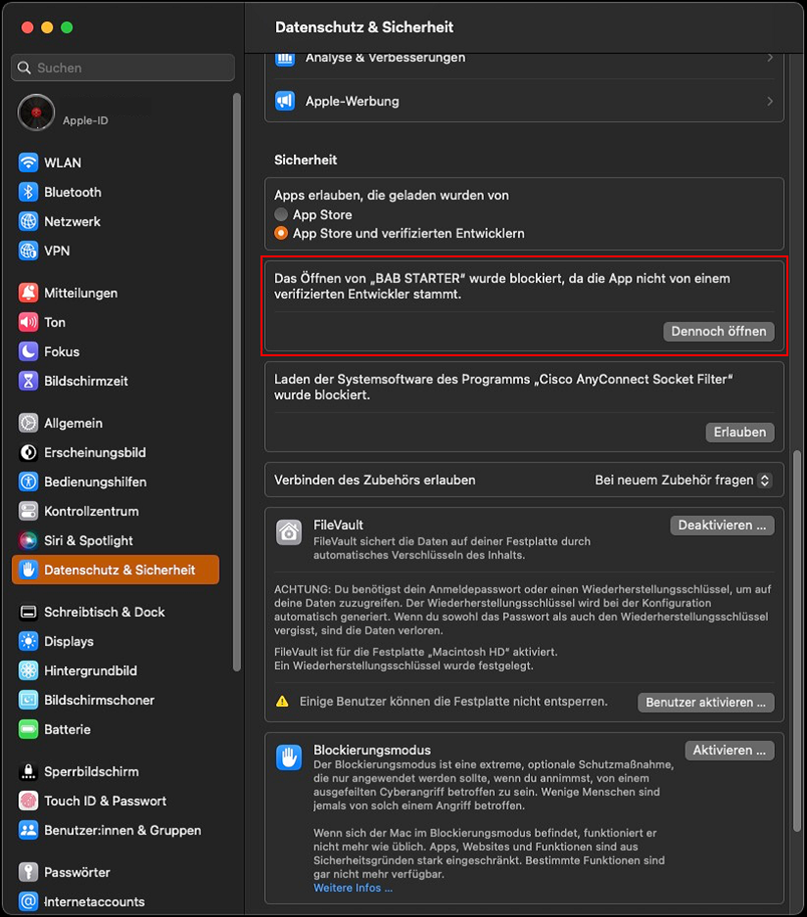
Click “Open Anyway” to allow the application to run.
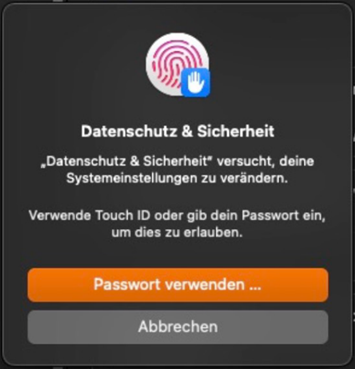
If prompted, confirm your choice by entering your macOS password or using Touch ID.
Note
The names and appearance of the security settings may vary depending on your macOS version. Only allow the application to run if you downloaded the installation file from the official BAB TECHNOLOGIE website.
5. Launch BAB STARTER
Open BAB STARTER again after allowing the application in the security settings.
If another security prompt appears, click “Open” to confirm.
The application will then launch.
6. Allow Network Access
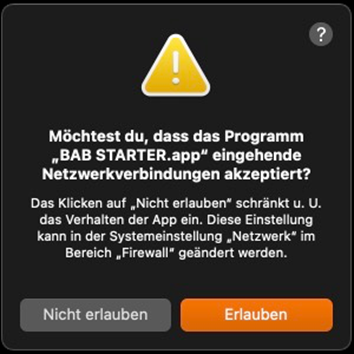
When launching BAB STARTER for the first time, macOS may display a permission prompt requesting access to incoming network connections.
Click “Allow” to grant BAB STARTER access to the required network functions.
7. Launch BAB STARTER
Open BAB STARTER again after allowing the application in the macOS security settings.
If another security prompt appears, click “Open” to confirm.
BAB STARTER will then launch.
8. Allow Network Access
When launching BAB STARTER for the first time, macOS may display a security prompt requesting permission to accept incoming network connections.
Click “Allow” to grant BAB STARTER the required network access.
This permission is particularly important for the discovery function, which automatically detects BAB TECHNOLOGIE devices on the local network.
Note
For more information about security settings in macOS, please refer to the official Apple Support documentation.
9. Complete the Installation
Once the installation is complete, the message “The installation was successful” will appear.
BAB STARTER will then be available in the macOS “Applications” folder and can be launched from there.
Alternatively, you can launch the application using the macOS search function Spotlight.

///