
In a similar way as a level is created, the rooms are created in the levels. There are various ways to create a room.
-
Via the symbol "+" or
-
If a room has already been created automatically, you only need to click on the edit symbol.
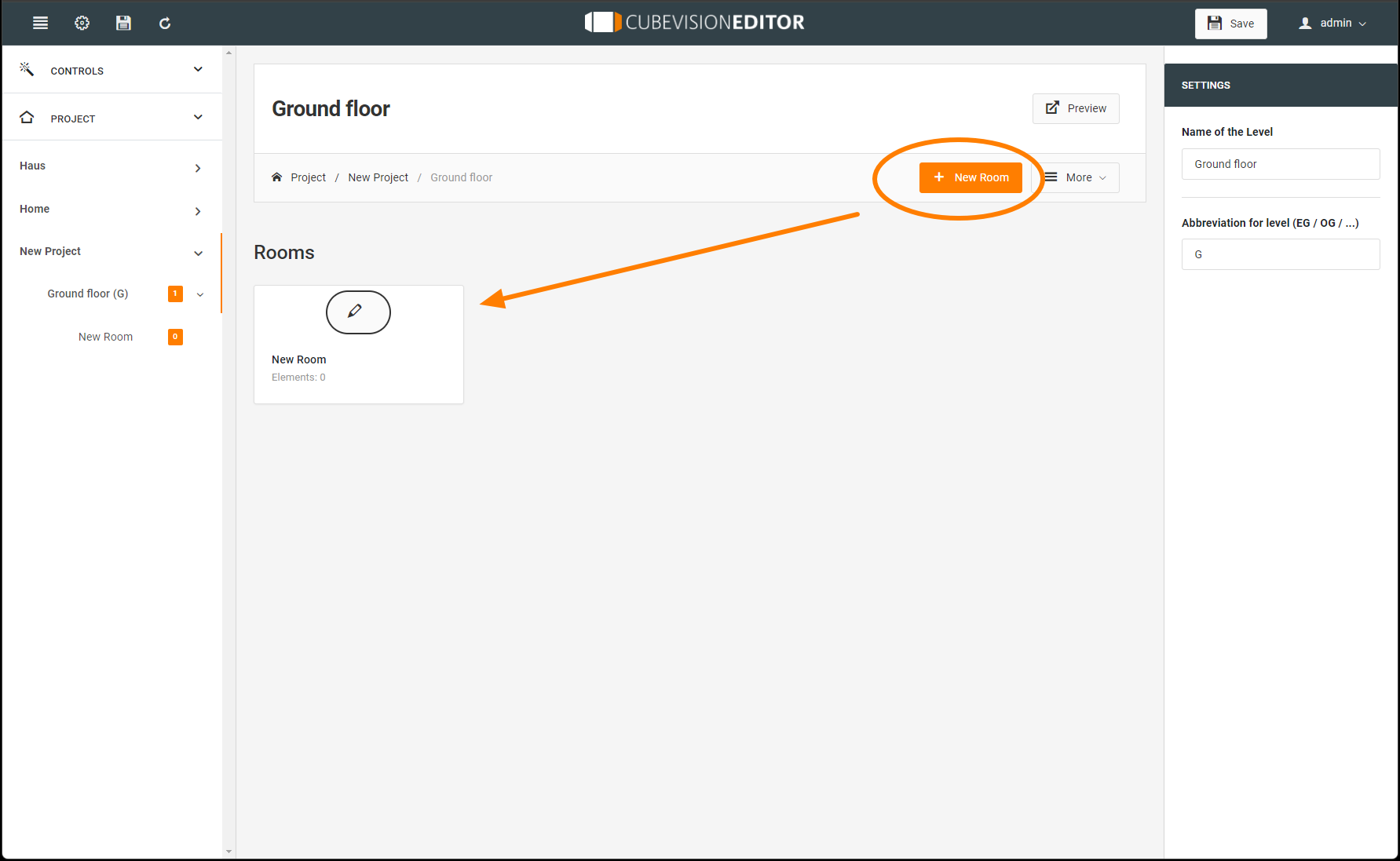
A name, an icon and a background image are assigned to the created room via the settings.
Via the additional menu "=More" it is possible to duplicate or delete an area in the current structure.
-20240424-222856.png?cb=5a712a8e5f7e248584fe4d99fee8d957)
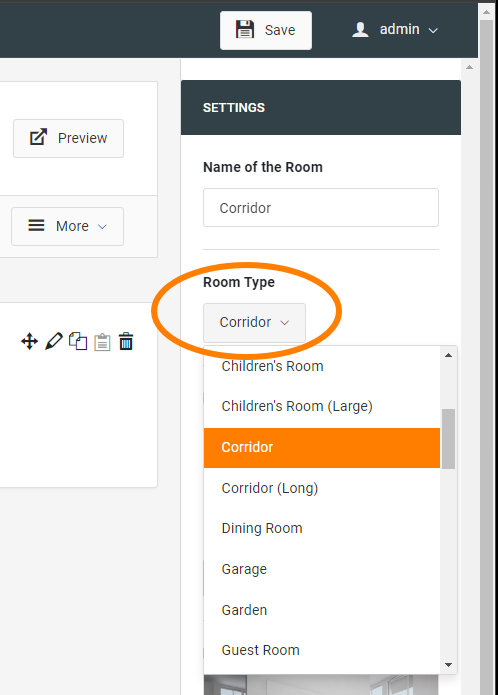
Room-Type
The room type is selected via the highlighted drop-down list.
This selection automatically sets a corresponding room icon and background image.
If there is no suitable room type in the list, the room icon and background image can be selected individually.
Room Icon
Room icon: The room icon can be selected via the pull-down menu or the extension symbol opens a submenu for editing the icons. Here you can also import your own icons and assign them to your visualisation.
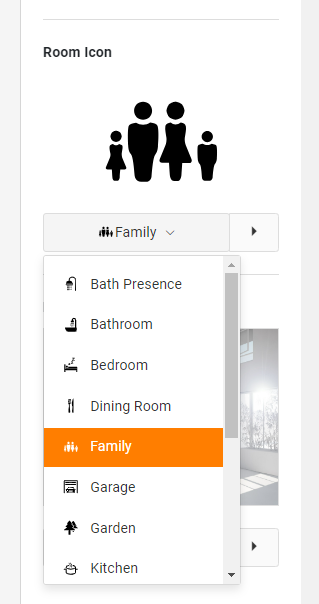
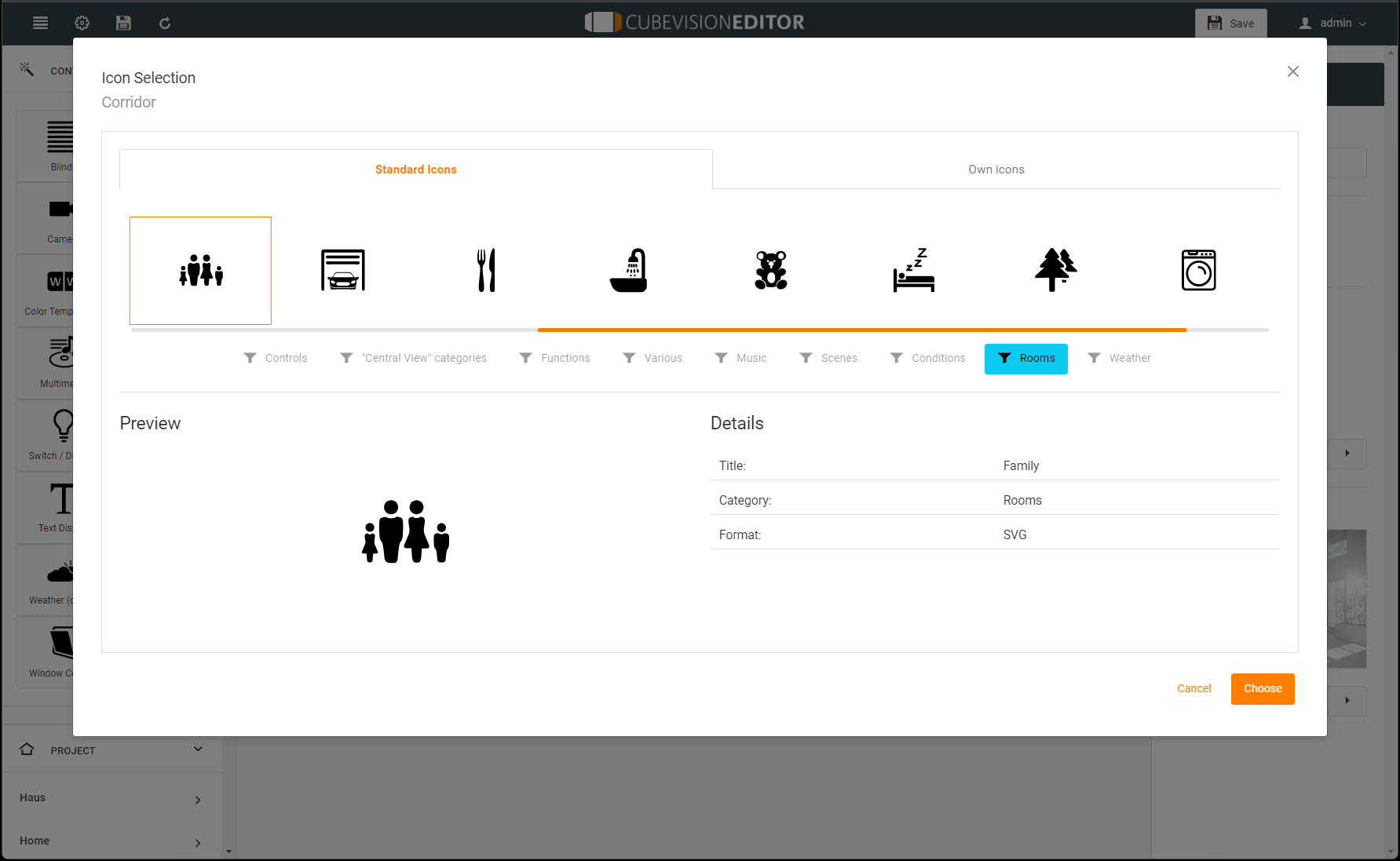
The selection of the room icons determines the symbol that is displayed in front of the room name in the room navigation in the CUBEVISION Phone view.
In this way, the icons are used for a quick and convenient entry for operating the rooms.
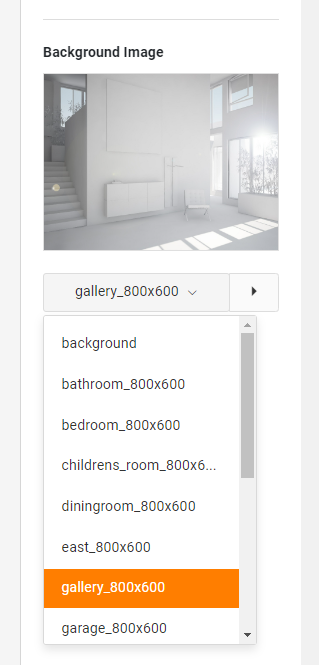
Background Image
Background image: A background image is assigned to each room. It fills an entire side area (which represents a room) of the CUBEVISION cube. This picture is also shown in the Quick Navigation together with the name. The background image for the can be selected via the pull-down menu or via the extension icon opens a submenu for image management. Here you can edit your images, import images and make your selection as the background image for the room.
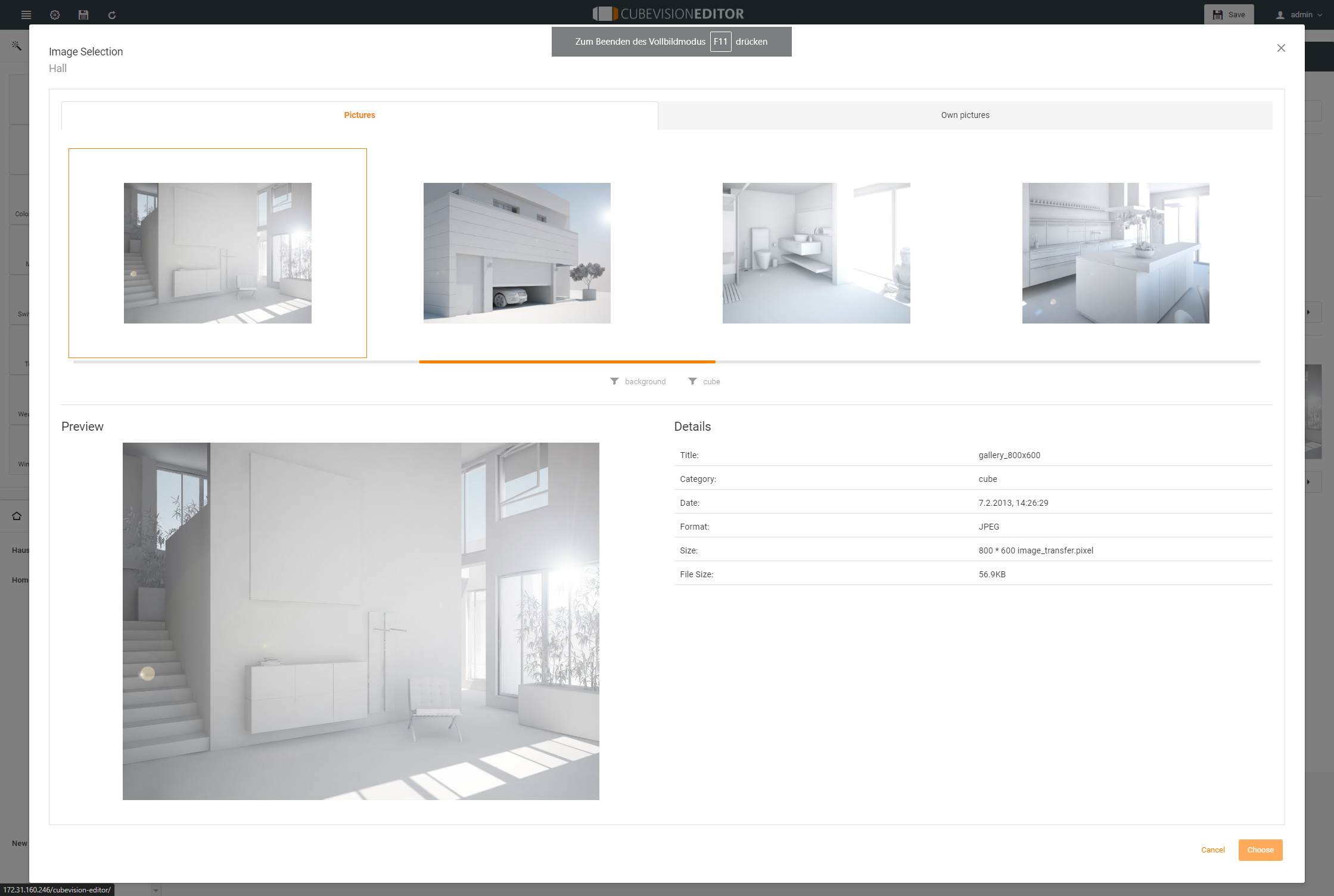
The recommended resolution for the background image of the room depends on the size of the end device on which the visualisation is to be displayed.
In principle, the resolution should be higher for larger end devices (PCs, 21 inch touch panel PCs) than for smaller end devices (smartphones or tablets).
If the background images are all very high-resolution, there will be no problems with large screens, but this may increase the waiting time somewhat on small devices.
Not only because of higher loading times, storage space should be used sensibly and the image size should be adapted to the end devices.
Room structure / Column Break
The operating structure within a room is particularly determined by the column structure. In this way, the control elements with configured functions within a room can be structured sensibly and clearly according to topics and habits.
The figures below show how the column structure is displayed in the Tablet and Phone view for the CUBEVISION visualisation. The columns should be named in such a way that the content of the columns is clear. In the Phone view, the columns can be expanded and collapsed, so the column designation is particularly important for orientation during operation.
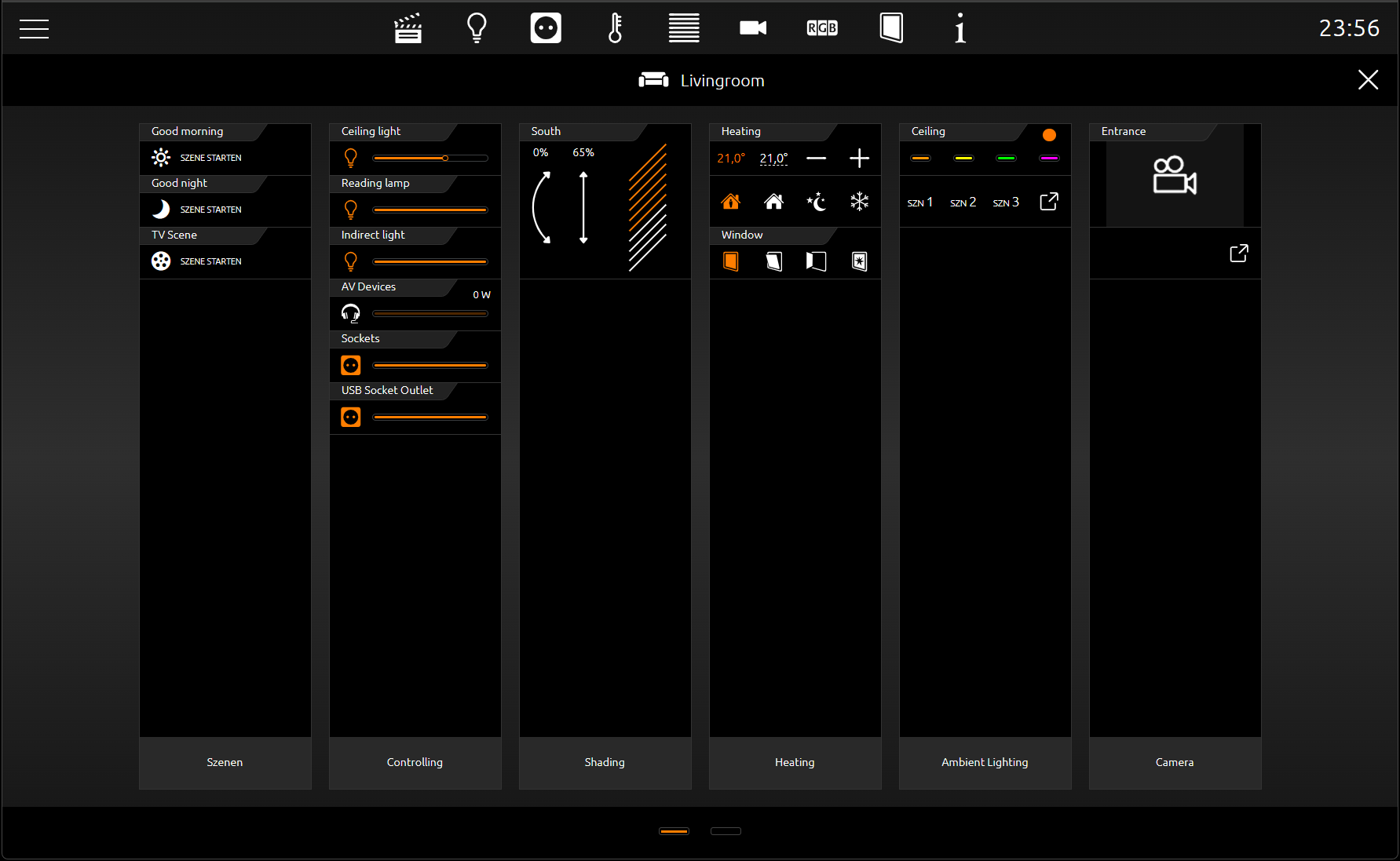
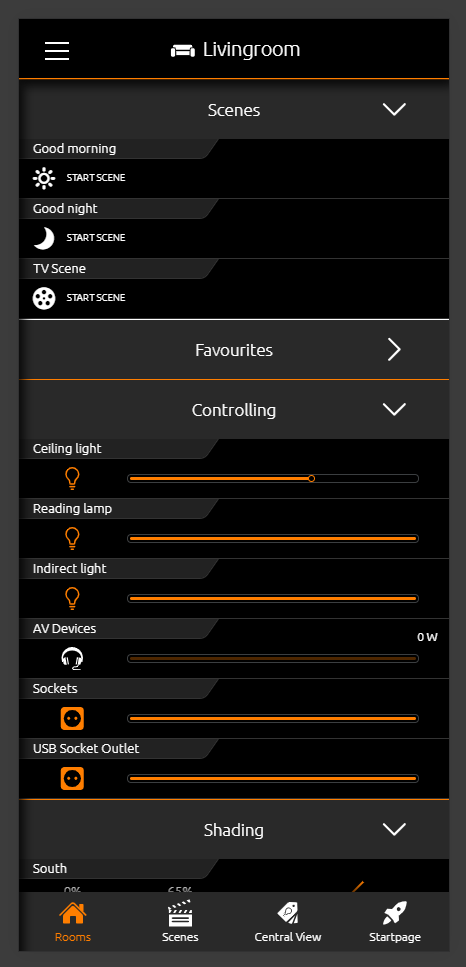
In principle, the number of controls elements is unlimited. In the phone view, the column area simply becomes very long. In the tablet view, depending on the height of the screen, the column is only divided until all controls are divided.
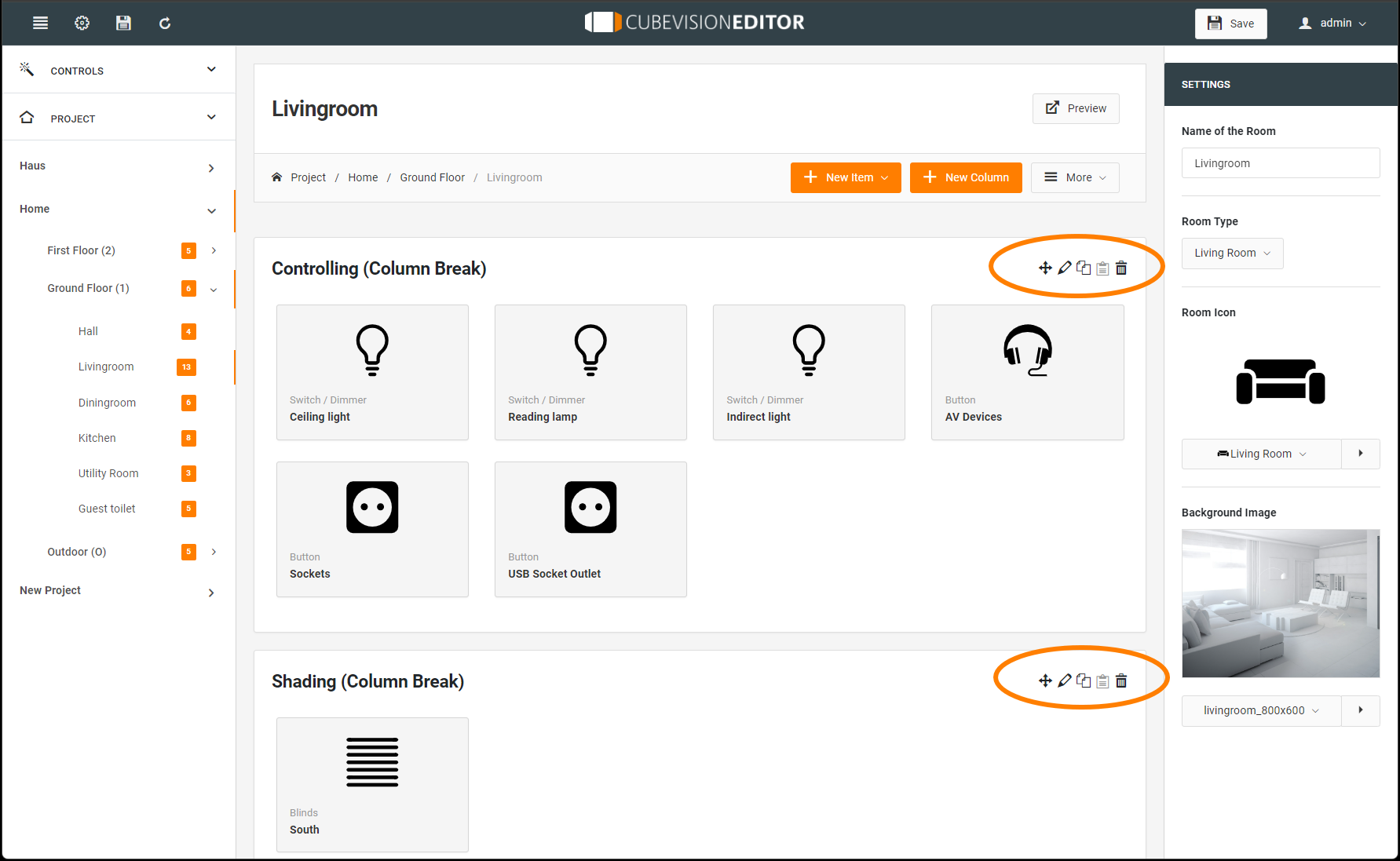
The representation of the CUBEVISION visualisation is based on the created spatial structure of the CUBEVISIONEDITOR. This structure can be changed quite easily with the following tools:
You have the following tools for this (following illustration, marked in orange):
-
With the first control icon the columns and elements can be easily moved.
-
With the editor pen icon the column name can be changed
-
The copy symbol can be used to duplicate an entire column.
-
Deleting rooms and columns by the icon
///