
The method used to open the CUBEVISION EDITOR depends on the respective product and is therefore described in the corresponding product-specific documentation.
The CUBEVISION EDITOR enables you to create and edit visualisation projects. You can create buildings, floors and rooms, structure the user interface and add control elements for the various building automation functions. You can also configure background images, room icons, categories, diagrams and access permissions, and check the result using the preview.
This chapter begins with logging in to the CUBEVISION EDITOR and then explains its structure, operation and functions.
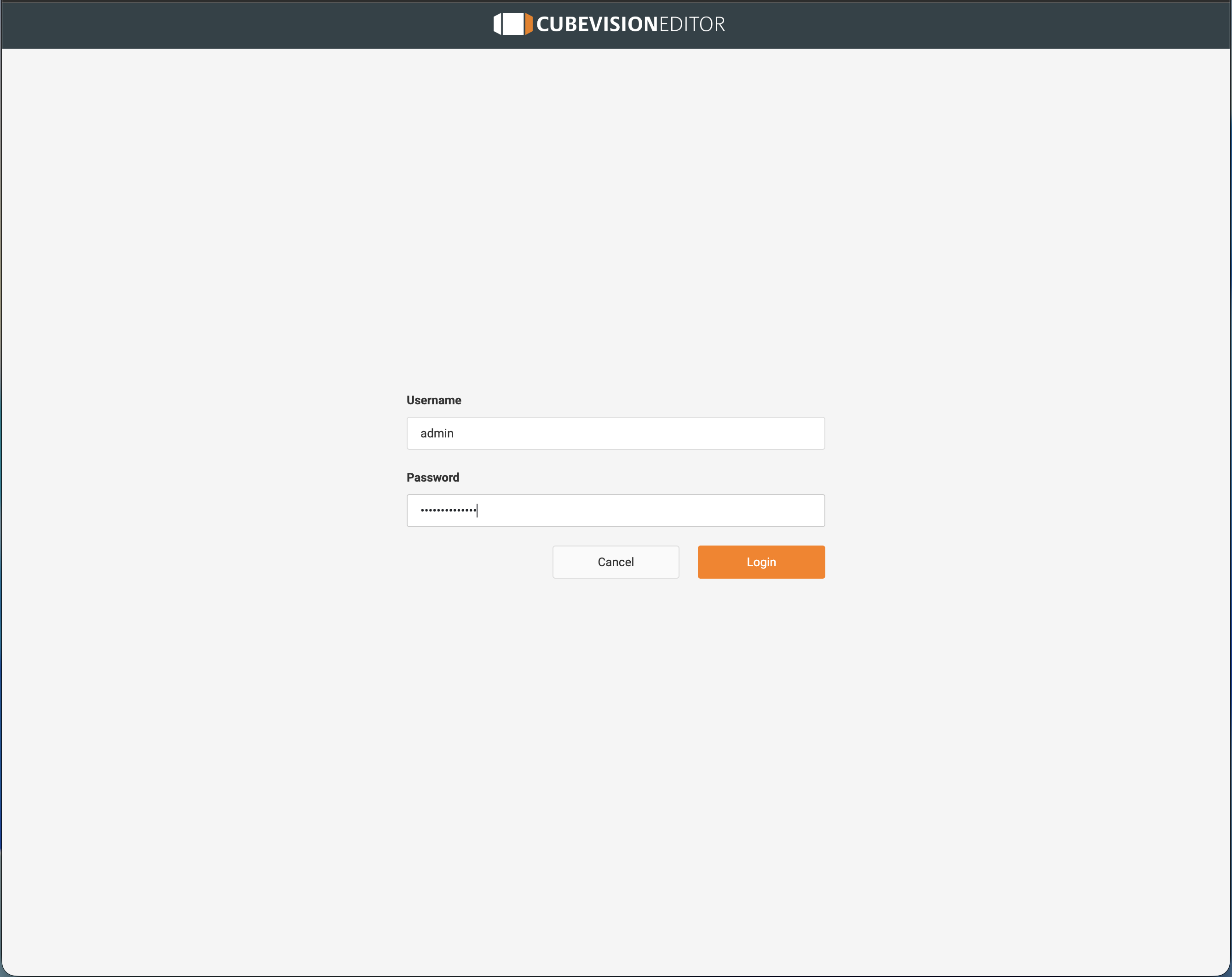
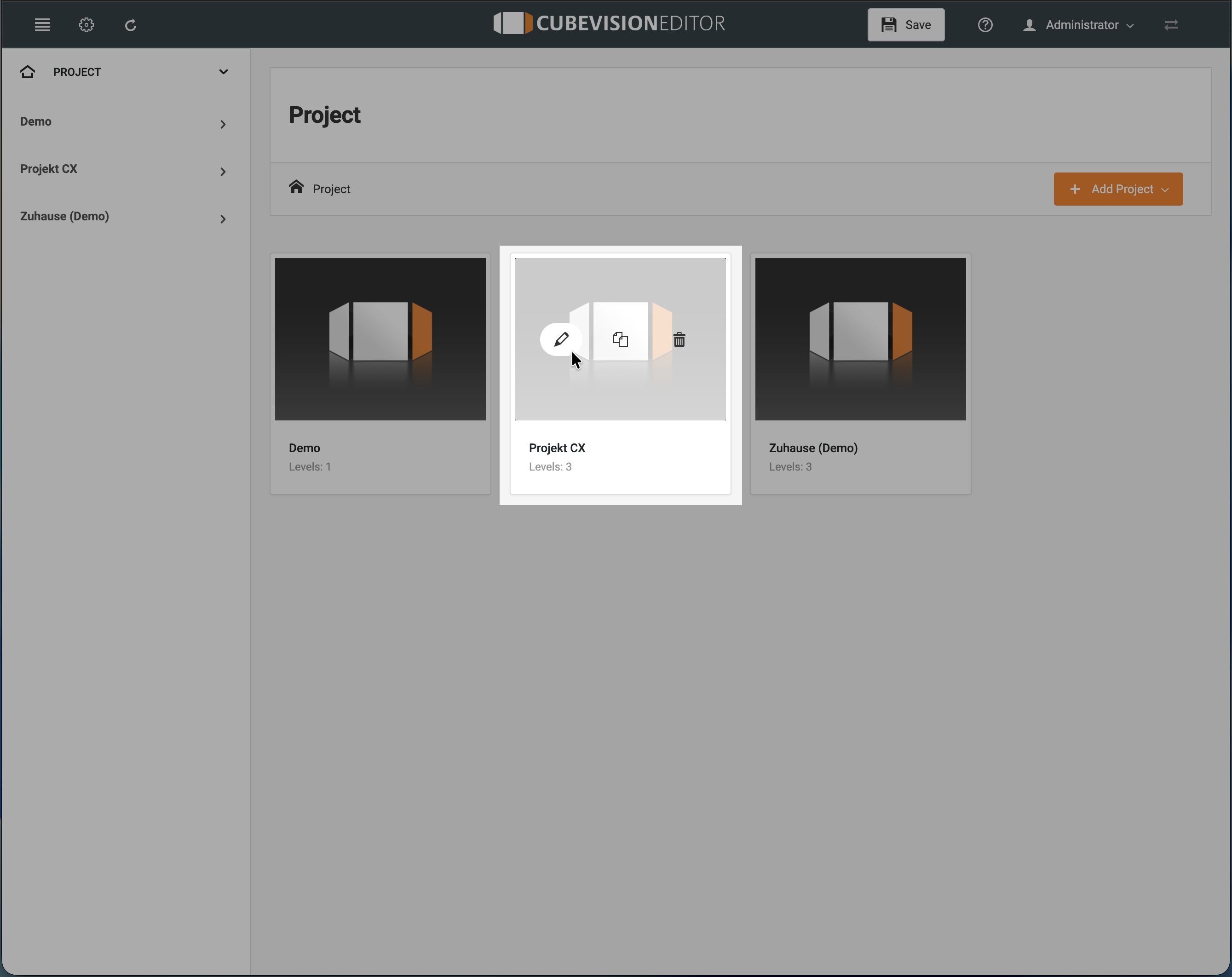
After successfully logging in, the CUBEVISION EDITOR overview page is displayed. Here you can view the existing visualisation projects and open or manage them, or add a new project directly.
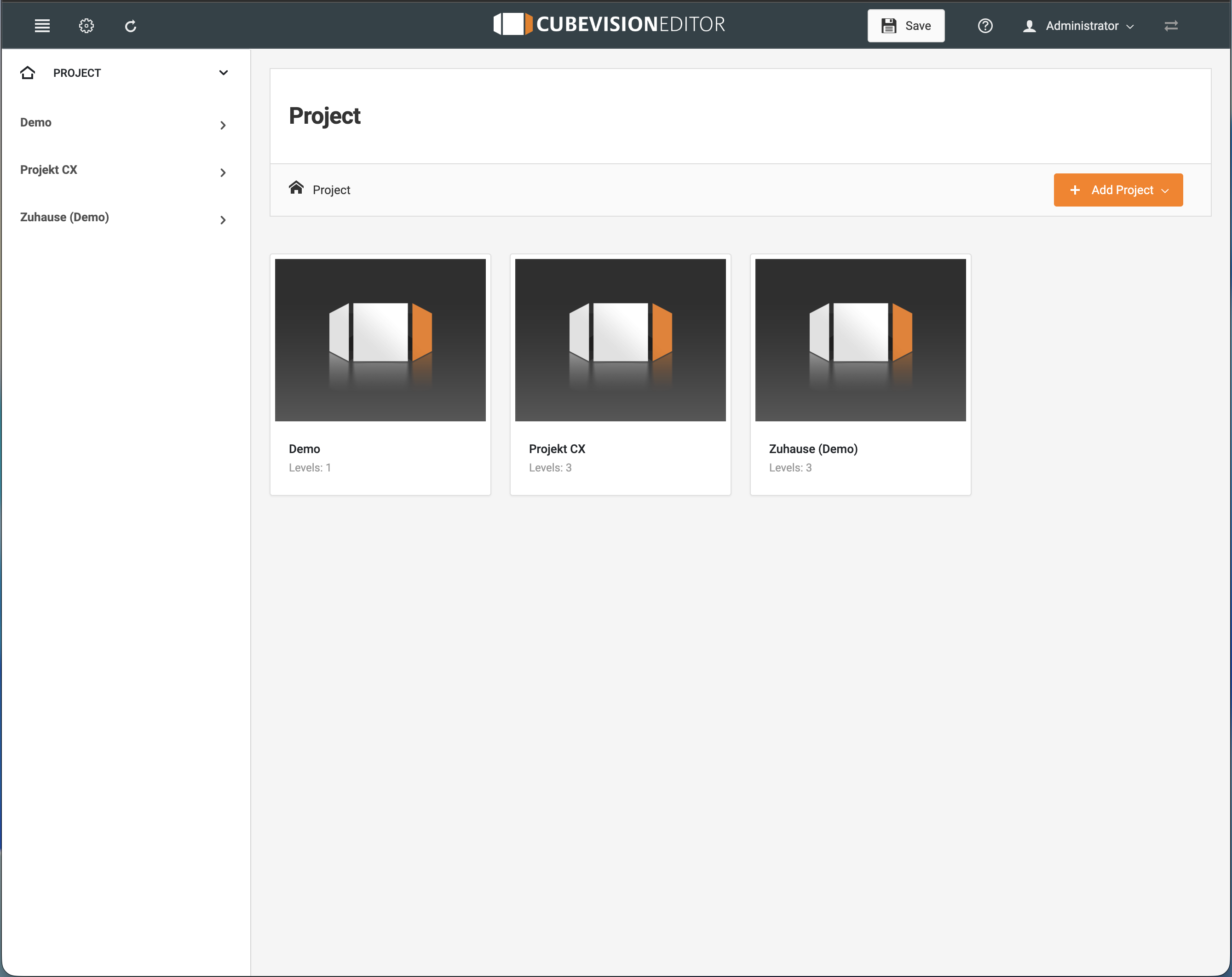
CUBEVISION EDITOR – General Overview
CUBEVISION EDITOR Menu Bar
The header bar of the CUBEVISION EDITOR provides central functions for project management and operation.
-
Menu icon: Expands and collapses the left-hand sidebar.
-
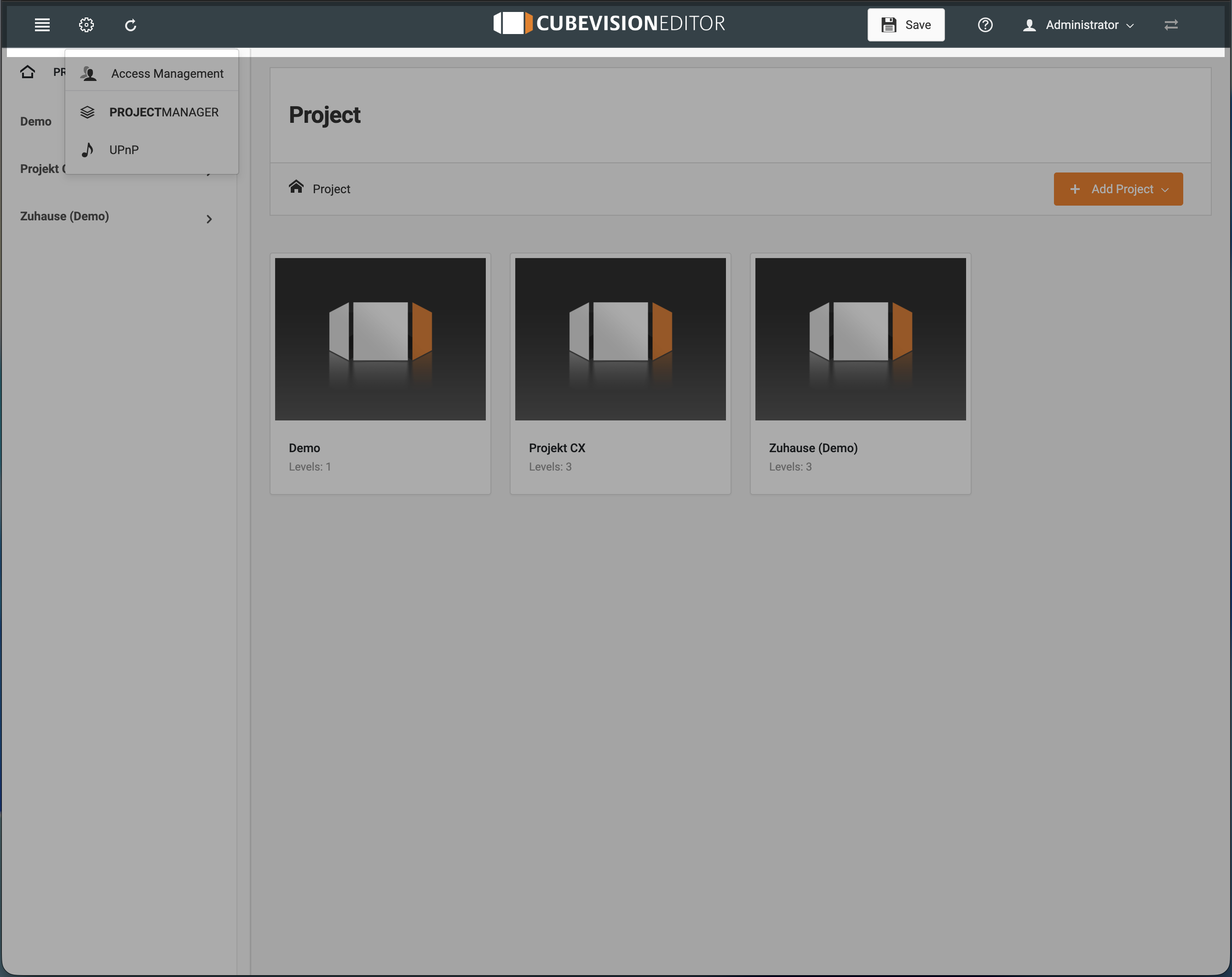
Gear icon: Opens a menu containing the following functions:
-
Access management: Configures access permissions for the visualisation users created in PROJECT MANAGER.
-
PROJECT MANAGER: Opens PROJECT MANAGER directly.
-
UPnP: Adds, manages and configures UPnP devices.
-
-
Reload icon: Loads the most recently saved version. Any unsaved changes will be discarded.
-
Title in the centre: Returns to the CUBEVISION EDITOR overview page.
-
“Save” button: Saves changes to the visualisation data.
-
Question mark icon: Opens information and the relevant documentation.
-
User menu: Displays information about the logged-in user and allows you to log out of the CUBEVISION EDITOR.
-
Double-arrow icon: Shows or hides the configuration panel on the right. The button is only active when the configuration panel is displayed.
Project Management in the CUBEVISION EDITOR
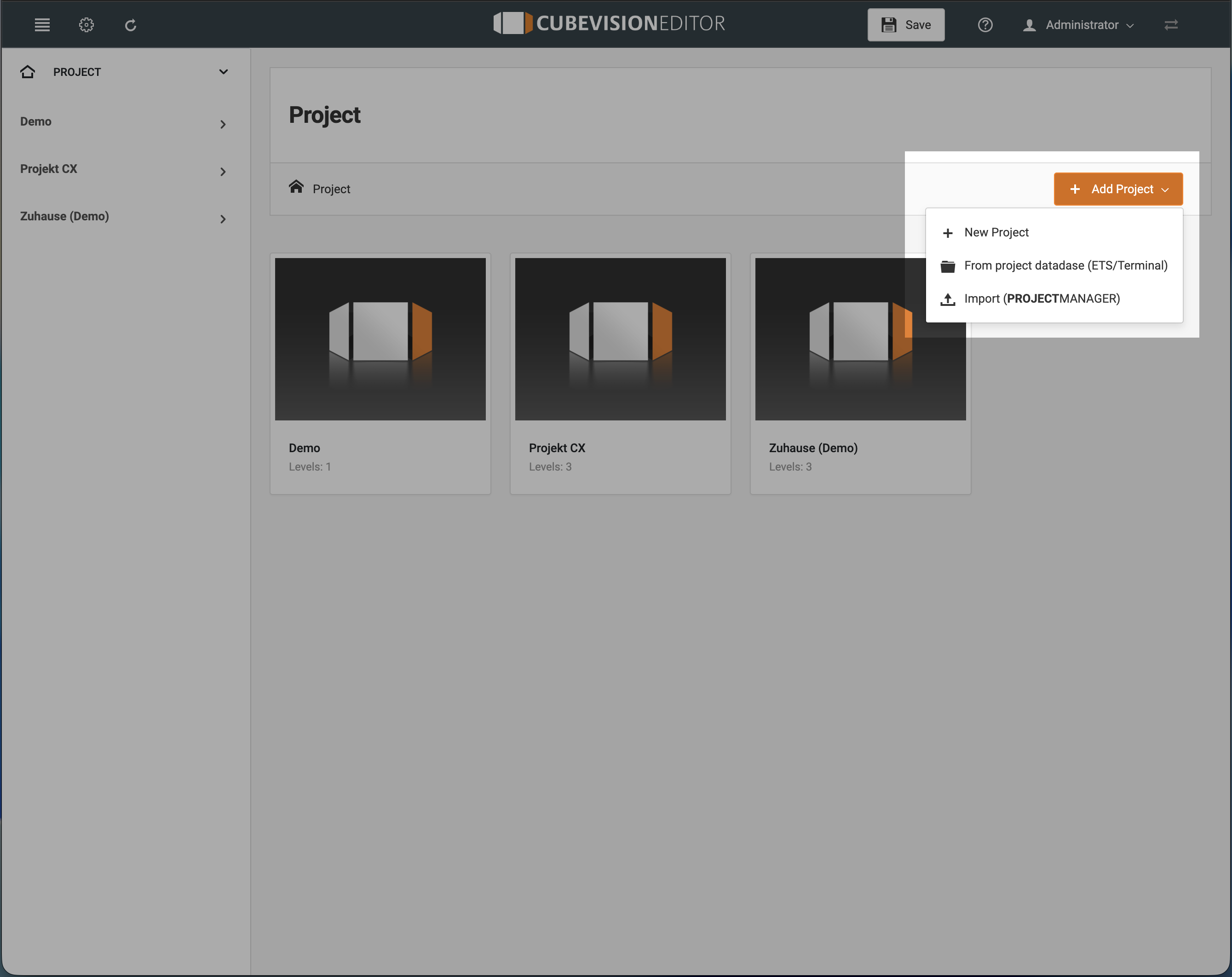
The overview page displays all existing visualisation projects. Select “Add Project” to create a new project. The following options are available:
-
Create a completely new project.
-
Create a project based on an existing KNX project database.
-
Import a project using PROJECT MANAGER.
To edit an existing project, move the mouse pointer over the preview image of the required project. The menu that appears provides options for editing, duplicating and deleting the project.
You can also change the order of the projects on the overview page. To do so, move the required project to its new position.
///