
Registration and authentication for ekey bionyx in the Smart Home App
Authentication
To register your APPMODULE with ekey, you need an existing ekey bionyx account. If you do not already have an account, create one first using the ekey bionyx app on your iOS or Android device.
Please note that third-party integration is only possible with a Bionyx owner account.
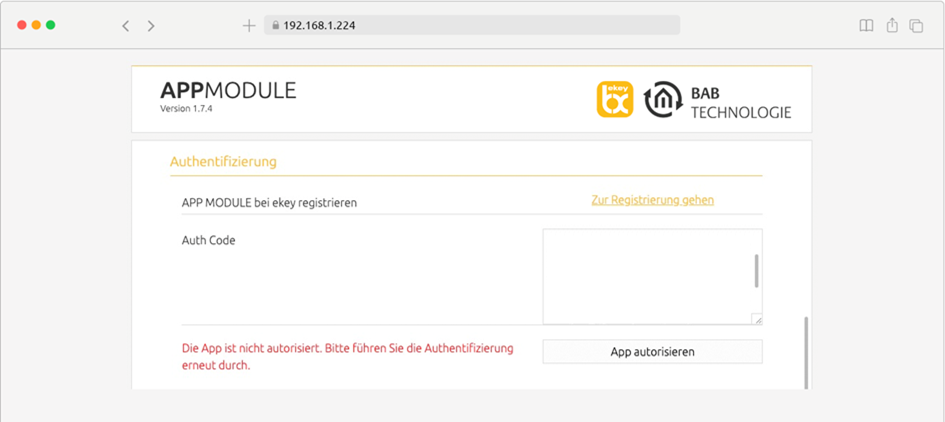
In the ekey bionyx connect Smart Home App, click "Go to Registration" to start the registration process.
You will then be redirected to the ekey bionyx sign-in page.
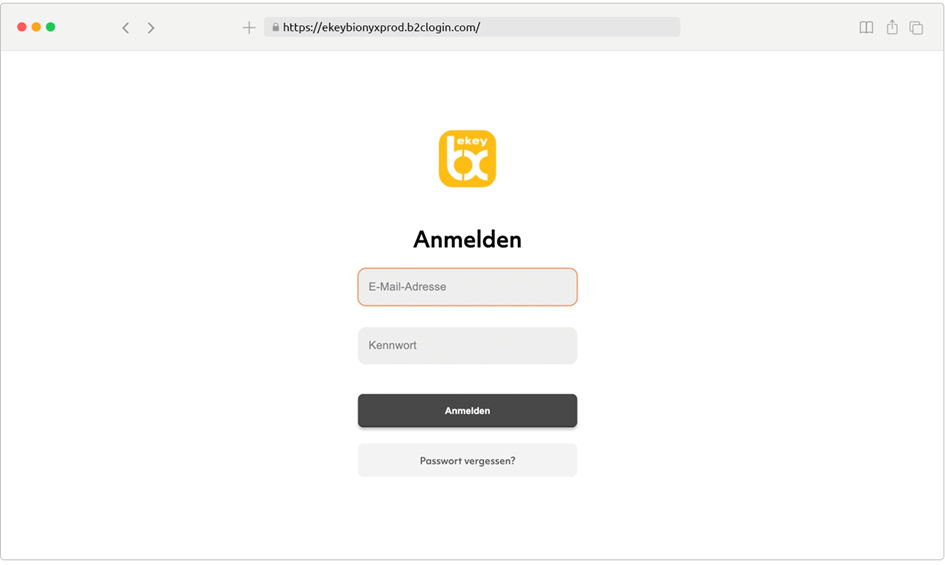
After signing in successfully, you will be redirected to the BAB TECHNOLOGIE Service website.
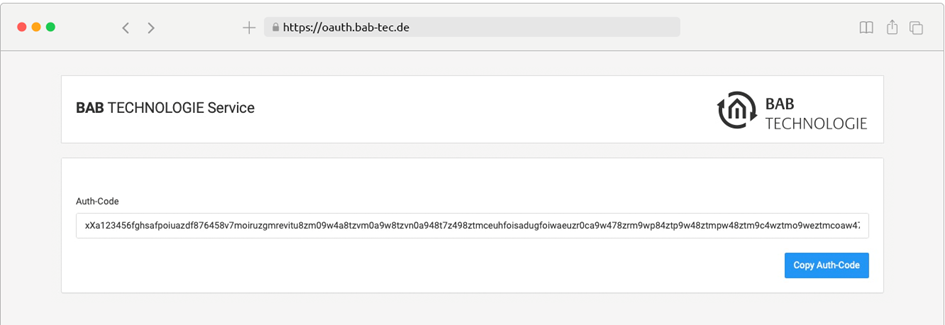
Your personal authentication code is displayed on this page. Copy the code by clicking "Copy Auth-Code", then return to the Smart Home App configuration.
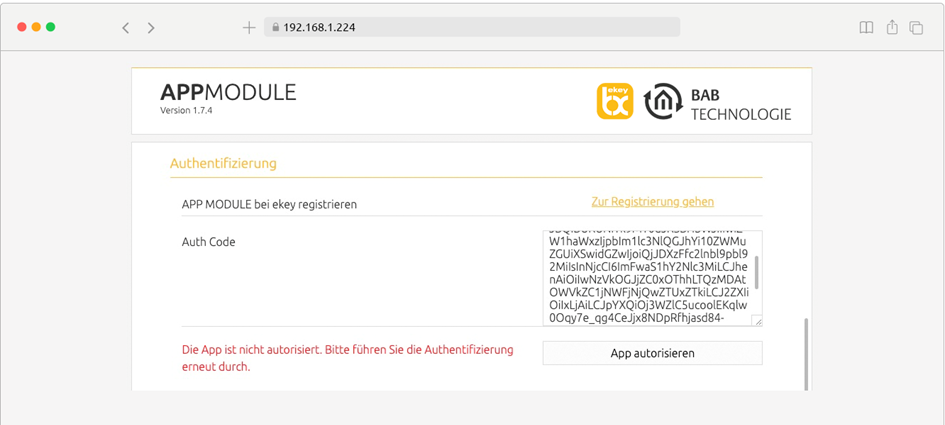
Paste the copied authentication code into the Auth Code field and click "Authorize App". After successful authorization, the Authentication section is hidden and your APPMODULE is connected to your ekey bionyx account. You can now begin configuring your ekey actions.
Note – Changing the ekey Account
If the ekey account used by this Smart Home App needs to be changed, make sure that a new authentication code is generated after signing in with the new account.
If the previous authentication code is still displayed after signing in with the new account, clear your web browser cache and repeat the sign-in process.
After entering the new authentication code into one instance, all instances must be saved and restarted.
ekey Actions
You can create up to five ekey actions, each in its own instance. Each ekey action can contain up to 10 individual functions. After configuration, the actions can be triggered using the ekey bionyx app for iOS and Android devices or by using ekey fingerprint readers.
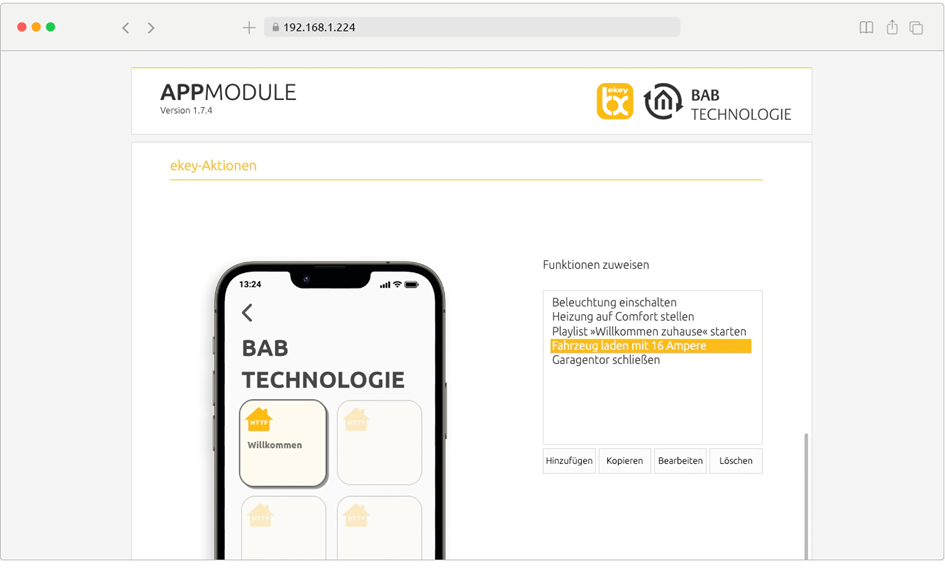
Assign Functions – Add the required functions here. You can configure up to 10 functions. Each function can send different values using different data types and individual delay times.
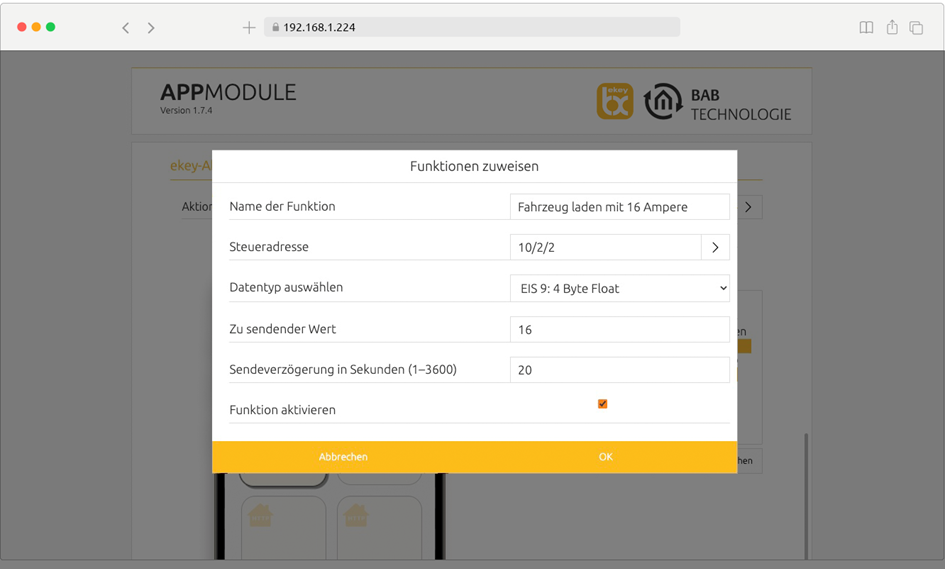
Function Name - Enter a name for this function. Choose a descriptive name that clearly identifies its purpose.
Control Address - Enter the group address to which a telegram should be sent when this function is triggered.
Data Type - Select the data type of the value to be sent. The following data types are supported (see the appendix for the corresponding DPT formats):
-
EIS 1: 1 Bit
-
EIS 5: 2 Byte Floating Point
-
EIS 6: 0%..100%
-
EIS 9: 4 Byte Floating Point
-
EIS 10s: 2 Byte (-32768..32767)
-
EIS 10u: 2 Byte (0..65535)
-
EIS 11s: 4 Byte (-2147483648..2147483647)
-
EIS 11u: 4 Byte (0..4294967295)
-
EIS 14s: 1 Byte (-128..127)
-
EIS 14u: 1 Byte (0..255)
Value to Send - Enter the value that should be sent to the configured control address. Make sure that the value matches the selected data type.
Send Delay in Seconds (1–3600) - Defines the delay before the function is executed. If this field is left empty, the value is transmitted immediately.
Note Leave this field empty if no transmission delay is required.
Enable Function - Newly created functions are enabled by default. Individual functions can be disabled temporarily without deleting their configuration.
Action Status (EIS 1) - Enter the group address that should receive a status telegram when the action has been started.
Note on ekey Actions
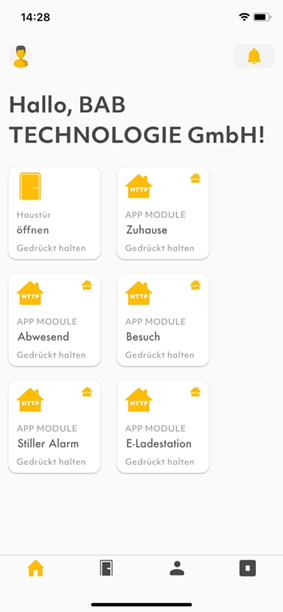
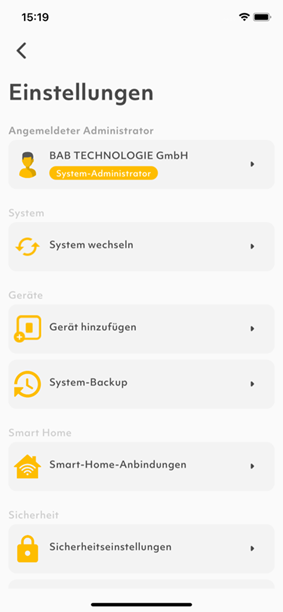
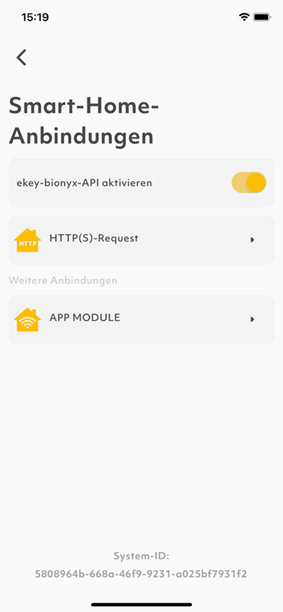
To use ekey actions in your bionyx system, the ekey bionyx API must be enabled in the bionyx app for iOS or Android. Proceed as follows:
-
Open the bionyx app and sign in as the System Administrator.
-
Tap Smart Home Integrations.
-
Open the Settings menu and select Smart Home Integrations.
-
Enable the Enable ekey bionyx API option.
|
|
|
If you rename or delete an instance, the change does not take effect immediately. To apply the changes, disable and then re-enable the Enable ekey bionyx API option. Navigate to Smart Home Integrations as described above and repeat the corresponding steps.
Afterwards, restart the affected instances by stopping and starting them again using the Play/Pause button.
///