
Configuring the Notification API in the ekey bionyx App
Before configuring the instance, the following two steps must be completed to use the Notification API.
Enable the Notification API
First, enable the interface in the ekey bionyx app.
In the app, navigate to Settings → Smart Home Integration and enable the Notification API option.
Export System Information
Next, export the system information required for the Smart Home App configuration.
The export function is available in the ekey bionyx app under Settings → Smart Home Integration → Export System Mapping.
The exported data can be shared by email, message, or copied to the clipboard.
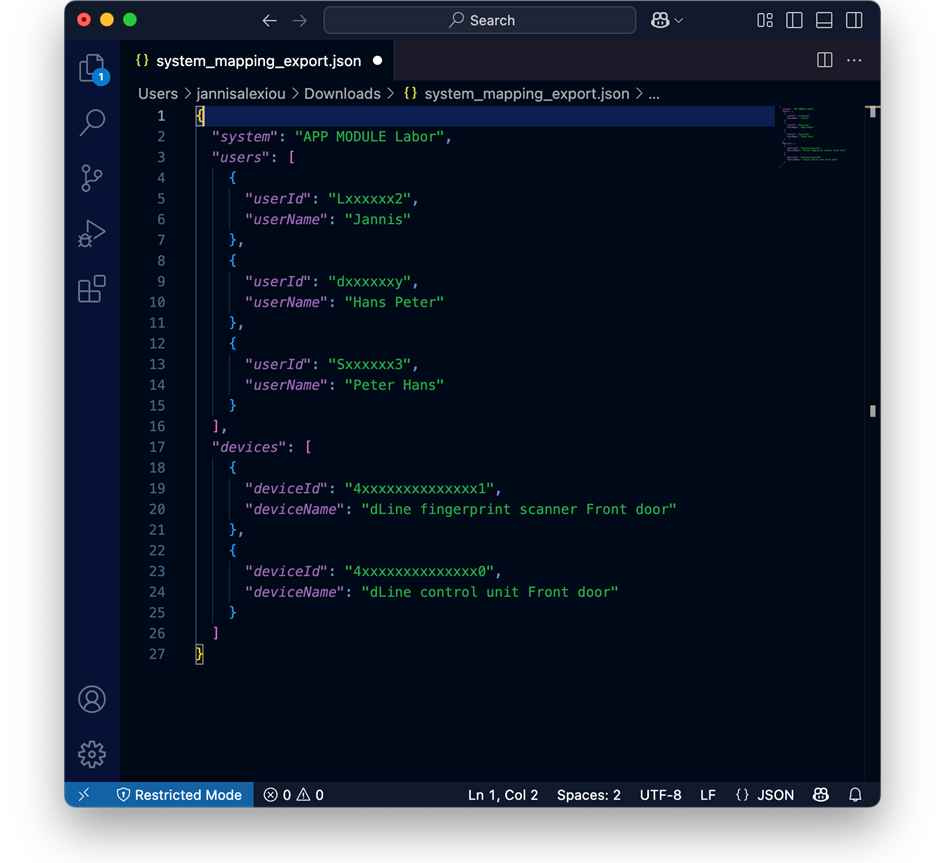
The export is provided in JSON format and can be opened and viewed with any standard text editor (see screenshot).
After Configuring the Instance
Note
This step can only be completed after the instance has been fully configured and saved.
To complete the setup, the AppLink of the APPMODULE must be entered in the ekey bionyx Controller.
The required target address can be found in the Instance Overview.
Open the previously created Notification instance and copy the AppLink (see the following screenshot).
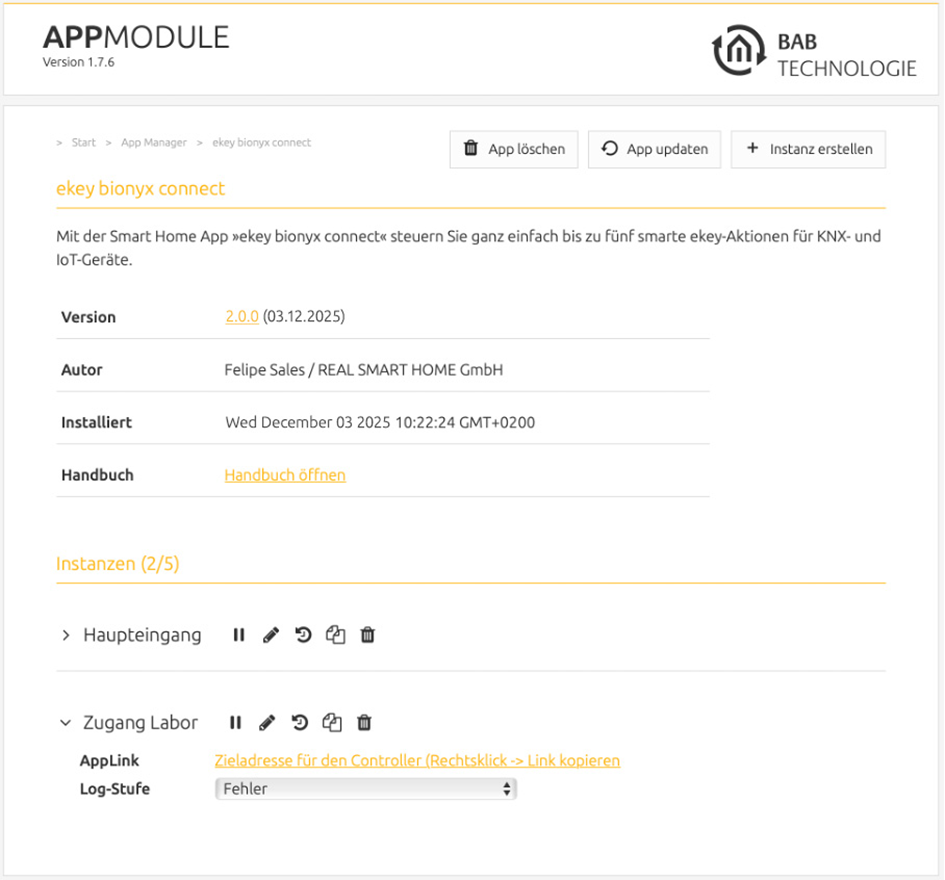
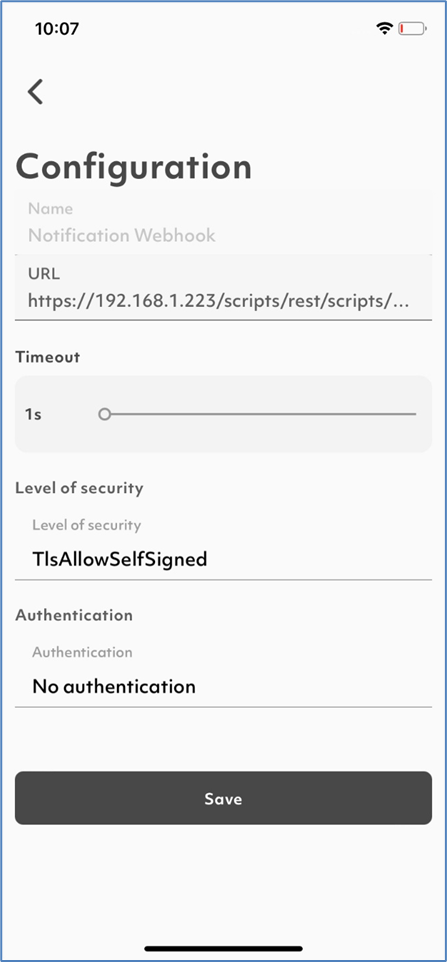
The copied target address (AppLink) must be entered in the ekey bionyx app under:
Settings → Smart Home Integration → Configuration
Enter the address into the URL field (see the following screenshot).
Configure the remaining settings as shown in the screenshot.
Controller Serial Number
To add a controller, the controller serial number is required.
This ID can be found in the System Mapping Export.
The required serial number is located in the "dLine control unit Front door" section.
A maximum of 20 controllers can be added.
Users
Users are identified by a unique User ID, which is included in the System Mapping Export.
The following information is configured for each user:
-
Name – Freely selectable and used only for identification and easier assignment.
-
User ID – Must be copied exactly from the export and must not be modified.
A maximum of 20 users can be configured.
Functions
Functions can now be assigned to the previously configured users.
A function can be assigned to one or more users. This defines which users are allowed to trigger a specific function.
To allow a user to trigger multiple functions, a specific finger can also be assigned.
Alternatively, select No Assignment. In this case, the function is triggered regardless of which enrolled finger is recognized.
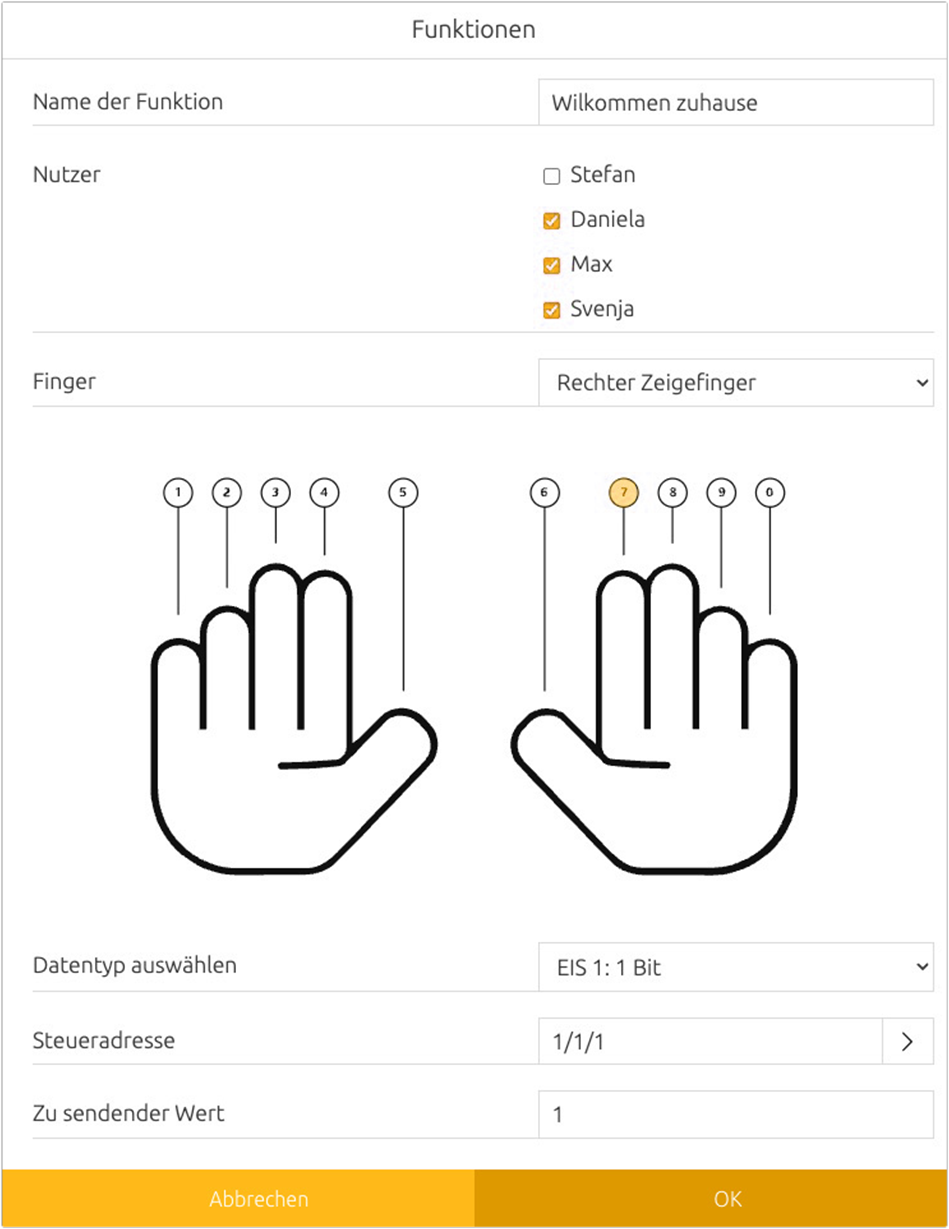
Each function is configured using the following parameters (see the following screenshot):
-
Function Name – Freely selectable name used to identify the function (for example, Welcome or Close Garage).
-
Users – Select one or more users using the checkboxes. The function is executed only for the selected users.
-
Finger – Select the finger that should trigger the function from the drop-down list.
-
Data Type – Select the data type for the telegram value to be sent:
-
EIS 1: 1 Bit
-
EIS 5: 2 Byte Floating Point
-
EIS 6: 0%..100%
-
EIS 9: 4 Byte Floating Point
-
EIS 10s: 2 Byte (-32768..32767)
-
EIS 10u: 2 Byte (0..65535)
-
EIS 11s: 4 Byte (-2147483648..2147483647)
-
EIS 11u: 4 Byte (0..4294967295)
-
EIS 14s: 1 Byte (-128..127)
-
EIS 14u: 1 Byte (0..255)
-
-
Control Address – Enter the KNX group address to which the configured telegram value should be sent when the function is triggered.
-
Value to Send – Enter the value that should be transmitted to the configured group address.
Important
The configured value must match the selected data type.
A maximum of 10 functions can be configured.
///