
When the instance is started and the connection to the DoorBird door station is established, the required configuration settings are created automatically on the DoorBird device.
If the connection cannot be established, please check the following information.
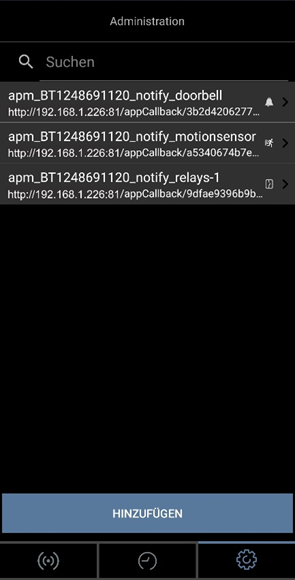
The automatically generated connections used by the Smart Home App are available in the Administration section of the DoorBird interface under "Favorites".
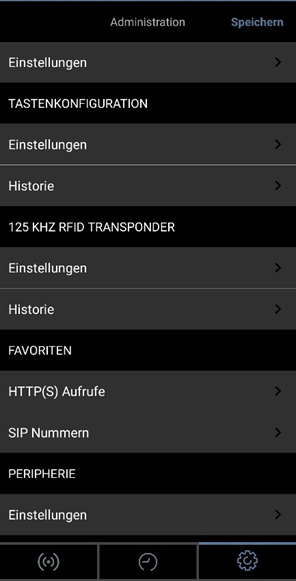
A corresponding connection entry is created for each configured control object, for example:
-
Doorbell call
-
Camera motion detector
-
Relay contact
For the advanced functions controlled by the APPMODULE, the corresponding HTTP(S) schedules must be configured on the DoorBird door station.
Even if the connection between your DoorBird device and the APPMODULE has been established successfully, the functions are only available after the required permissions and schedules have been configured.
Open the Administration section of the DoorBird interface and navigate to Users. Open the corresponding user and access its Settings.
Make sure that the "API Operator" permission is enabled.
Then verify that the required HTTP(S) schedules exist for all functions used by the APPMODULE.
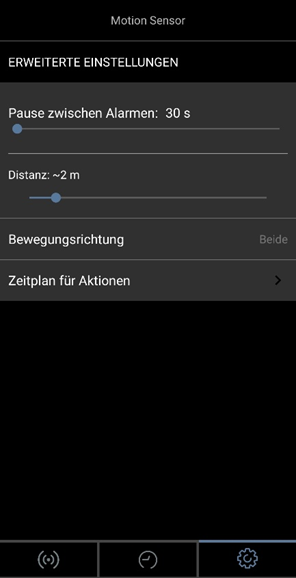
Configure the properties of the motion detector as shown in the example.
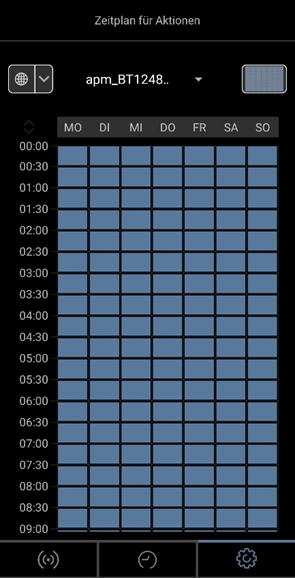
Then verify that the corresponding HTTP(S) schedule for the Motion Detector action has been created. This schedule also defines whether the motion detector is active at all times or only during specific time periods.
Note
The available menus and their order may vary depending on the DoorBird model.
///