
The Onboarding Pass allows you to connect additional mobile devices to a CUBEVISION2 project quickly and securely. The function is available in the CUBEVISION App for Android and iOS and supports both remote connections via HOOC or Secure Proxy and local project connections.
The required connection data is transferred as an encrypted QR code. The Secure Proxy link or local project address does not need to be entered manually on the additional devices.
Overview:
How It Works
The connection to the CUBEVISION2 project is initially configured on one device. For a remote connection, the Secure Proxy link only needs to be entered once in the CUBEVISION App.
This originally configured device can then generate an Onboarding Pass for additional devices. For security reasons, the encrypted QR code is refreshed automatically every 30 seconds.
Once the QR code has been successfully scanned and validated, the CUBEVISION App automatically transfers the connection data to the new device. The connection is stored permanently with the project, allowing the project to be opened later without scanning the code again.
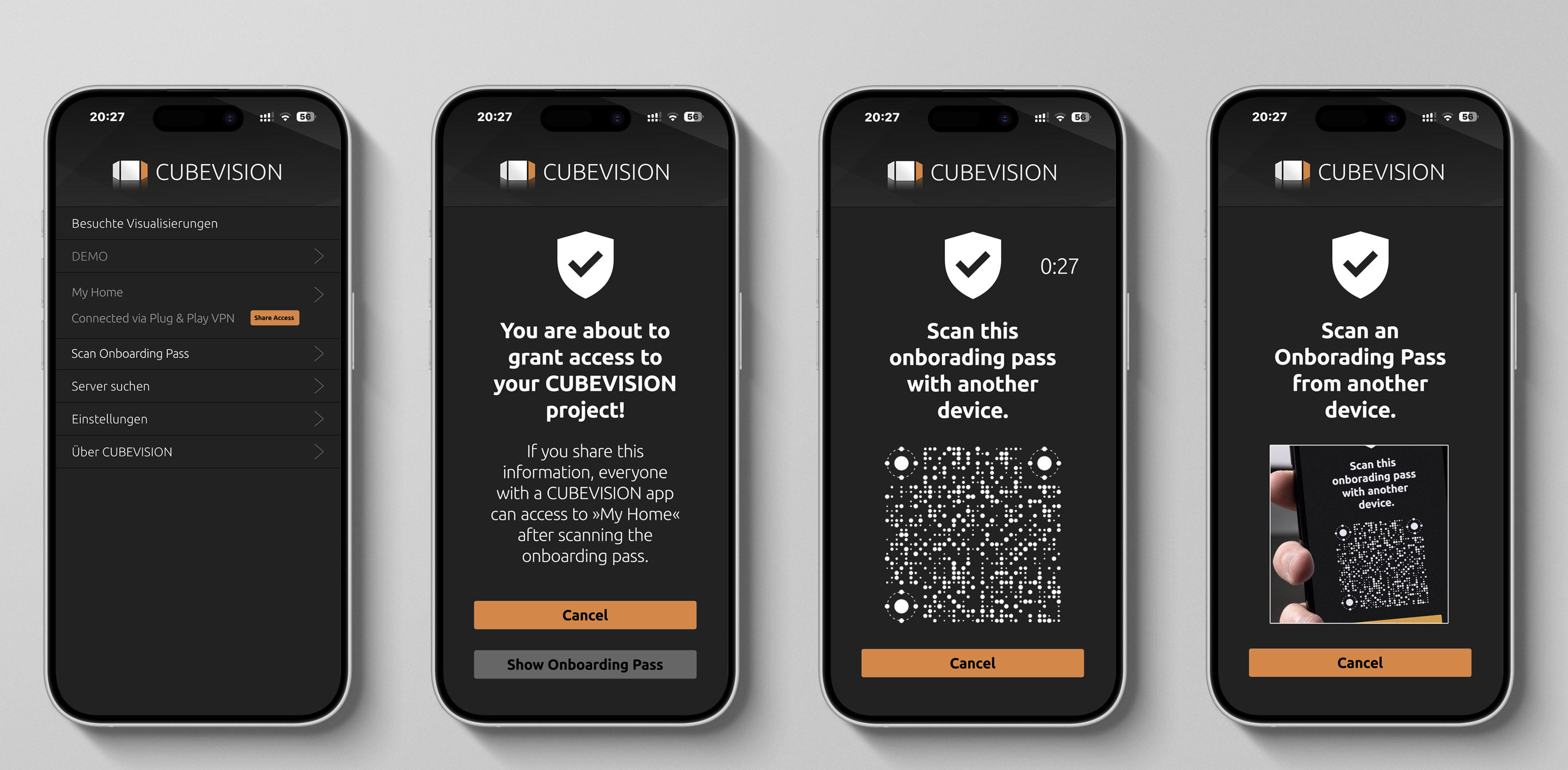
Connection Options
-
HOOC permalink: Provides access via the connection supplied by HOOC.
-
Local project address: Provides access within the local network in which the CUBEVISION project is available.
Note
A local project address does not provide access from outside the local network. The receiving mobile device must be connected to a network through which the specified address can be reached.
Requirements
-
A current version of the CUBEVISION2+ App is installed on both mobile devices.
-
A valid HOOC permalink or an accessible local address is available for the project.
-
The CUBEVISION2+ App requires access to the mobile device’s camera for scanning.
-
When using a local address, the CUBEVISION2+ device and the receiving mobile device must be on the same network or on appropriately interconnected networks.
Displaying and Sharing an Onboarding Pass
Proceed as follows on the originally configured device:
-
Open the list of previously visited visualisations in the CUBEVISION App.
-
Select “Share Access” for the required project.
-
Read and confirm the security notice.
-
Select “Show Onboarding Pass”.
-
Allow the additional device to scan the QR code directly or share it using the mobile device’s native share function.
The QR code is refreshed automatically every 30 seconds. A shared QR code can therefore only be used while it remains valid. If it has expired, generate a new Onboarding Pass on the originally configured device.
Because the connection is stored permanently with the project, the originally configured device can generate the Onboarding Pass again whenever required.
Scanning an Onboarding Pass
Proceed as follows on the additional device:
-
Install and open the CUBEVISION App.
-
Select “Scan Onboarding Pass”.
-
Grant the required camera permission when using the function for the first time.
-
Point the camera at the QR code or open the previously shared Onboarding Pass.
-
Wait until the QR code has been validated and the project has opened.
After successful validation, the CUBEVISION2 project is configured automatically and added to the list of previously visited visualisations.
Connecting Additional Devices
To connect further devices, open the Onboarding Pass again on the originally configured device and repeat the process. This allows any number of additional devices to be connected to the project one after another.
Security Notice
Only the device on which the connection was originally configured may generate Onboarding Passes and share them using the native share function.
Devices added using an Onboarding Pass can access the project, but cannot generate further Onboarding Passes or share the connection with other devices.
Local Connections
The Onboarding Pass can also be used for locally configured project connections. The additional device automatically adopts the local project address and stores it with the project.
Note
For a local connection, the additional device must be connected to a network through which the local address of the CUBEVISION2 project can be reached. The Onboarding Pass does not itself provide external network access.
Errors and Cancellation
If the QR code cannot be read or successfully validated, the app displays an appropriate error message. In this case, use the QR code currently displayed and start the scanning process again.
Invalid, expired or unsupported connection data is not stored and the project is not added.
If camera permission is denied, the scanning process cannot be started. You can grant the permission later in the mobile device’s system settings.
If the scanning process is cancelled, the app returns to the previous screen without making any changes.
Security Notice
The Onboarding Pass contains the information required to access the associated project. Only share it with people you trust.
///